> ## Documentation Index
> Fetch the complete documentation index at: https://docs.getsolum.com/llms.txt
> Use this file to discover all available pages before exploring further.
# AI Faxes
> Process, extract data from, and match incoming faxes to patient profiles using Solum's AI-powered fax management
Solum's AI Faxes feature processes your incoming faxes automatically, extracting patient data like demographics, insurance details, and referral information. This prevents manual data entry errors and lets you sync everything directly into patient profiles.
To see faxes in Solum, you need to forward them to our system first. Contact [**support@getsolum.com**](mailto:support@getsolum.com) to set up fax forwarding for your practice.
***
## Quick Start
1. Go to **AI Faxes** in the left menu.
2. Review fax summary counts at the top of the page.
3. Use filters to find the faxes you need.
4. Click on a fax to open the detail sidebar.
5. Review the extracted data and correct anything if needed.
6. Click **Match Patient** to link the fax to a new or existing patient.
7. Choose whether to send an intake form, run verification of benefits or just create/update a patient.
***
## Accessing AI Faxes
1. Open the left navigation menu.
2. Click **AI Faxes**.
3. You will see the full fax list with a summary bar at the top showing four counts: **All**, **Completed**, **Pending**, and **Action Required**.
***
## Understanding the Summary Bar
At the top of the page, you will see four summary cards:
| Status | What It Means |
| ------------------- | ------------------------------------------------------------------------ |
| **All** | Total number of faxes in the system |
| **Completed** | Faxes that have been reviewed and processed by your team |
| **Pending** | Faxes that have not been reviewed yet |
| **Action Required** | Faxes that someone on your team flagged for follow-up or double-checking |
***
## Filtering Your Faxes
Use the filter bar below the summary to narrow down the fax list. You can filter by:
| Filter | Options |
| ------------------- | ---------------------------------------------------------------------------------------------------------------------------- |
| **Patient Name** | Search by the patient's name |
| **Insurance** | Filter by insurance provider |
| **Processing** | Received, Processing, Extracted, Matched, Error |
| **Type** | Referral, Authorization, Intake Documents, Legal Documents, Financial Documents, Insurance Card, Billing, Spam, Plan of Care |
| **Location** | Filter by practice location |
| **Fax ID** | Search by the fax's unique ID |
| **Patient ID** | Search by a specific patient ID |
| **From Fax Number** | Filter by the fax number that sent the document |
 Use the **Type** filter to focus on the faxes that matter most. For example, filter by **Referral** or **Authorization** to skip spam and billing documents during your daily review.
### Processing Status Explained
| Status | What It Means |
| -------------- | ---------------------------------------------------------------- |
| **Received** | The fax arrived but has not been processed yet |
| **Processing** | Solum's AI is currently reading and extracting data from the fax |
| **Extracted** | Data has been pulled from the fax and is ready for review |
| **Matched** | The fax has already been linked to a patient profile |
| **Error** | Something went wrong during processing (you can reprocess these) |
***
## Understanding Review Statuses
Each fax has a **Review Status** that tells you what action is needed:
| Review Status | What It Means |
| ------------------- | ------------------------------------------------------------------------------------- |
| **Pending** | The fax has not been reviewed by your team yet. This is where you start. |
| **Completed** | Someone from your team has already reviewed and handled this fax. No action needed. |
| **Action Required** | Someone flagged this fax for a second look or needs another team member to follow up. |
Use the **Type** filter to focus on the faxes that matter most. For example, filter by **Referral** or **Authorization** to skip spam and billing documents during your daily review.
### Processing Status Explained
| Status | What It Means |
| -------------- | ---------------------------------------------------------------- |
| **Received** | The fax arrived but has not been processed yet |
| **Processing** | Solum's AI is currently reading and extracting data from the fax |
| **Extracted** | Data has been pulled from the fax and is ready for review |
| **Matched** | The fax has already been linked to a patient profile |
| **Error** | Something went wrong during processing (you can reprocess these) |
***
## Understanding Review Statuses
Each fax has a **Review Status** that tells you what action is needed:
| Review Status | What It Means |
| ------------------- | ------------------------------------------------------------------------------------- |
| **Pending** | The fax has not been reviewed by your team yet. This is where you start. |
| **Completed** | Someone from your team has already reviewed and handled this fax. No action needed. |
| **Action Required** | Someone flagged this fax for a second look or needs another team member to follow up. |
 ***
## Viewing a Fax
1. Click anywhere on a fax row to open it.
2. A sidebar will open showing:
* **Fax information** at the top (sender details, fax type, received date).
* **The PDF** of the original fax document.
* **Extracted information** below the PDF.
### Extracted Data Sections
The AI extracts and organizes data into these sections:
| Section | Data Included |
| ------------------------ | -------------------------------------------------- |
| **Basic Demographics** | Patient name, date of birth, phone number, address |
| **Payor Information** | Insurance company, member ID |
| **Referral Information** | Referring physician details, medical information |
| **Location** | Practice or facility details |
## Matching a Fax to a Patient
This is the core workflow. You are taking the extracted fax data and either creating a new patient or updating an existing one.
### Step 1: Start the Match
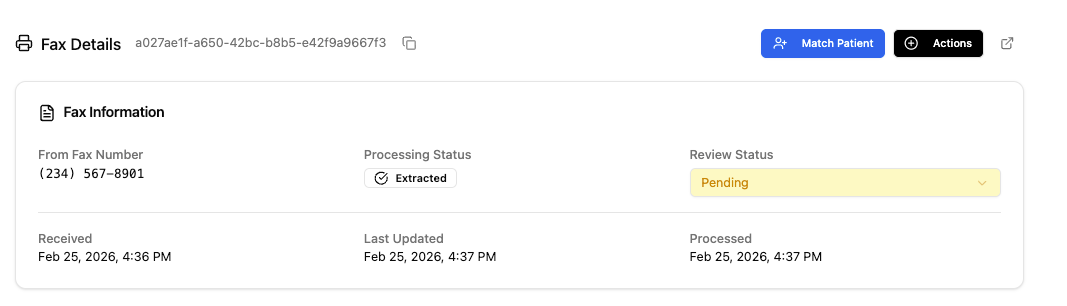
1. From the fax detail sidebar, click the blue **Match Patient** button at the top, or scroll down and click **Continue with Patient Matching**. Both take you to the same screen.
***
## Viewing a Fax
1. Click anywhere on a fax row to open it.
2. A sidebar will open showing:
* **Fax information** at the top (sender details, fax type, received date).
* **The PDF** of the original fax document.
* **Extracted information** below the PDF.
### Extracted Data Sections
The AI extracts and organizes data into these sections:
| Section | Data Included |
| ------------------------ | -------------------------------------------------- |
| **Basic Demographics** | Patient name, date of birth, phone number, address |
| **Payor Information** | Insurance company, member ID |
| **Referral Information** | Referring physician details, medical information |
| **Location** | Practice or facility details |
## Matching a Fax to a Patient
This is the core workflow. You are taking the extracted fax data and either creating a new patient or updating an existing one.
### Step 1: Start the Match
1. From the fax detail sidebar, click the blue **Match Patient** button at the top, or scroll down and click **Continue with Patient Matching**. Both take you to the same screen.
 ### Step 2: Review and Edit Extracted Data
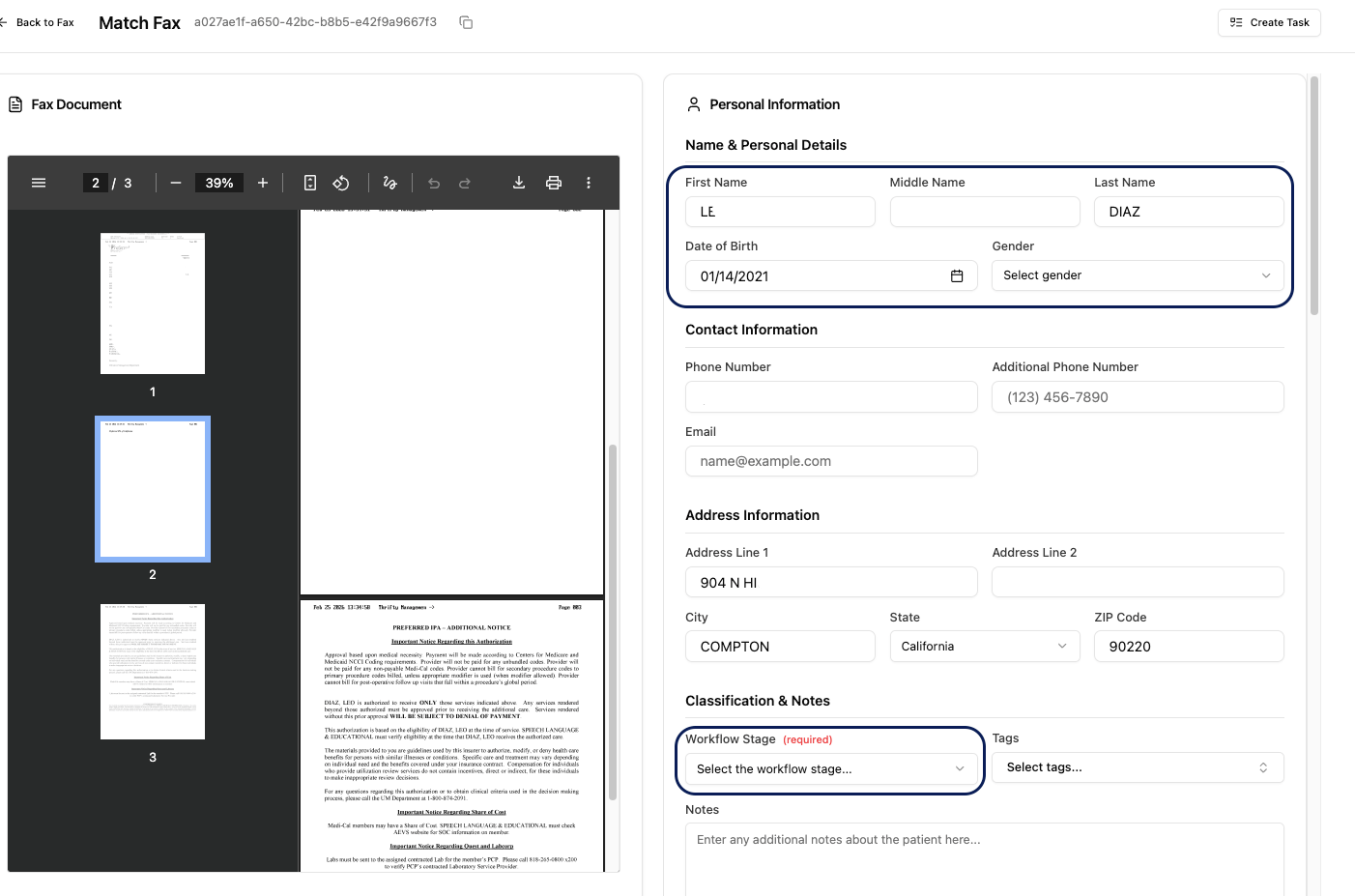
1. On the left side of the screen, you will see the original fax PDF. You can download it from here.
2. On the right side, you will see all the extracted data fields.
3. Review each field and correct anything the AI may have gotten wrong.
To create a patient, you need at minimum: **First Name**, **Last Name**, and **Date of Birth**, or **First Name**, **Last Name**, and **Phone Number**. Make sure these fields are filled in correctly before proceeding.
### Step 3: Select the Workflow Stage
1. Choose the **Workflow Stage** you want to place the patient in. This determines where the patient appears in your pipeline.
### Step 2: Review and Edit Extracted Data
1. On the left side of the screen, you will see the original fax PDF. You can download it from here.
2. On the right side, you will see all the extracted data fields.
3. Review each field and correct anything the AI may have gotten wrong.
To create a patient, you need at minimum: **First Name**, **Last Name**, and **Date of Birth**, or **First Name**, **Last Name**, and **Phone Number**. Make sure these fields are filled in correctly before proceeding.
### Step 3: Select the Workflow Stage
1. Choose the **Workflow Stage** you want to place the patient in. This determines where the patient appears in your pipeline.
 ### Step 4: Handle Insurance Data
If the fax contains insurance information:
1. You can **match it with an existing insurance** from your settings.
2. Or you can **create a new insurance** directly from the fax matching screen.
### Step 4: Handle Insurance Data
If the fax contains insurance information:
1. You can **match it with an existing insurance** from your settings.
2. Or you can **create a new insurance** directly from the fax matching screen.
 ### Step 5: Match or Create the Patient
1. Scroll down to the **Match Patient** section.
2. You will see one of two options:
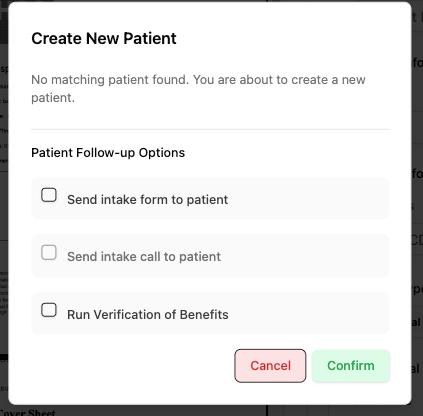
* **New Patient**: A pop-up will appear to create a new patient record with the extracted data.
* **Existing Patient**: If Solum finds a match, you can update the existing patient and the fax file will be uploaded to their profile.
### Step 5: Match or Create the Patient
1. Scroll down to the **Match Patient** section.
2. You will see one of two options:
* **New Patient**: A pop-up will appear to create a new patient record with the extracted data.
* **Existing Patient**: If Solum finds a match, you can update the existing patient and the fax file will be uploaded to their profile.
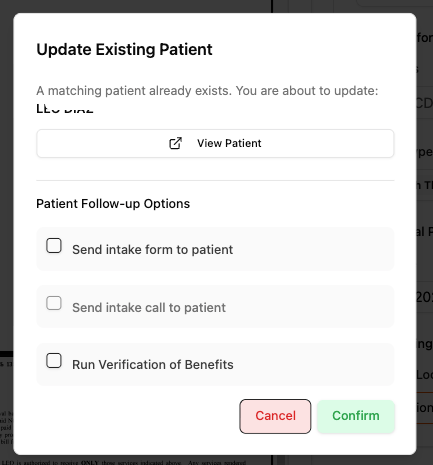 Patient matching is based on **phone number** or **demographics** (name, last name and date of birth). Before updating an existing patient, confirm it is the correct person so you do not overwrite another patient's information. If the system is matching based on a phone number that belongs to someone else (like a parent or guardian), go back to the fax data and remove the phone number, then try matching again.
### Step 6: Optional Actions After Matching
After matching, you have two optional actions:
1. **Send Intake Form**: If you have an intake form set up, check the checkbox to trigger the intake sequence automatically.
2. **Run Verification of Benefits**: Click this to create a task for Solum's team. The patient will move to the **Needs Verification of Benefits** stage, and Solum will handle the insurance verification for you.
***
## Using the Actions Menu
Each fax row has a three-dot menu (**...**) in the **Action** column. Click it to access these options:
Patient matching is based on **phone number** or **demographics** (name, last name and date of birth). Before updating an existing patient, confirm it is the correct person so you do not overwrite another patient's information. If the system is matching based on a phone number that belongs to someone else (like a parent or guardian), go back to the fax data and remove the phone number, then try matching again.
### Step 6: Optional Actions After Matching
After matching, you have two optional actions:
1. **Send Intake Form**: If you have an intake form set up, check the checkbox to trigger the intake sequence automatically.
2. **Run Verification of Benefits**: Click this to create a task for Solum's team. The patient will move to the **Needs Verification of Benefits** stage, and Solum will handle the insurance verification for you.
***
## Using the Actions Menu
Each fax row has a three-dot menu (**...**) in the **Action** column. Click it to access these options:
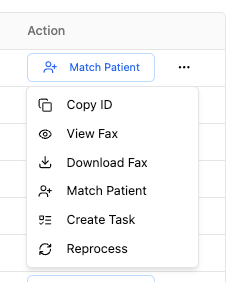 | Action | What It Does |
| ----------------- | --------------------------------------------------------------------------- |
| **Copy ID** | Copies the fax's unique ID to your clipboard |
| **View Fax** | Opens the fax document for viewing |
| **Download Fax** | Saves the fax as a PDF to your downloads folder |
| **Match Patient** | Opens the patient matching workflow |
| **Create Task** | Creates a task and assigns it to a team member |
| **Reprocess** | Retries the AI extraction (use this when Processing Status shows **Error**) |
***
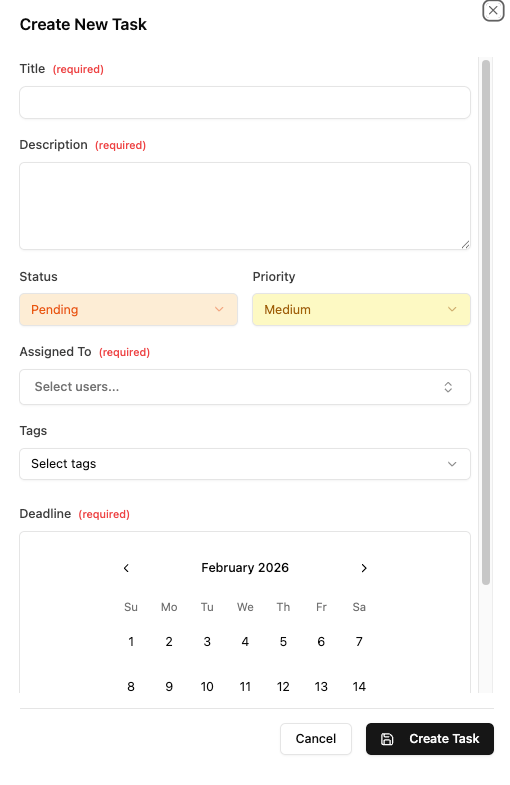
## Creating a Task from a Fax
If you need someone on your team to review or follow up on a fax:
1. Click the three-dot menu (**...**) on the fax row.
2. Select **Create Task**.
3. Fill in the required fields:
* **Title**: A short description of what needs to be done.
* **Description**: Details about the task or fax.
* **Assigned To**: Select the team member who should handle it.
* **Status**: Defaults to **Pending**.
* **Priority**: Set to **Medium** by default. Change as needed.
* **Deadline**: Select a due date from the calendar.
4. Click **Create Task**.
The assigned team member will receive an email notification and can review the task in the **Tasks** section of the platform.
| Action | What It Does |
| ----------------- | --------------------------------------------------------------------------- |
| **Copy ID** | Copies the fax's unique ID to your clipboard |
| **View Fax** | Opens the fax document for viewing |
| **Download Fax** | Saves the fax as a PDF to your downloads folder |
| **Match Patient** | Opens the patient matching workflow |
| **Create Task** | Creates a task and assigns it to a team member |
| **Reprocess** | Retries the AI extraction (use this when Processing Status shows **Error**) |
***
## Creating a Task from a Fax
If you need someone on your team to review or follow up on a fax:
1. Click the three-dot menu (**...**) on the fax row.
2. Select **Create Task**.
3. Fill in the required fields:
* **Title**: A short description of what needs to be done.
* **Description**: Details about the task or fax.
* **Assigned To**: Select the team member who should handle it.
* **Status**: Defaults to **Pending**.
* **Priority**: Set to **Medium** by default. Change as needed.
* **Deadline**: Select a due date from the calendar.
4. Click **Create Task**.
The assigned team member will receive an email notification and can review the task in the **Tasks** section of the platform.
 ***
## Troubleshooting
| Problem | Fix |
| ------------------------------------------- | ------------------------------------------------------------------------------------------------------------------------------------- |
| Fax shows Processing Status: **Error** | Click the three-dot menu and select **Reprocess** to retry the AI extraction |
| Wrong patient matched based on phone number | Go back to the fax data, remove the phone number, and try matching again. The system will then match on demographics instead. |
| Fax is not appearing in the list | Make sure your fax forwarding is set up. Contact [**support@getsolum.com**](mailto:support@getsolum.com) if you need help. |
| Extracted data is incorrect | You can edit any field in the extraction review screen before matching. Always double-check names, dates of birth, and insurance IDs. |
***
## Troubleshooting
| Problem | Fix |
| ------------------------------------------- | ------------------------------------------------------------------------------------------------------------------------------------- |
| Fax shows Processing Status: **Error** | Click the three-dot menu and select **Reprocess** to retry the AI extraction |
| Wrong patient matched based on phone number | Go back to the fax data, remove the phone number, and try matching again. The system will then match on demographics instead. |
| Fax is not appearing in the list | Make sure your fax forwarding is set up. Contact [**support@getsolum.com**](mailto:support@getsolum.com) if you need help. |
| Extracted data is incorrect | You can edit any field in the extraction review screen before matching. Always double-check names, dates of birth, and insurance IDs. |