> ## Documentation Index
> Fetch the complete documentation index at: https://docs.getsolum.com/llms.txt
> Use this file to discover all available pages before exploring further.
# Custom Fields
> Define additional data fields on patient records to capture information specific to your workflows
# Custom Fields
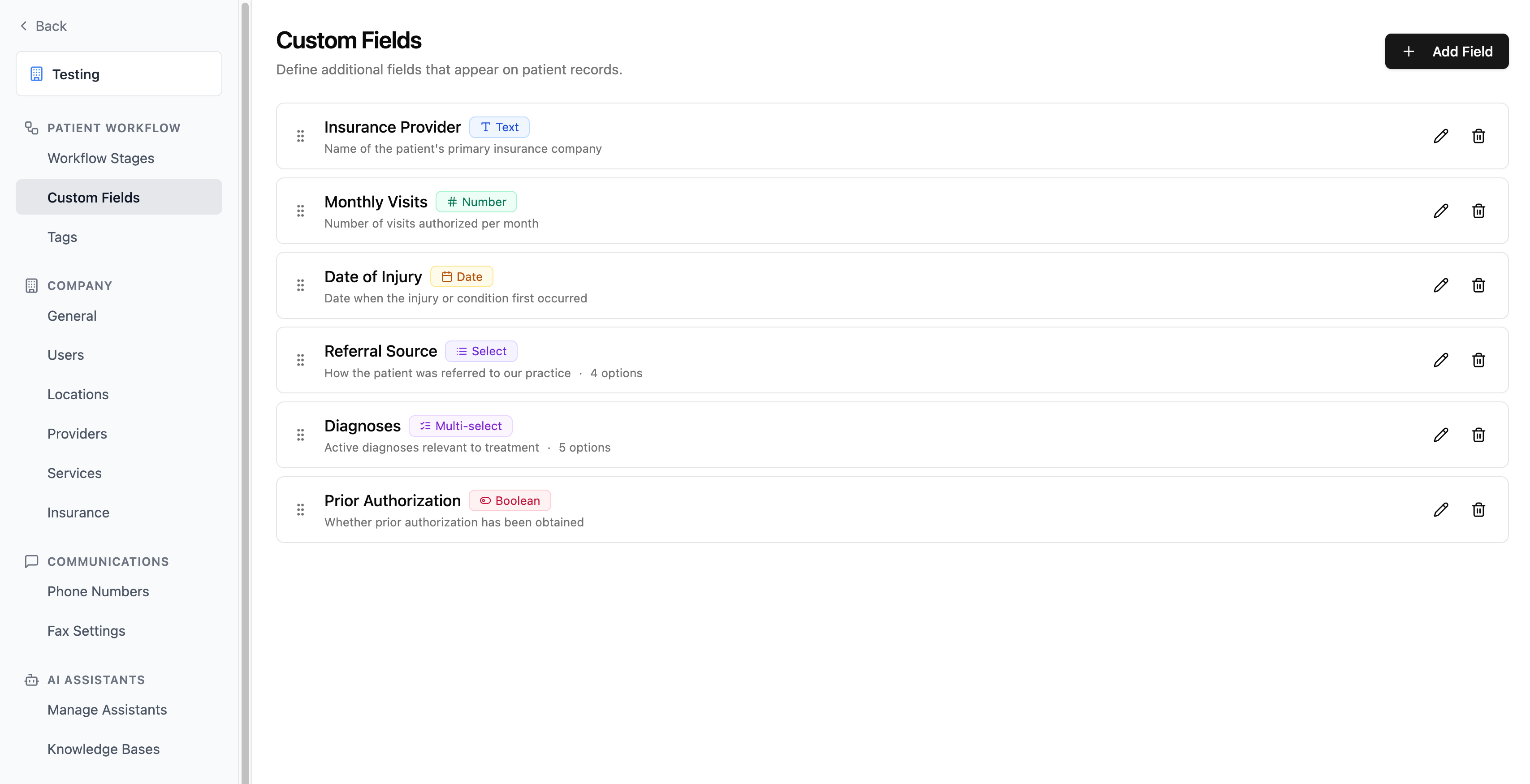
Custom fields let you add your own data points to every patient record. Define the fields your team needs — text, numbers, dates, dropdowns, or toggles — and they appear on every patient profile for your company.
Manage custom fields from **Settings → [Custom Fields](https://app.getsolum.com/settings/fields)**.
 ## Quick Start
1. **Go to Settings → Custom Fields** in your Solum dashboard.
2. **Click "Add Field"** to open the field creation form.
3. **Enter a label** (e.g., "Preferred Therapist") — a field key is generated automatically.
4. **Choose a type** (text, number, date, select, multiselect, or boolean).
5. **Save** — the field now appears on every patient profile in your company.
6. **Fill in values** on individual patient records or via the API.
***
## Field Types
| Type | Description | Example Value |
| --------------- | ------------------------ | -------------------------------- |
| **Text** | Single-line free text | `Dr. Jane Smith` |
| **Number** | Numeric value | `42` |
| **Date** | Date picker | `2026-01-15` |
| **Select** | Single-choice dropdown | `High Priority` |
| **Multiselect** | Multiple-choice dropdown | `Physical Therapy, Consultation` |
| **Boolean** | Yes / No toggle | `Yes` |
***
## Creating a Field
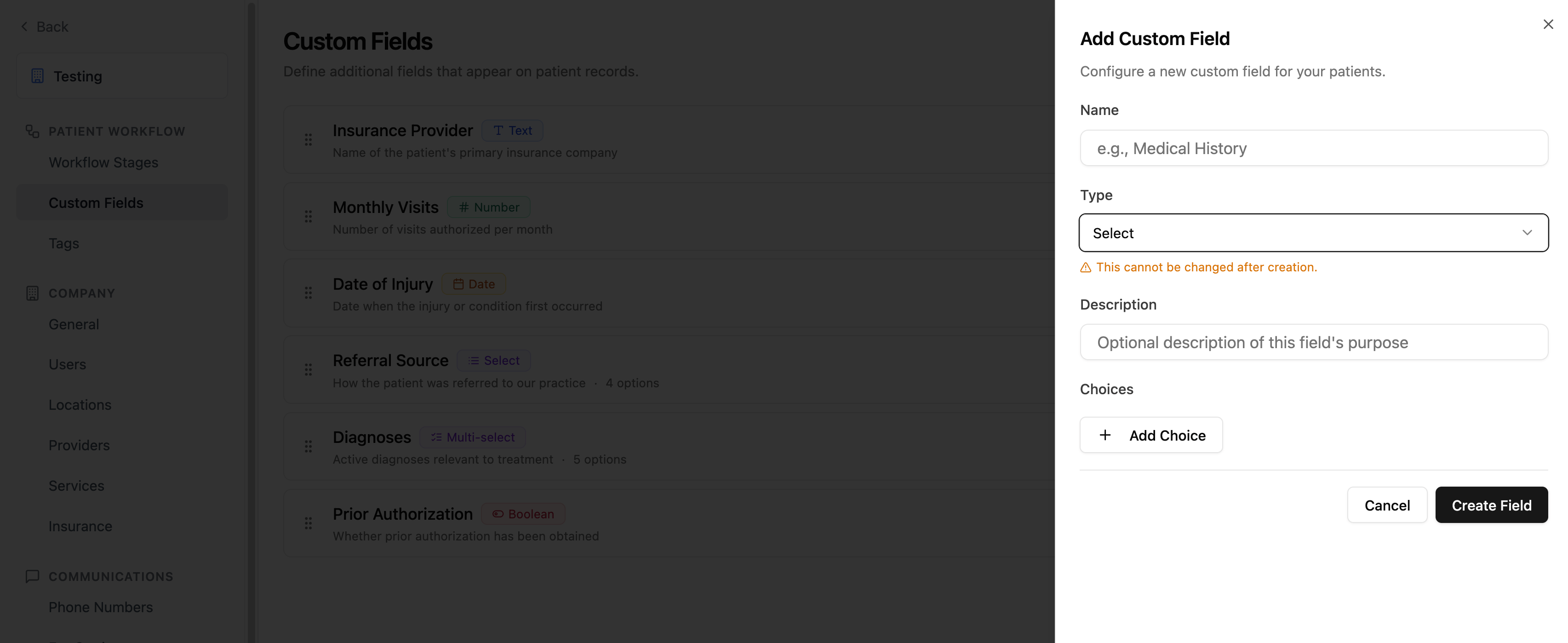
Click **Add Field** to open the creation form. Fill in the following:
* **Label** (required) — The display name shown on patient profiles. A snake\_case **field key** (e.g., `preferred_therapist`) is generated automatically from the label.
* **Type** (required) — Choose one of the six field types listed above.
* **Description** (optional) — Help text explaining what the field captures.
* **Options** (select and multiselect only) — Add the choices that will appear in the dropdown.
The field **type** cannot be changed after creation. Choose carefully.
## Quick Start
1. **Go to Settings → Custom Fields** in your Solum dashboard.
2. **Click "Add Field"** to open the field creation form.
3. **Enter a label** (e.g., "Preferred Therapist") — a field key is generated automatically.
4. **Choose a type** (text, number, date, select, multiselect, or boolean).
5. **Save** — the field now appears on every patient profile in your company.
6. **Fill in values** on individual patient records or via the API.
***
## Field Types
| Type | Description | Example Value |
| --------------- | ------------------------ | -------------------------------- |
| **Text** | Single-line free text | `Dr. Jane Smith` |
| **Number** | Numeric value | `42` |
| **Date** | Date picker | `2026-01-15` |
| **Select** | Single-choice dropdown | `High Priority` |
| **Multiselect** | Multiple-choice dropdown | `Physical Therapy, Consultation` |
| **Boolean** | Yes / No toggle | `Yes` |
***
## Creating a Field
Click **Add Field** to open the creation form. Fill in the following:
* **Label** (required) — The display name shown on patient profiles. A snake\_case **field key** (e.g., `preferred_therapist`) is generated automatically from the label.
* **Type** (required) — Choose one of the six field types listed above.
* **Description** (optional) — Help text explaining what the field captures.
* **Options** (select and multiselect only) — Add the choices that will appear in the dropdown.
The field **type** cannot be changed after creation. Choose carefully.
 ***
## Editing a Field
Click on any existing field to edit it. You can change:
| Property | Editable? | Notes |
| ---------------------------- | --------- | -------------------------------------- |
| Label | Yes | Update the display name at any time |
| Description | Yes | Add or change the help text |
| Options (select/multiselect) | Yes | Add or remove dropdown choices |
| Field key | Yes | Available under the "Advanced" section |
| Type | No | Locked after creation |
**Removing a select or multiselect option** will clear that value from every patient record that had it selected. This action cannot be undone.
***
## Reordering Fields
Drag fields using the grip handle on the left side of each row to reorder them. The new order is saved automatically and determines the display order on patient profiles.
***
## Deleting a Field
Click the delete action on a field to remove it. A confirmation dialog will appear.
Deleting a field **permanently** removes it and clears its value from **all patient records** in your company. This action cannot be undone.
***
## Setting Values on Patients
Once created, custom fields appear in the **Additional Information** section of each patient profile. Values can be set:
* **In the dashboard** — Edit a patient and fill in the custom fields section
* **Via the API** — Include a `custom_fields` object when creating or updating patients through the `/v1/patients` endpoint, using field IDs as keys
***
## Fax Extraction
Custom fields can be automatically extracted from incoming faxes using AI. To enable this:
1. Go to **Settings → [Custom Fields](https://app.getsolum.com/settings/fields)**.
2. Toggle on **extraction** for each custom field you want extracted from fax documents (each field row has an extraction switch).
3. When a fax arrives, Solum's AI reads the document and fills in the enabled fields on the patient record.
Extraction works best when fields have clear labels and descriptions. For select and multiselect fields, the AI matches extracted text against your defined options.
***
## Locked Organizations
Some organizations have custom field management locked (typically when fields are managed by an external integration or EHR sync). When locked:
* You cannot add, edit, delete, or reorder fields
* An alert banner is shown on the settings page explaining the restriction
Contact your administrator if you need to make changes to a locked configuration.
***
## Troubleshooting
| Problem | Fix |
| ----------------------------------------------------------- | --------------------------------------------------------------------------------------------------------------------------------------------- |
| "Custom field management is disabled for this organization" | Custom fields are locked for your company. Contact your administrator. |
| Cannot change a field's type | Field type is permanently set at creation and cannot be changed afterward. Create a new field with the correct type instead. |
| Select/multiselect values disappeared from patients | An option was removed from the field. Removing an option clears that value from all patient records. |
| Field not showing on patient profiles | Make sure the field was saved successfully. Refresh the page and check Settings → Custom Fields. |
| Fax extraction not populating a field | Verify the field is toggled on in Settings → Fax → Extraction Settings. Adding a clear description to the field improves extraction accuracy. |
***
## Editing a Field
Click on any existing field to edit it. You can change:
| Property | Editable? | Notes |
| ---------------------------- | --------- | -------------------------------------- |
| Label | Yes | Update the display name at any time |
| Description | Yes | Add or change the help text |
| Options (select/multiselect) | Yes | Add or remove dropdown choices |
| Field key | Yes | Available under the "Advanced" section |
| Type | No | Locked after creation |
**Removing a select or multiselect option** will clear that value from every patient record that had it selected. This action cannot be undone.
***
## Reordering Fields
Drag fields using the grip handle on the left side of each row to reorder them. The new order is saved automatically and determines the display order on patient profiles.
***
## Deleting a Field
Click the delete action on a field to remove it. A confirmation dialog will appear.
Deleting a field **permanently** removes it and clears its value from **all patient records** in your company. This action cannot be undone.
***
## Setting Values on Patients
Once created, custom fields appear in the **Additional Information** section of each patient profile. Values can be set:
* **In the dashboard** — Edit a patient and fill in the custom fields section
* **Via the API** — Include a `custom_fields` object when creating or updating patients through the `/v1/patients` endpoint, using field IDs as keys
***
## Fax Extraction
Custom fields can be automatically extracted from incoming faxes using AI. To enable this:
1. Go to **Settings → [Custom Fields](https://app.getsolum.com/settings/fields)**.
2. Toggle on **extraction** for each custom field you want extracted from fax documents (each field row has an extraction switch).
3. When a fax arrives, Solum's AI reads the document and fills in the enabled fields on the patient record.
Extraction works best when fields have clear labels and descriptions. For select and multiselect fields, the AI matches extracted text against your defined options.
***
## Locked Organizations
Some organizations have custom field management locked (typically when fields are managed by an external integration or EHR sync). When locked:
* You cannot add, edit, delete, or reorder fields
* An alert banner is shown on the settings page explaining the restriction
Contact your administrator if you need to make changes to a locked configuration.
***
## Troubleshooting
| Problem | Fix |
| ----------------------------------------------------------- | --------------------------------------------------------------------------------------------------------------------------------------------- |
| "Custom field management is disabled for this organization" | Custom fields are locked for your company. Contact your administrator. |
| Cannot change a field's type | Field type is permanently set at creation and cannot be changed afterward. Create a new field with the correct type instead. |
| Select/multiselect values disappeared from patients | An option was removed from the field. Removing an option clears that value from all patient records. |
| Field not showing on patient profiles | Make sure the field was saved successfully. Refresh the page and check Settings → Custom Fields. |
| Fax extraction not populating a field | Verify the field is toggled on in Settings → Fax → Extraction Settings. Adding a clear description to the field improves extraction accuracy. |