> ## Documentation Index
> Fetch the complete documentation index at: https://docs.getsolum.com/llms.txt
> Use this file to discover all available pages before exploring further.
# Running an Eligibility Check
> Verify a patient's insurance coverage and benefits directly from the Solum platform
Eligibility checks let you verify a patient's insurance coverage and benefits in real time. You can run a check from the **Eligibility Checks** section in the left menu. If the patient doesn't exist in Solum yet, you can create their record directly from the results.
***
## Quick Start
1. Go to **Eligibility Checks** in the left menu.
2. Click **New Eligibility Check**.
3. Enter the patient's **First Name**, **Last Name**, **Date of Birth**, and **Member ID**.
4. Enter your **Provider NPI**.
5. Select the **Insurance Payer**.
6. Set the **Date of Service** and **Service Type**.
7. Click **Verify Insurance**.
***
## Step-by-Step
### Opening a New Check
1. Go to the left menu and click **Eligibility Checks**.
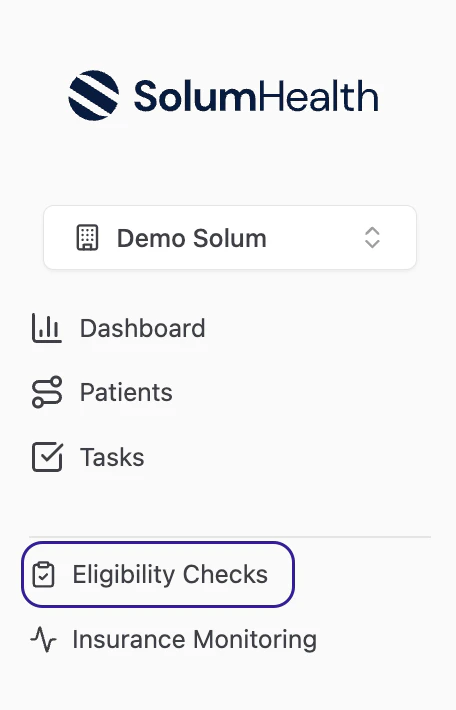 2) Click the **New Eligibility Check** button in the top right corner.
 ***
### Entering Patient Information
If the patient already exists in Solum, use the **Search existing patient** bar at the top to find and pre-fill their details.
If the patient has not been created in Solum yet, enter their information manually:
3. Fill in the following fields:
| Field | Required | Description |
| ----------------- | -------- | ---------------------------------------------------------- |
| **First Name** | Yes | Patient's first name as it appears on their insurance card |
| **Last Name** | Yes | Patient's last name as it appears on their insurance card |
| **Date of Birth** | Yes | Patient's date of birth in MM/DD/YYYY format |
| **Member ID** | Yes | The member ID from the patient's insurance card |
Enter all information exactly as it appears on the insurance card. Do not include middle names in the **First Name** field. Payers are strict, and small discrepancies can result in a **Failed** status.
***
### Provider and Insurance Information
4. Enter your **Provider NPI** in the Provider Information section:
Your NPI is a 10-digit number. If you're unsure which NPI to use, check with your billing team or contact [support@getsolum.com](mailto:support@getsolum.com).
5. Select the **Insurance Payer** from the dropdown.
You can start typing the payer name to search and scroll to find the correct option.
If you're unsure which payer to choose, email [support@getsolum.com](mailto:support@getsolum.com) and the Solum team will help you identify the correct one.
***
### Encounter Information
6. Select the **Date of Service**.
You can choose today's date or a specific past date if needed.
7. Select the **Service Type** from the dropdown.
For general health benefits, you can use **Service Type 30**. We recommend running only one service type at a time for the most accurate results. \
**Examples:** \
**ABA:** CF\
**Speech Therapy:** AF\
**Occupational Therapy:** AD\
**Physical Therapy:** PT
***
### Running the Check
8. Click the **Verify Insurance** button.
The system will process the check and return the eligibility results.
***
## Reviewing Results
9. Once the check is completed, you will see the eligibility results on screen. At the top, you will see whether the patient's coverage is **Active** or **Inactive**.
***
### Entering Patient Information
If the patient already exists in Solum, use the **Search existing patient** bar at the top to find and pre-fill their details.
If the patient has not been created in Solum yet, enter their information manually:
3. Fill in the following fields:
| Field | Required | Description |
| ----------------- | -------- | ---------------------------------------------------------- |
| **First Name** | Yes | Patient's first name as it appears on their insurance card |
| **Last Name** | Yes | Patient's last name as it appears on their insurance card |
| **Date of Birth** | Yes | Patient's date of birth in MM/DD/YYYY format |
| **Member ID** | Yes | The member ID from the patient's insurance card |
Enter all information exactly as it appears on the insurance card. Do not include middle names in the **First Name** field. Payers are strict, and small discrepancies can result in a **Failed** status.
***
### Provider and Insurance Information
4. Enter your **Provider NPI** in the Provider Information section:
Your NPI is a 10-digit number. If you're unsure which NPI to use, check with your billing team or contact [support@getsolum.com](mailto:support@getsolum.com).
5. Select the **Insurance Payer** from the dropdown.
You can start typing the payer name to search and scroll to find the correct option.
If you're unsure which payer to choose, email [support@getsolum.com](mailto:support@getsolum.com) and the Solum team will help you identify the correct one.
***
### Encounter Information
6. Select the **Date of Service**.
You can choose today's date or a specific past date if needed.
7. Select the **Service Type** from the dropdown.
For general health benefits, you can use **Service Type 30**. We recommend running only one service type at a time for the most accurate results. \
**Examples:** \
**ABA:** CF\
**Speech Therapy:** AF\
**Occupational Therapy:** AD\
**Physical Therapy:** PT
***
### Running the Check
8. Click the **Verify Insurance** button.
The system will process the check and return the eligibility results.
***
## Reviewing Results
9. Once the check is completed, you will see the eligibility results on screen. At the top, you will see whether the patient's coverage is **Active** or **Inactive**.

 If the patient has active coverage, there are two main tabs to review: **Overview** and **Benefits**.
 ***
### Overview Tab
The **Overview** tab gives you a high-level summary of the eligibility response. It is organized into the following sections:
| Section | What It Shows |
| ------------------------------ | ----------------------------------------------------------------------------------------------------------------- |
| **Subscriber** | Patient's name, date of birth, gender, Member ID, group number, and address |
| **Encounter** | The service type codes and date of service used in the check |
| **Provider** | The organization name and NPI used for the verification |
| **Payer** | The insurance company name and payer ID |
| **Plan** | Plan name, insurance type (e.g., PPO, HMO), group number, group description, and plan begin/end dates |
| **Benefit - Related Entities** | Organizations involved in managing the patient's benefits, including contact numbers and associated benefit types |
The **Benefit - Related Entities** section can show important details like Utilization Management Organizations. For example, if physical therapy benefits are managed by a separate organization, their contact number will appear here. This is useful when you need to call for prior authorization or additional benefit details.
***
### Benefits Tab
The **Benefits** tab shows the full detail of the patient's coverage. This is where you find deductibles, copays, coinsurance, and any limitations.
The benefits are displayed in a table. You can filter the results using the filter buttons at the top of the page:
**Type Filter** — Filter benefits by category:
| Type | What It Means |
| ----------------------------- | ------------------------------------------------------------------------------ |
| **Statuses** | Whether the coverage is active or inactive |
| **Co-Insurance** | The percentage the patient pays after meeting their deductible |
| **Co-Payment** | A fixed dollar amount the patient pays per visit |
| **Deductible** | The amount the patient must pay before insurance begins covering services |
| **Limitations** | Visit limits, dollar caps, or other restrictions on coverage |
| **Non-Covered** | Services or procedures not covered under the patient's plan |
| **Out of Pocket (Stop Loss)** | The maximum amount the patient will pay in a year before insurance covers 100% |
| **Benefit Disclaimer** | Important notices from the payer about the benefits response |
**Coverage Level Filter** — Filter by who the benefit applies to:
* **Employee Only** — Benefits for the subscriber only
* **Individual** — Benefits for one covered person
**Network Filter** — Filter by network status:
* **In-network** — Benefits when the provider is in the payer's network
* **Out-of-network** — Benefits when the provider is out of network
* **Both** — Benefits that apply regardless of network status
* **Not set** — The payer did not specify a network indicator
**Service or Procedure Filter** — Filter by specific service type codes to see only the benefits relevant to the service you ran.
The best way to see benefit information specific to the service type you ran is by clicking **Match to Patient**. This will organize the results clearly by the service type and make it easier to review the patient's responsibility for that specific service.
***
## Matching Results to a Patient
10. Click **Match to Patient** at the top of the results page.
If the patient already exists in Solum, search for their name and select them.
If the patient does not exist yet, select **Create new patient** from the dropdown.
11. Review the insurance information. You can adjust it if needed, or click **Create New Insurance Automatically** to use the details returned by the payer.
12. Confirm the **Payor Responsibility** (Primary, Secondary, or Tertiary).
13. Click **Match & Create Records**.
***
### Overview Tab
The **Overview** tab gives you a high-level summary of the eligibility response. It is organized into the following sections:
| Section | What It Shows |
| ------------------------------ | ----------------------------------------------------------------------------------------------------------------- |
| **Subscriber** | Patient's name, date of birth, gender, Member ID, group number, and address |
| **Encounter** | The service type codes and date of service used in the check |
| **Provider** | The organization name and NPI used for the verification |
| **Payer** | The insurance company name and payer ID |
| **Plan** | Plan name, insurance type (e.g., PPO, HMO), group number, group description, and plan begin/end dates |
| **Benefit - Related Entities** | Organizations involved in managing the patient's benefits, including contact numbers and associated benefit types |
The **Benefit - Related Entities** section can show important details like Utilization Management Organizations. For example, if physical therapy benefits are managed by a separate organization, their contact number will appear here. This is useful when you need to call for prior authorization or additional benefit details.
***
### Benefits Tab
The **Benefits** tab shows the full detail of the patient's coverage. This is where you find deductibles, copays, coinsurance, and any limitations.
The benefits are displayed in a table. You can filter the results using the filter buttons at the top of the page:
**Type Filter** — Filter benefits by category:
| Type | What It Means |
| ----------------------------- | ------------------------------------------------------------------------------ |
| **Statuses** | Whether the coverage is active or inactive |
| **Co-Insurance** | The percentage the patient pays after meeting their deductible |
| **Co-Payment** | A fixed dollar amount the patient pays per visit |
| **Deductible** | The amount the patient must pay before insurance begins covering services |
| **Limitations** | Visit limits, dollar caps, or other restrictions on coverage |
| **Non-Covered** | Services or procedures not covered under the patient's plan |
| **Out of Pocket (Stop Loss)** | The maximum amount the patient will pay in a year before insurance covers 100% |
| **Benefit Disclaimer** | Important notices from the payer about the benefits response |
**Coverage Level Filter** — Filter by who the benefit applies to:
* **Employee Only** — Benefits for the subscriber only
* **Individual** — Benefits for one covered person
**Network Filter** — Filter by network status:
* **In-network** — Benefits when the provider is in the payer's network
* **Out-of-network** — Benefits when the provider is out of network
* **Both** — Benefits that apply regardless of network status
* **Not set** — The payer did not specify a network indicator
**Service or Procedure Filter** — Filter by specific service type codes to see only the benefits relevant to the service you ran.
The best way to see benefit information specific to the service type you ran is by clicking **Match to Patient**. This will organize the results clearly by the service type and make it easier to review the patient's responsibility for that specific service.
***
## Matching Results to a Patient
10. Click **Match to Patient** at the top of the results page.
If the patient already exists in Solum, search for their name and select them.
If the patient does not exist yet, select **Create new patient** from the dropdown.
11. Review the insurance information. You can adjust it if needed, or click **Create New Insurance Automatically** to use the details returned by the payer.
12. Confirm the **Payor Responsibility** (Primary, Secondary, or Tertiary).
13. Click **Match & Create Records**.
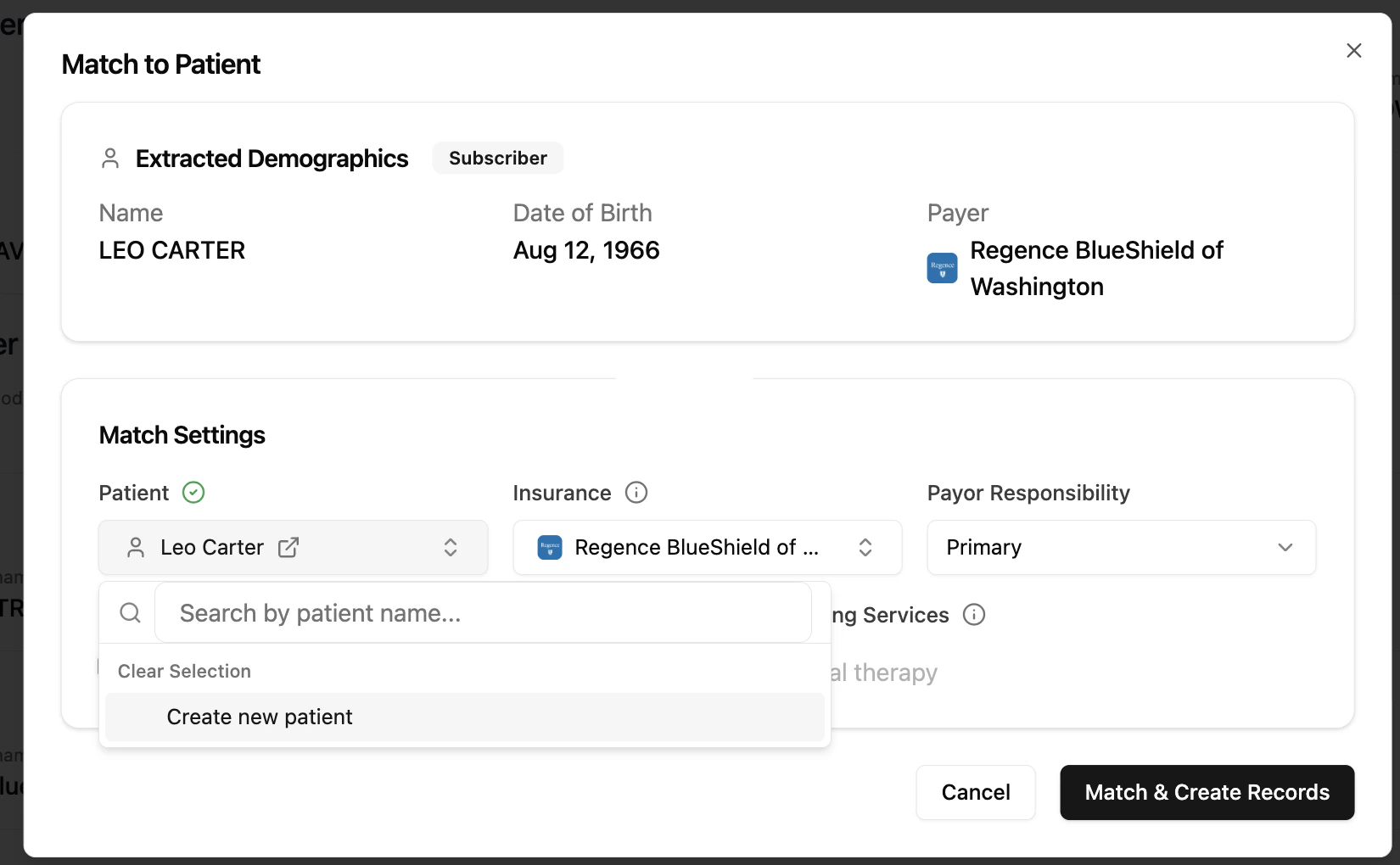 *Caption: The Match Settings modal where you can create a new patient or match to an existing one*
***
## After Matching
14. Go to the **Workflow** section in the left menu.
You will see the patient listed under the **Needs VOB** stage.
15. Click on the patient profile to view their details.
At the top of the profile, under the **Payors** tab, you will find the eligibility details that were just verified.
***
## Troubleshooting
| Problem | Fix |
| ------------------------------------------------- | --------------------------------------------------------------------------------------------------------------------------------------------------------------------------------- |
| Check returns a **Failed** status | Double-check that all patient info matches exactly what's on the insurance card. Remove any middle names from the First Name field. |
| Payer not found in the dropdown | Email [support@getsolum.com](mailto:support@getsolum.com) with the payer name and the Solum team will help identify the correct option. |
| Results show inactive coverage | Verify the **Member ID** and **Date of Birth** are correct. The patient's coverage may have lapsed or changed. |
| Unsure which NPI to use | Select from the dropdown if your locations are configured, or see [Adding Locations & Credentialing](/guides/credentialling). |
| Results are incomplete or missing benefit details | Some payers only return basic coverage confirmation. For full benefit details, a manual Verification of Benefits (VOB) call may be needed. |
| Benefits table is hard to read | Use the **Type**, **Network**, and **Service or Procedure** filters at the top to narrow the results. Click **Match to Patient** to see a cleaner view organized by service type. |
*Caption: The Match Settings modal where you can create a new patient or match to an existing one*
***
## After Matching
14. Go to the **Workflow** section in the left menu.
You will see the patient listed under the **Needs VOB** stage.
15. Click on the patient profile to view their details.
At the top of the profile, under the **Payors** tab, you will find the eligibility details that were just verified.
***
## Troubleshooting
| Problem | Fix |
| ------------------------------------------------- | --------------------------------------------------------------------------------------------------------------------------------------------------------------------------------- |
| Check returns a **Failed** status | Double-check that all patient info matches exactly what's on the insurance card. Remove any middle names from the First Name field. |
| Payer not found in the dropdown | Email [support@getsolum.com](mailto:support@getsolum.com) with the payer name and the Solum team will help identify the correct option. |
| Results show inactive coverage | Verify the **Member ID** and **Date of Birth** are correct. The patient's coverage may have lapsed or changed. |
| Unsure which NPI to use | Select from the dropdown if your locations are configured, or see [Adding Locations & Credentialing](/guides/credentialling). |
| Results are incomplete or missing benefit details | Some payers only return basic coverage confirmation. For full benefit details, a manual Verification of Benefits (VOB) call may be needed. |
| Benefits table is hard to read | Use the **Type**, **Network**, and **Service or Procedure** filters at the top to narrow the results. Click **Match to Patient** to see a cleaner view organized by service type. |