> ## Documentation Index
> Fetch the complete documentation index at: https://docs.getsolum.com/llms.txt
> Use this file to discover all available pages before exploring further.
# Insurance
> Set up the insurance payers your company works with for patient records and eligibility checks
# Insurance
The Insurance page is where you manage the list of insurance payers your company works with. Each entry connects to a payer in the national eligibility network, enabling you to run eligibility checks (270/271 transactions) and track patient coverage.
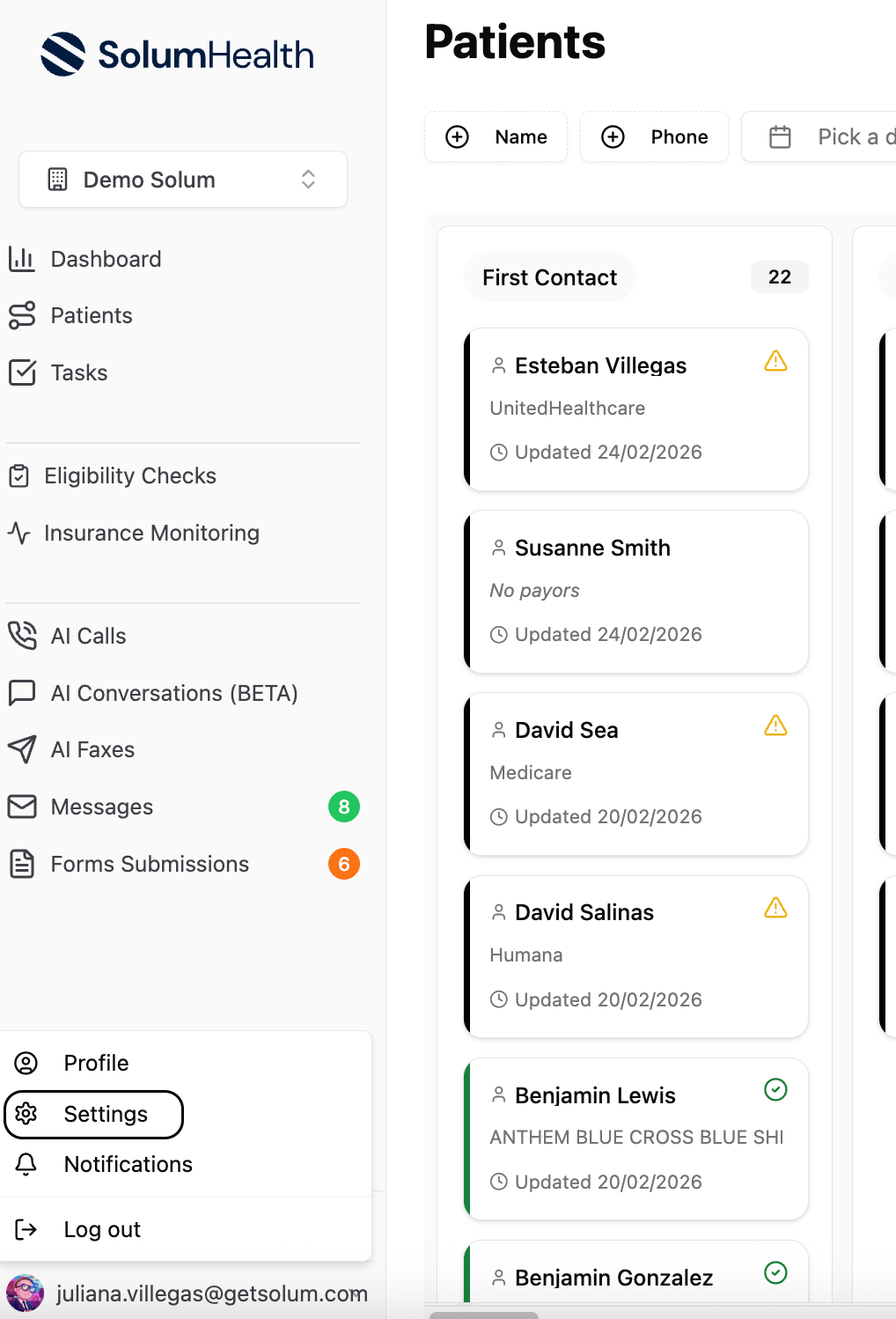
Manage insurance from [**Settings → Insurance**](https://app.getsolum.com/settings/insurance).
 ## Quick Start
1. **Go to Settings → Insurance** in your Solum dashboard.
2. **Click "Add Insurance"** to open the creation form.
3. **Search for the payer** in the Eligibility Payer dropdown (e.g., "Blue Cross").
4. **Select the payer** — the name auto-fills from the directory.
5. **Set the network status** — In Network or Out of Network.
6. **Save** — the payer is now available for patient records and eligibility checks.
***
## Insurance Fields
| Field | Required | Description |
| --------------------- | -------- | ---------------------------------------------------------------------------------------------------------------- |
| **Eligibility Payer** | Yes | Select from the payer directory. This links the insurance to the eligibility network for running 270/271 checks. |
| **Network Status** | Yes | **In Network** (default) or **Out of Network** |
| **Active** | Yes | Whether the insurance is active (defaults to yes). Inactive entries are hidden from dropdowns. |
### Advanced Settings
| Field | Required | Description |
| --------------------- | -------- | ------------------------------------------------------------------------------------------- |
| **Custom Name** | No | Override the payer's default display name with your own label (only available when adding). |
| **Payer ID** | No | External payer identifier for your records. |
| **Additional Fields** | No | Custom key-value pairs for any extra data you need to track. |
***
## Adding an Insurance
Click **Add Insurance** to open the form. Start typing in the **Eligibility Payer** dropdown to search the payer directory — it includes thousands of payers across the US. When you select a payer:
* The **name** auto-fills with the payer's official display name
* The payer is linked to the eligibility network, enabling 270/271 transactions
To use a different display name, expand **Advanced Settings** and enter a **Custom Name**.
***
## Editing an Insurance
Click the **edit** button on any insurance card to update its details. You can change the name, network status, active status, payer ID, and additional fields.
The Eligibility Payer (the link to the payer directory) cannot be changed after creation. If you need a different payer, add a new insurance entry.
***
## Deactivating an Insurance
Instead of deleting, insurance entries are **deactivated** by toggling the **Active** switch off. Inactive entries:
* Move to the **Inactive Insurances** section on the settings page
* Are hidden from dropdowns when adding payors to patients
* Can be reactivated at any time by toggling Active back on
***
## Network Status
Each insurance is marked as either:
* **In Network** — Your company has a contract with this payer
* **Out of Network** — No direct contract; different coverage rules may apply
This status is shown as a badge on insurance cards and helps your team quickly identify payer relationships.
***
## Where Insurance Is Used
* **Patient records** — When adding a payor to a patient, you select from your company's insurance list. Each patient can have up to four payors (Primary, Secondary, Tertiary, Quaternary).
* **Eligibility checks** — The payer link determines which insurance network receives the 270/271 transaction.
* **Patient filters** — Filter the patient list by insurance on the patients overview page.
***
## Locked Organizations
Some organizations have insurance management locked (typically when insurance entries are managed by Solum on your behalf). When locked:
* You cannot add or edit insurance entries
* An alert banner is shown on the settings page explaining the restriction
Contact support if you need changes to a locked insurance list.
***
## Troubleshooting
| Problem | Fix |
| -------------------------------------------------- | ------------------------------------------------------------------------------------------------------------------------------------------------------ |
| "Insurance provider already exists" | An insurance with that name or payer already exists in your company. Choose a different payer or custom name. |
| Payer not found in the dropdown | Try searching by the payer's full name, payer ID, or alternate names. The directory includes thousands of payers but may not have every regional plan. |
| Cannot add or edit insurance | Insurance management may be locked for your organization. Check for an alert banner on the settings page or contact support. |
| Insurance not showing when adding payor to patient | Check that the insurance is marked as **Active** in Settings → Insurance. |
| Eligibility check failing for a payer | Verify the correct payer was selected from the directory. Some payers have multiple entries for different regions or plan types. |
## Quick Start
1. **Go to Settings → Insurance** in your Solum dashboard.
2. **Click "Add Insurance"** to open the creation form.
3. **Search for the payer** in the Eligibility Payer dropdown (e.g., "Blue Cross").
4. **Select the payer** — the name auto-fills from the directory.
5. **Set the network status** — In Network or Out of Network.
6. **Save** — the payer is now available for patient records and eligibility checks.
***
## Insurance Fields
| Field | Required | Description |
| --------------------- | -------- | ---------------------------------------------------------------------------------------------------------------- |
| **Eligibility Payer** | Yes | Select from the payer directory. This links the insurance to the eligibility network for running 270/271 checks. |
| **Network Status** | Yes | **In Network** (default) or **Out of Network** |
| **Active** | Yes | Whether the insurance is active (defaults to yes). Inactive entries are hidden from dropdowns. |
### Advanced Settings
| Field | Required | Description |
| --------------------- | -------- | ------------------------------------------------------------------------------------------- |
| **Custom Name** | No | Override the payer's default display name with your own label (only available when adding). |
| **Payer ID** | No | External payer identifier for your records. |
| **Additional Fields** | No | Custom key-value pairs for any extra data you need to track. |
***
## Adding an Insurance
Click **Add Insurance** to open the form. Start typing in the **Eligibility Payer** dropdown to search the payer directory — it includes thousands of payers across the US. When you select a payer:
* The **name** auto-fills with the payer's official display name
* The payer is linked to the eligibility network, enabling 270/271 transactions
To use a different display name, expand **Advanced Settings** and enter a **Custom Name**.
***
## Editing an Insurance
Click the **edit** button on any insurance card to update its details. You can change the name, network status, active status, payer ID, and additional fields.
The Eligibility Payer (the link to the payer directory) cannot be changed after creation. If you need a different payer, add a new insurance entry.
***
## Deactivating an Insurance
Instead of deleting, insurance entries are **deactivated** by toggling the **Active** switch off. Inactive entries:
* Move to the **Inactive Insurances** section on the settings page
* Are hidden from dropdowns when adding payors to patients
* Can be reactivated at any time by toggling Active back on
***
## Network Status
Each insurance is marked as either:
* **In Network** — Your company has a contract with this payer
* **Out of Network** — No direct contract; different coverage rules may apply
This status is shown as a badge on insurance cards and helps your team quickly identify payer relationships.
***
## Where Insurance Is Used
* **Patient records** — When adding a payor to a patient, you select from your company's insurance list. Each patient can have up to four payors (Primary, Secondary, Tertiary, Quaternary).
* **Eligibility checks** — The payer link determines which insurance network receives the 270/271 transaction.
* **Patient filters** — Filter the patient list by insurance on the patients overview page.
***
## Locked Organizations
Some organizations have insurance management locked (typically when insurance entries are managed by Solum on your behalf). When locked:
* You cannot add or edit insurance entries
* An alert banner is shown on the settings page explaining the restriction
Contact support if you need changes to a locked insurance list.
***
## Troubleshooting
| Problem | Fix |
| -------------------------------------------------- | ------------------------------------------------------------------------------------------------------------------------------------------------------ |
| "Insurance provider already exists" | An insurance with that name or payer already exists in your company. Choose a different payer or custom name. |
| Payer not found in the dropdown | Try searching by the payer's full name, payer ID, or alternate names. The directory includes thousands of payers but may not have every regional plan. |
| Cannot add or edit insurance | Insurance management may be locked for your organization. Check for an alert banner on the settings page or contact support. |
| Insurance not showing when adding payor to patient | Check that the insurance is marked as **Active** in Settings → Insurance. |
| Eligibility check failing for a payer | Verify the correct payer was selected from the directory. Some payers have multiple entries for different regions or plan types. |