> ## Documentation Index
> Fetch the complete documentation index at: https://docs.getsolum.com/llms.txt
> Use this file to discover all available pages before exploring further.
# Phone Numbers
> Search, purchase, and manage phone numbers for SMS conversations and AI voice calls
# Phone Numbers
Phone numbers are the backbone of patient communication in Solum. Each number can power SMS conversations and AI voice calls. You manage phone numbers from [Settings → Phone Numbers](https://app.getsolum.com/settings/phone-numbers).
## Prerequisites
* **Admin** role is required to search and purchase phone numbers.
* All users can view the phone number list and edit friendly names.
## Quick Start
1. **Navigate** to [Settings → Phone Numbers](https://app.getsolum.com/settings/phone-numbers).
2. **Click "Buy Phone Number"** to open the search dialog.
3. **Search** by area code or digits the number should contain.
4. **Review results** — check location and capabilities (Voice, SMS, MMS).
5. **Click Buy** — the number is provisioned and ready to use.
***
## Searching for Numbers
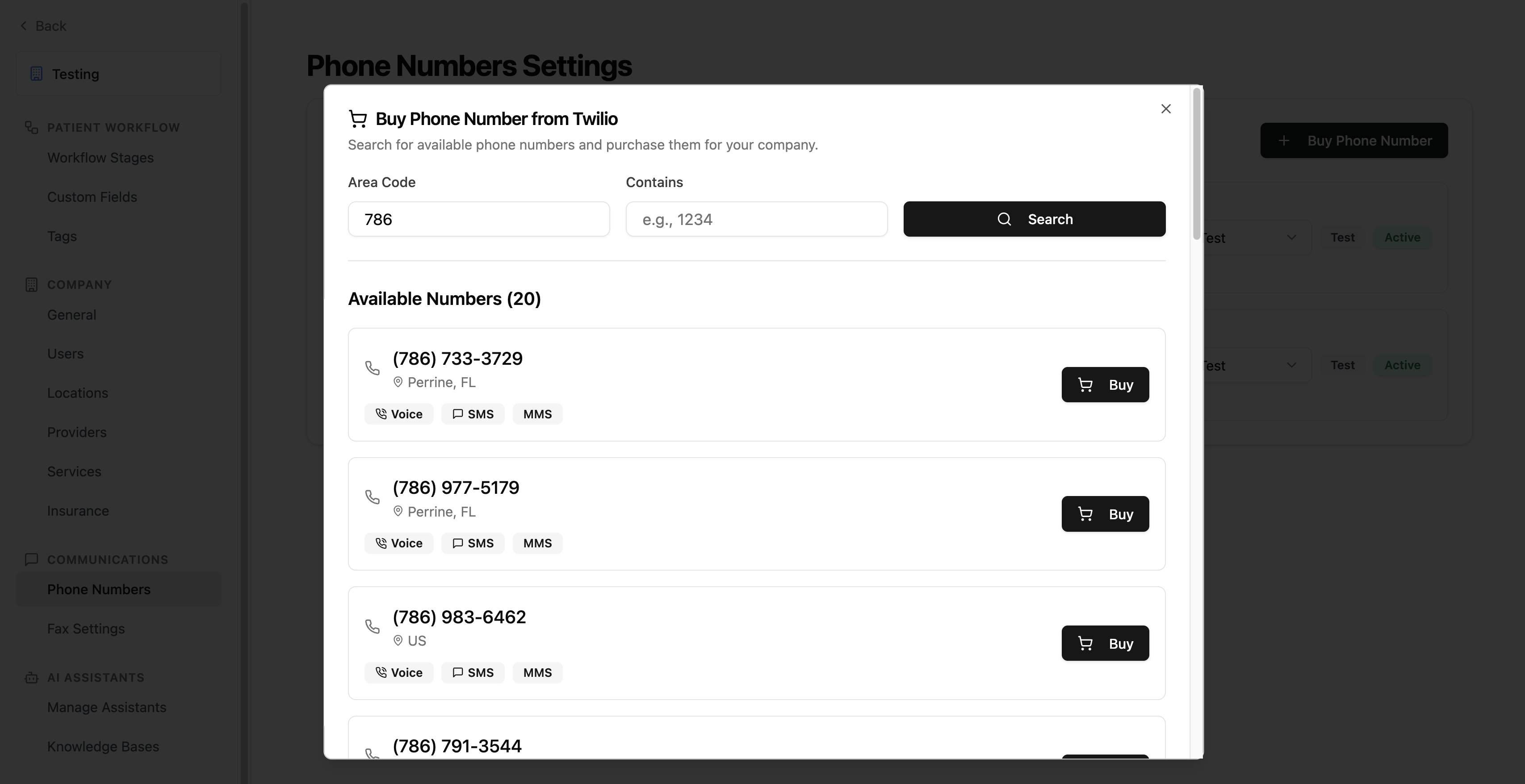
Click **Buy Phone Number** to open the search dialog. You can filter available numbers using two criteria:
| Filter | Description | Example |
| ------------- | -------------------------------- | --------------------- |
| **Area Code** | 3-digit US area code | `415` (San Francisco) |
| **Contains** | Digits the number should include | `1234` |
You can use one or both filters. Results show up to 10 numbers at a time, each displaying:
* **Phone number** in formatted US format
* **Location** (city and state)
* **Capabilities** — Voice, SMS, and/or MMS support
 ***
## Purchasing a Number
Once you find a number you want:
1. Click **Buy** next to the number.
2. Solum provisions the number automatically — this includes purchasing from the carrier, configuring SMS webhooks, and enabling voice call support.
3. The number appears in your phone number list with type **Test** by default.
The number is immediately available for use after purchase.
If a number is no longer available (someone else purchased it), you'll see an error. Search again for a different number.
***
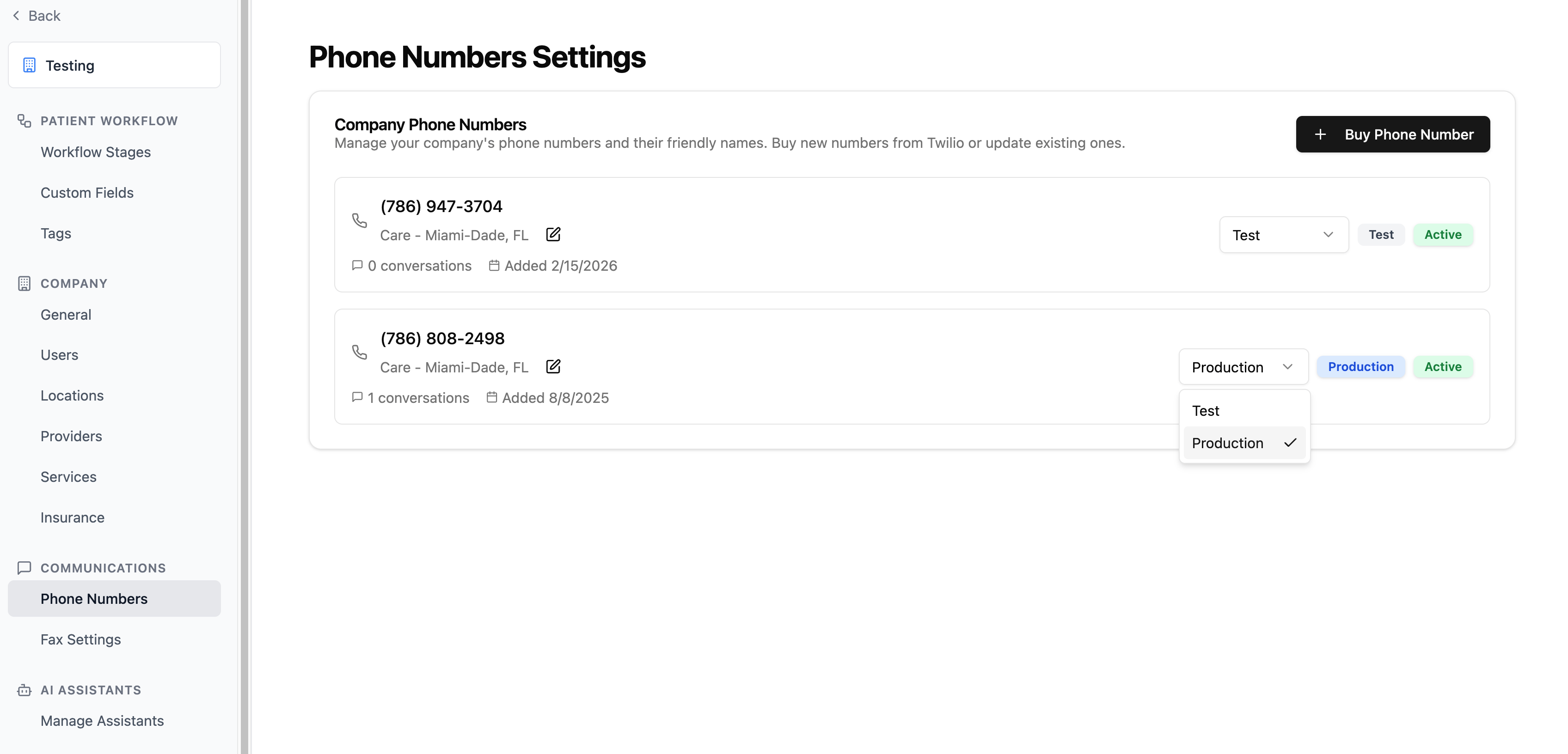
## Phone Number Types
Every phone number has a type that controls how it can be used:
| Type | Description |
| -------------- | ----------------------------------------------------------------------------------------------------- |
| **Test** | For development and testing. Assigned by default on purchase. |
| **Production** | For live patient communication. Only Production numbers can be used in conversations and automations. |
To change a number's type, use the **type dropdown** in the phone number list and select the desired type.
### Testing Voice AI Agents
Calls made to a **Test** number are safe for testing your voice AI agent's behavior — they won't create records in the Solum dashboard (e.g., no intake forms are sent, no tasks are created).
Tools that the AI agent has access to during the call **will still take effect**. For example, if your agent can book appointments or create patients in your EHR/CRM, those actions will happen even on Test numbers. Make sure to delete any test data created by those tools after testing.
***
## Purchasing a Number
Once you find a number you want:
1. Click **Buy** next to the number.
2. Solum provisions the number automatically — this includes purchasing from the carrier, configuring SMS webhooks, and enabling voice call support.
3. The number appears in your phone number list with type **Test** by default.
The number is immediately available for use after purchase.
If a number is no longer available (someone else purchased it), you'll see an error. Search again for a different number.
***
## Phone Number Types
Every phone number has a type that controls how it can be used:
| Type | Description |
| -------------- | ----------------------------------------------------------------------------------------------------- |
| **Test** | For development and testing. Assigned by default on purchase. |
| **Production** | For live patient communication. Only Production numbers can be used in conversations and automations. |
To change a number's type, use the **type dropdown** in the phone number list and select the desired type.
### Testing Voice AI Agents
Calls made to a **Test** number are safe for testing your voice AI agent's behavior — they won't create records in the Solum dashboard (e.g., no intake forms are sent, no tasks are created).
Tools that the AI agent has access to during the call **will still take effect**. For example, if your agent can book appointments or create patients in your EHR/CRM, those actions will happen even on Test numbers. Make sure to delete any test data created by those tools after testing.
 ***
## Editing Friendly Names
Each phone number can have a friendly name to help your team identify it (e.g., "Main Office" or "After Hours Line").
1. Click the **pencil icon** next to the phone number.
2. Type the new friendly name.
3. Click the **checkmark** to save, or the **X** to cancel.
Friendly names appear throughout Solum wherever phone numbers are referenced, including automation configuration and conversation views.
***
## How Phone Numbers Are Used
**SMS Conversations** — Each phone number can have one active conversation per patient. Staff members send and receive text messages through the Solum inbox, and patients reply directly to the phone number.
**AI Voice Calls** — Phone numbers are integrated with the voice call platform. When configured in automations (e.g., intake calls), Solum uses the assigned phone number as the caller ID.
**Fax Automations** — Production phone numbers can be selected in automation rules for actions like sending intake forms or initiating intake calls.
***
## Troubleshooting
| Problem | Fix |
| ------------------------------------------------- | ------------------------------------------------------------------------------------------------------------------------------------------------------------ |
| No results when searching | Try a different area code or remove the "contains" filter. Not all area codes have available numbers. |
| "Phone number is no longer available" | Another buyer claimed the number. Search again for a different one. |
| Purchase fails unexpectedly | Try again in a few minutes. If the issue persists, contact [support@getsolum.com](mailto:support@getsolum.com). |
| Number purchased but can't use in conversations | The number is set to **Test** type. Change it to **Production** using the type dropdown. |
| "Only admin users can purchase new phone numbers" | Purchasing requires an Admin role. Ask an existing Admin to grant you Admin access, or contact [support@getsolum.com](mailto:support@getsolum.com) for help. |
***
## Editing Friendly Names
Each phone number can have a friendly name to help your team identify it (e.g., "Main Office" or "After Hours Line").
1. Click the **pencil icon** next to the phone number.
2. Type the new friendly name.
3. Click the **checkmark** to save, or the **X** to cancel.
Friendly names appear throughout Solum wherever phone numbers are referenced, including automation configuration and conversation views.
***
## How Phone Numbers Are Used
**SMS Conversations** — Each phone number can have one active conversation per patient. Staff members send and receive text messages through the Solum inbox, and patients reply directly to the phone number.
**AI Voice Calls** — Phone numbers are integrated with the voice call platform. When configured in automations (e.g., intake calls), Solum uses the assigned phone number as the caller ID.
**Fax Automations** — Production phone numbers can be selected in automation rules for actions like sending intake forms or initiating intake calls.
***
## Troubleshooting
| Problem | Fix |
| ------------------------------------------------- | ------------------------------------------------------------------------------------------------------------------------------------------------------------ |
| No results when searching | Try a different area code or remove the "contains" filter. Not all area codes have available numbers. |
| "Phone number is no longer available" | Another buyer claimed the number. Search again for a different one. |
| Purchase fails unexpectedly | Try again in a few minutes. If the issue persists, contact [support@getsolum.com](mailto:support@getsolum.com). |
| Number purchased but can't use in conversations | The number is set to **Test** type. Change it to **Production** using the type dropdown. |
| "Only admin users can purchase new phone numbers" | Purchasing requires an Admin role. Ask an existing Admin to grant you Admin access, or contact [support@getsolum.com](mailto:support@getsolum.com) for help. |