> ## Documentation Index
> Fetch the complete documentation index at: https://docs.getsolum.com/llms.txt
> Use this file to discover all available pages before exploring further.
# Reviewing an Insurance Monitoring Batch
After an insurance monitoring batch runs, Solum gives you a full summary of every patient's coverage status. This guide walks you through how to read the results, understand what each status means, and fix any patients that need attention.
All insurance monitoring batches are run under **Service Type 30 — General Health**. This is the standard service type used for all batch eligibility checks.
***
## Quick Start
1. Go to **Insurance Monitoring** in the left menu and select **Batches**.
2. Click the batch you want to review.
3. Check the summary at the top: **Active**, **Inactive**, and **Failed** totals.
4. Click any status card to filter to those patients.
5. Use **More Filters → Comments → Have Comments** to review troubleshot patients.
6. For failed patients, click **... → View Eligibility → Edit and Retry** to correct and re-run.
***
## Step-by-Step
### Step 1 — Navigate to the Batch
1. In the left side menu, hover over **Insurance Monitoring**.
2. Select **Batches** from the dropdown.
3. Click the batch you want to review.
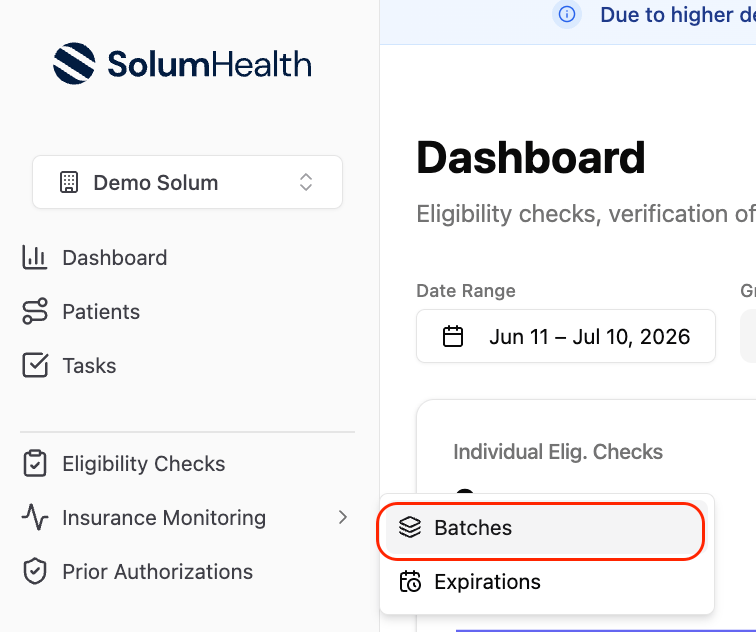 *Hover over Insurance Monitoring in the left menu to reveal the Batches option*
***
### Step 2 — Review the Summary
At the top of the batch page, you will see a summary row showing the total number of checks broken down by status.
*Hover over Insurance Monitoring in the left menu to reveal the Batches option*
***
### Step 2 — Review the Summary
At the top of the batch page, you will see a summary row showing the total number of checks broken down by status.
 *The summary row at the top of the batch — click any card to filter directly to those patients.*
Click any card to jump directly to that group of patients.
***
### Step 3 — Understand the Statuses
| Status | What it means | Action needed |
| -------------- | -------------------------------------------------------------------------------- | -------------------------------------------------------------- |
| **🟢Active** | Patient has confirmed active coverage | No action needed |
| **🟠Inactive** | Patient no longer has coverage under the data provided | Contact the patient as soon as possible to avoid claim denials |
| **🔴Failed** | There are inaccuracies between what was submitted and what the payer has on file | Review each patient and correct the information |
For inactive patients, reach out as soon as possible. Continuing to see patients without active coverage can lead to claim denials that are difficult to reverse.
***
### Step 4 — Review Comments
In some cases, Solum is able to identify and fix issues (such as a name mismatch or incorrect Member ID) and will leave a comment explaining what was found and how the patient ended up as Active.
To review commented patients:
1. Click **More Filters**.
2. Select **Comments**.
3. Choose **Have Comments**.
4. Click the **black bubble** on the left of any patient row to read the comment.
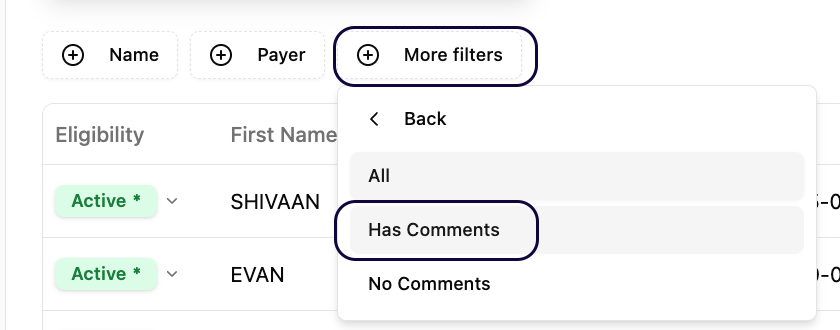 *Use the Comments filter to find patients where Solum flagged and resolved a discrepancy*
***
### Step 5 — Understand the Yellow Icon
A **yellow icon** next to a patient means that what was submitted does not exactly match what the payer has on file. Click on the patient to review the payer's response and see what differs.
*Use the Comments filter to find patients where Solum flagged and resolved a discrepancy*
***
### Step 5 — Understand the Yellow Icon
A **yellow icon** next to a patient means that what was submitted does not exactly match what the payer has on file. Click on the patient to review the payer's response and see what differs.
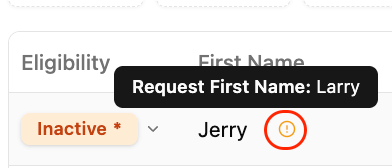 *The yellow icon indicates a mismatch between submitted data and the payer's records*
***
### Step 6 — Understand the Columns
| Column | What it shows |
| -------------------------- | --------------------------------------------------------------- |
| **Eligibility** | Status: Active, Inactive, or Failed |
| **First Name / Last Name** | Patient name as submitted |
| **Date of Birth** | Patient DOB as submitted |
| **Payer** | The insurance payer used for this check |
| **Member ID** | The member ID submitted to the payer |
| **COB** | Patients who have reported a secondary payer to their insurance |
Some **Anthem** plans must be run under the local Anthem payer ID (not a national ID) to return results. Similarly, some **Medicaid** patients must be run under straight Medicaid — not the MCO — to get a valid response. If a check fails for these payers, review the payer ID first.
***
### Step 7 — Add Additional Columns
If you want more detail on a batch, you can customize the columns shown.
1. Click **Actions**.
2. Select **View**.
3. Enable any additional columns you need.
*The yellow icon indicates a mismatch between submitted data and the payer's records*
***
### Step 6 — Understand the Columns
| Column | What it shows |
| -------------------------- | --------------------------------------------------------------- |
| **Eligibility** | Status: Active, Inactive, or Failed |
| **First Name / Last Name** | Patient name as submitted |
| **Date of Birth** | Patient DOB as submitted |
| **Payer** | The insurance payer used for this check |
| **Member ID** | The member ID submitted to the payer |
| **COB** | Patients who have reported a secondary payer to their insurance |
Some **Anthem** plans must be run under the local Anthem payer ID (not a national ID) to return results. Similarly, some **Medicaid** patients must be run under straight Medicaid — not the MCO — to get a valid response. If a check fails for these payers, review the payer ID first.
***
### Step 7 — Add Additional Columns
If you want more detail on a batch, you can customize the columns shown.
1. Click **Actions**.
2. Select **View**.
3. Enable any additional columns you need.
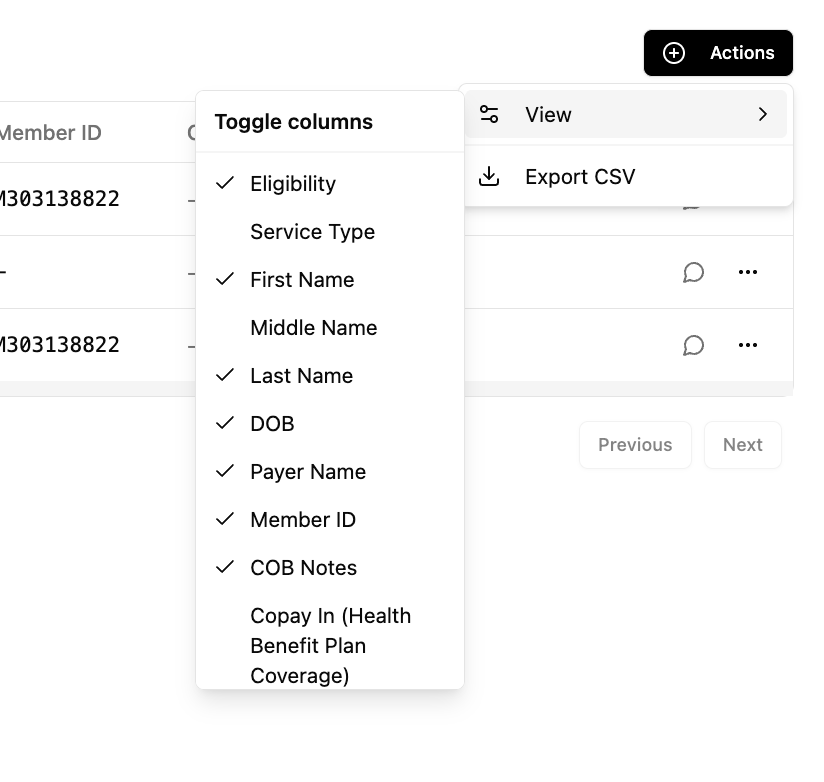 The **Related Entities** column is especially useful — it shows the Party Performing Verification, the MCO, and any other related entities associated with the patient's coverage.
***
### Step 8 — Review a Specific Patient
To open an individual patient's eligibility detail:
* Click anywhere on the patient row, **or**
* Click the **...** menu on the right and select **View Eligibility**.
***
## Reviewing Failed Patients
### Step 1 — Filter to Failed
Click the **Failed** card in the summary to show only failed checks.
### Step 2 — Open the Check
Find the patient, click the **...** menu on the right, and select **View Eligibility**.
The **Related Entities** column is especially useful — it shows the Party Performing Verification, the MCO, and any other related entities associated with the patient's coverage.
***
### Step 8 — Review a Specific Patient
To open an individual patient's eligibility detail:
* Click anywhere on the patient row, **or**
* Click the **...** menu on the right and select **View Eligibility**.
***
## Reviewing Failed Patients
### Step 1 — Filter to Failed
Click the **Failed** card in the summary to show only failed checks.
### Step 2 — Open the Check
Find the patient, click the **...** menu on the right, and select **View Eligibility**.
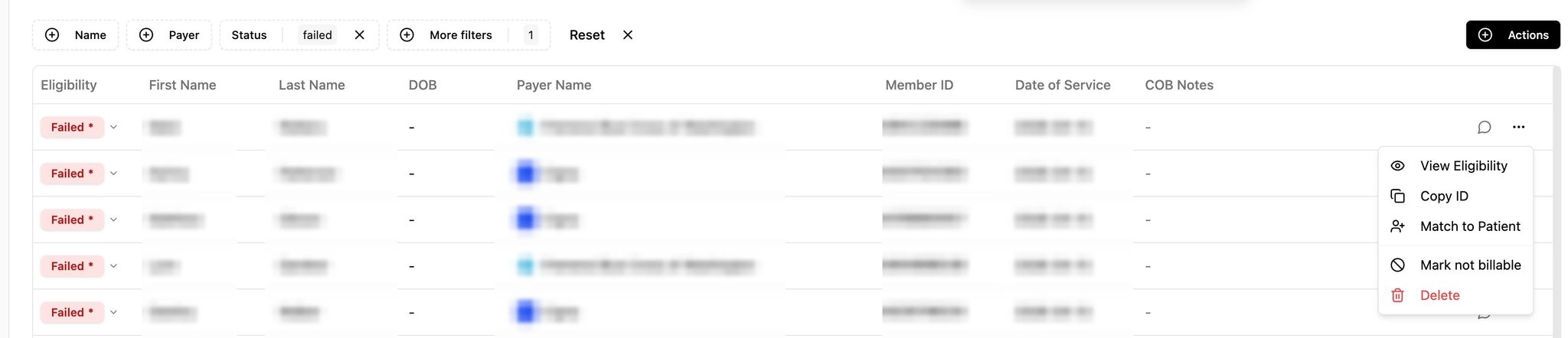 *Click the three-dot menu on the right of any patient row to open their eligibility check*
### Step 3 — Edit and Retry
On the Eligibility Check detail page, click **Edit and Retry**.
*Click the three-dot menu on the right of any patient row to open their eligibility check*
### Step 3 — Edit and Retry
On the Eligibility Check detail page, click **Edit and Retry**.
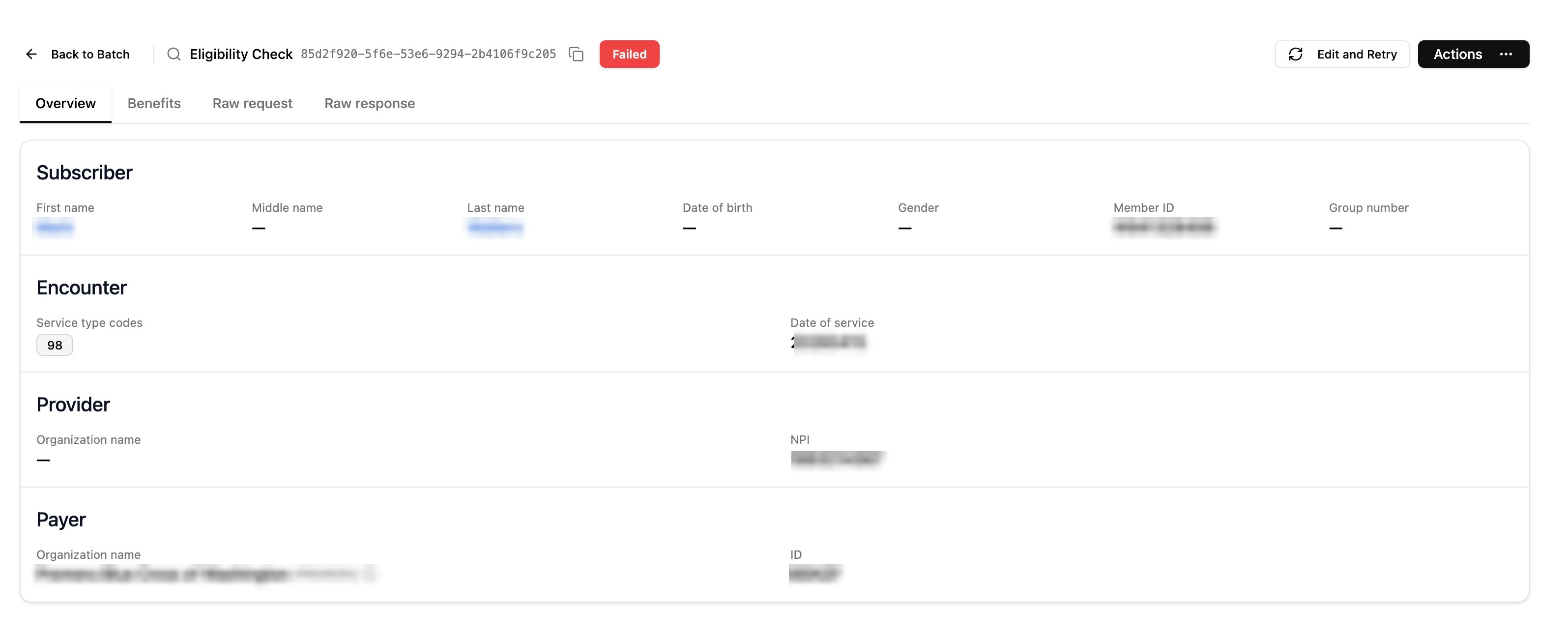 *The Edit and Retry button allows you to correct any field and resubmit the check*
### Step 4 — Correct and Re-run
On the **Retry Eligibility Check** form, fix the field that caused the error. The most common issues are:
* **Member ID** — incorrect or formatted differently than the payer expects
* **Date of Birth** — mismatch with payer records
* **Insurance Payer** — wrong payer ID selected
* **Date of Service** — outside the payer's accepted range
Once corrected, click **Check Eligibility** to re-run.
*The Edit and Retry button allows you to correct any field and resubmit the check*
### Step 4 — Correct and Re-run
On the **Retry Eligibility Check** form, fix the field that caused the error. The most common issues are:
* **Member ID** — incorrect or formatted differently than the payer expects
* **Date of Birth** — mismatch with payer records
* **Insurance Payer** — wrong payer ID selected
* **Date of Service** — outside the payer's accepted range
Once corrected, click **Check Eligibility** to re-run.
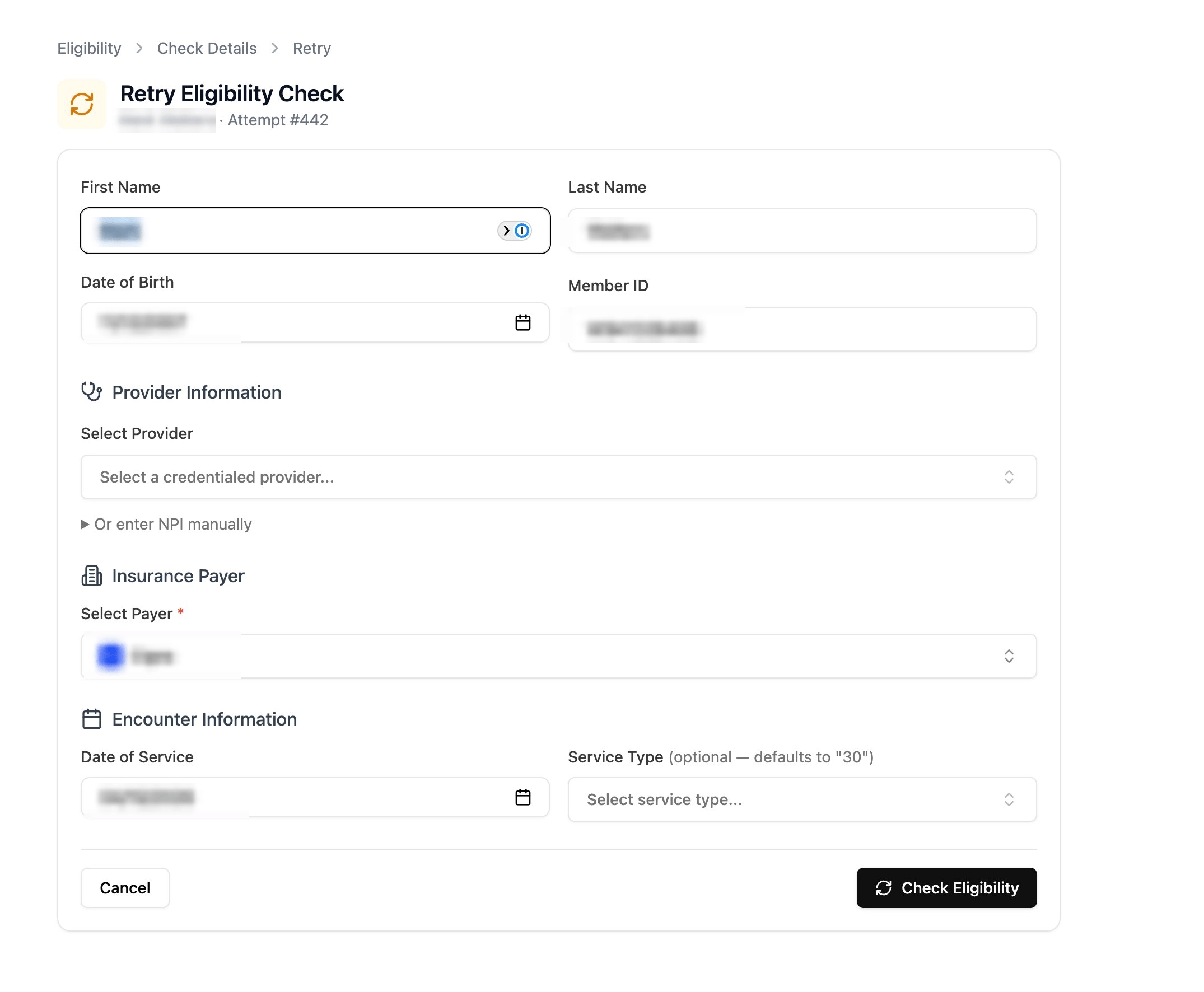 *Correct the flagged field and click Check Eligibility to resubmit*
***
## Troubleshooting
| Problem | Fix |
| -------------------------------------------------- | -------------------------------------------------------------------------------------------------------- |
| Patient shows Failed but information looks correct | Check if the payer needs to be run under a local Anthem ID or straight Medicaid instead of the MCO |
| Yellow icon but status is Active | Review the payer response — the data matches enough to confirm coverage but there is a minor discrepancy |
| Inactive patient was seen recently | Contact the patient immediately to get updated insurance information and verify with the payer directly |
| Edit and Retry not available | The check may still be processing — refresh the page and try again |
*Correct the flagged field and click Check Eligibility to resubmit*
***
## Troubleshooting
| Problem | Fix |
| -------------------------------------------------- | -------------------------------------------------------------------------------------------------------- |
| Patient shows Failed but information looks correct | Check if the payer needs to be run under a local Anthem ID or straight Medicaid instead of the MCO |
| Yellow icon but status is Active | Review the payer response — the data matches enough to confirm coverage but there is a minor discrepancy |
| Inactive patient was seen recently | Contact the patient immediately to get updated insurance information and verify with the payer directly |
| Edit and Retry not available | The check may still be processing — refresh the page and try again |