> ## Documentation Index
> Fetch the complete documentation index at: https://docs.getsolum.com/llms.txt
> Use this file to discover all available pages before exploring further.
# Troubleshooting Failed Eligibility Checks
> Find failed insurance-monitoring checks, correct patient or coverage information, and retry them
# Insurance Monitoring — Troubleshooting Failed Eligibility Checks
A step-by-step guide for finding failed eligibility checks inside Insurance Monitoring and re-running them after corrections.
***
## Step 1 — Open Insurance Monitoring
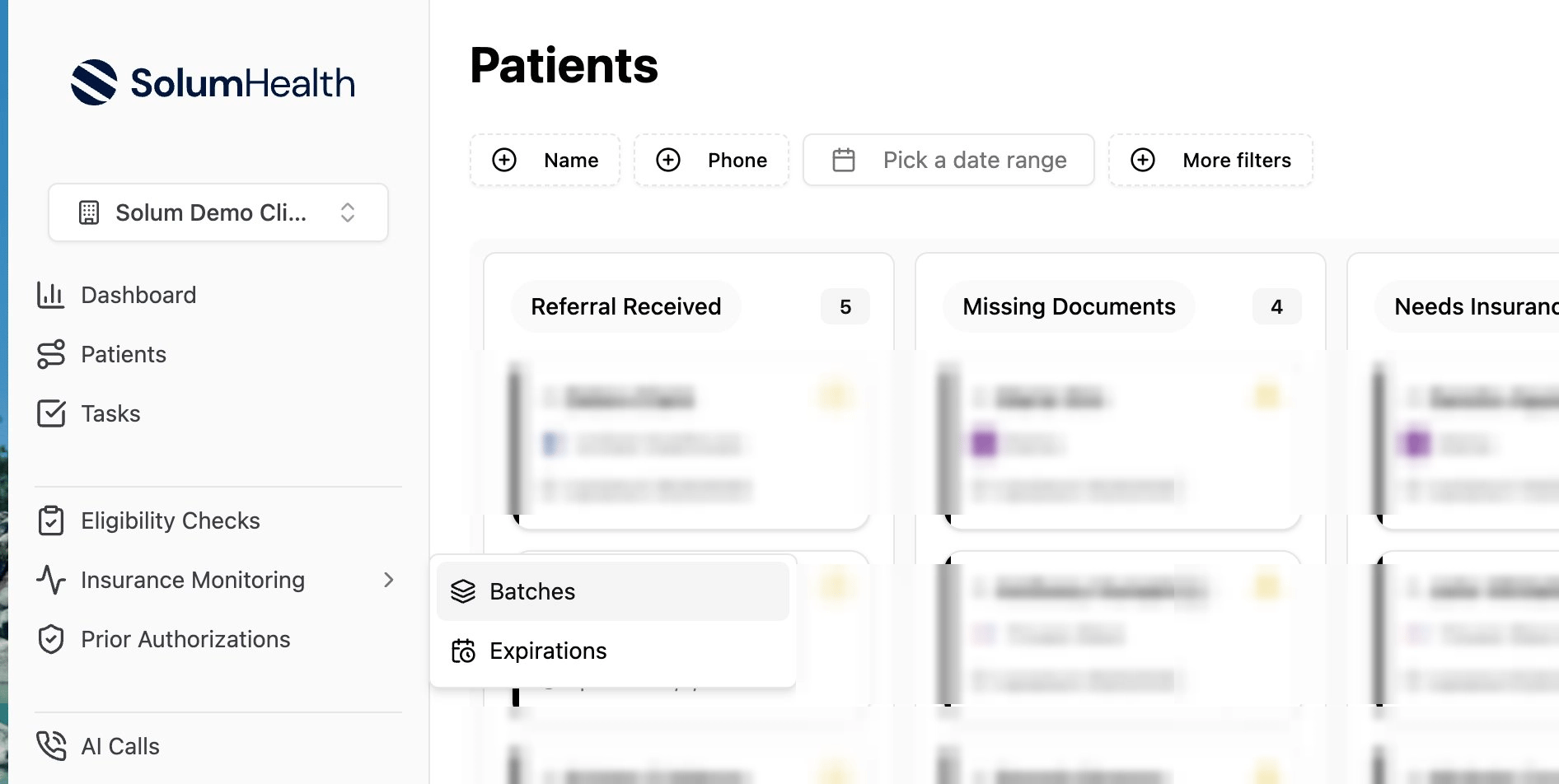
From the left-hand navigation menu, click **Insurance Monitoring**. In the Insurance Monitoring submenu, click **Batches**.
 ## Step 2 — Select the batch
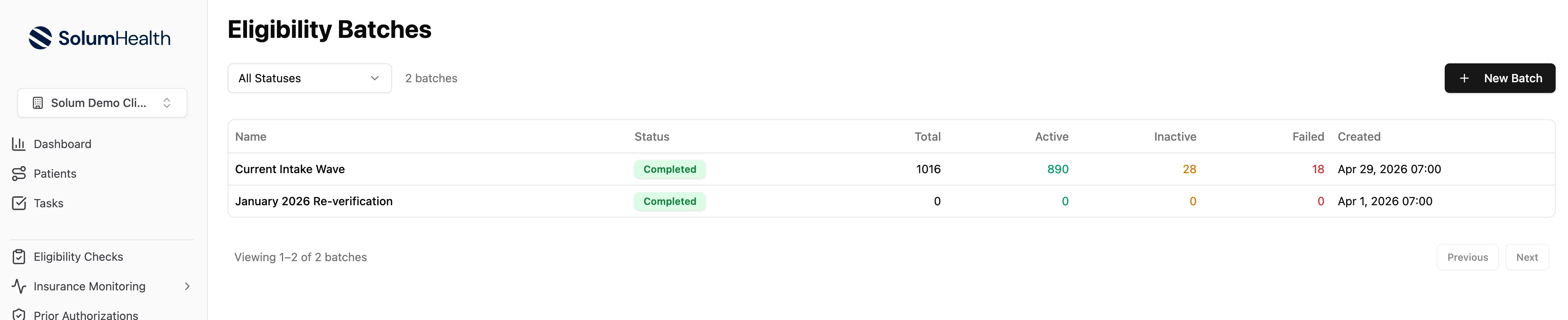
On the **Eligibility Batches** page, click the batch you want to review (for example, *Current Intake Wave*). Each row shows its status and a breakdown of Total, Active, Inactive, and Failed checks.
## Step 2 — Select the batch
On the **Eligibility Batches** page, click the batch you want to review (for example, *Current Intake Wave*). Each row shows its status and a breakdown of Total, Active, Inactive, and Failed checks.
 ## Step 3 — Review the batch summary
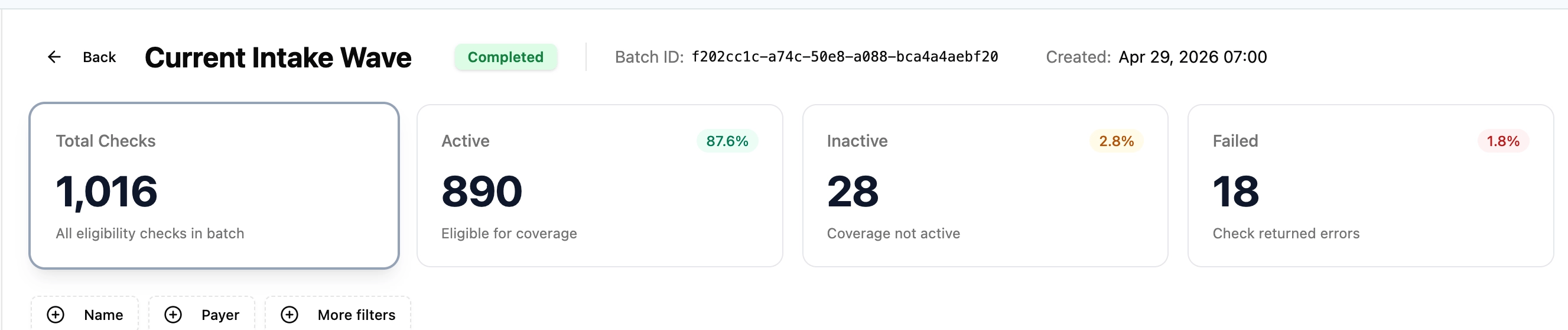
At the top of the batch you'll see summary cards: **Total Checks**, **Active**, **Inactive**, **Failed**, and **Pending**. Focus on the **Failed** card, these are the checks that returned errors and need attention.
## Step 3 — Review the batch summary
At the top of the batch you'll see summary cards: **Total Checks**, **Active**, **Inactive**, **Failed**, and **Pending**. Focus on the **Failed** card, these are the checks that returned errors and need attention.
 ## Step 4 — Filter to Failed and open the check
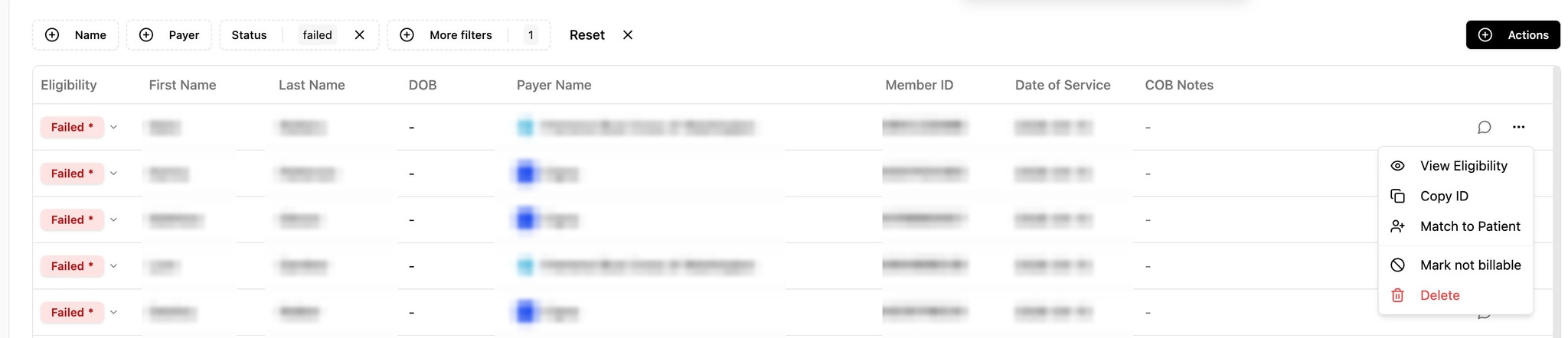
Click the **Failed** card to show only the failed checks. Find the patient, click the `...` menu on the right, and choose **View Eligibility**.
## Step 4 — Filter to Failed and open the check
Click the **Failed** card to show only the failed checks. Find the patient, click the `...` menu on the right, and choose **View Eligibility**.
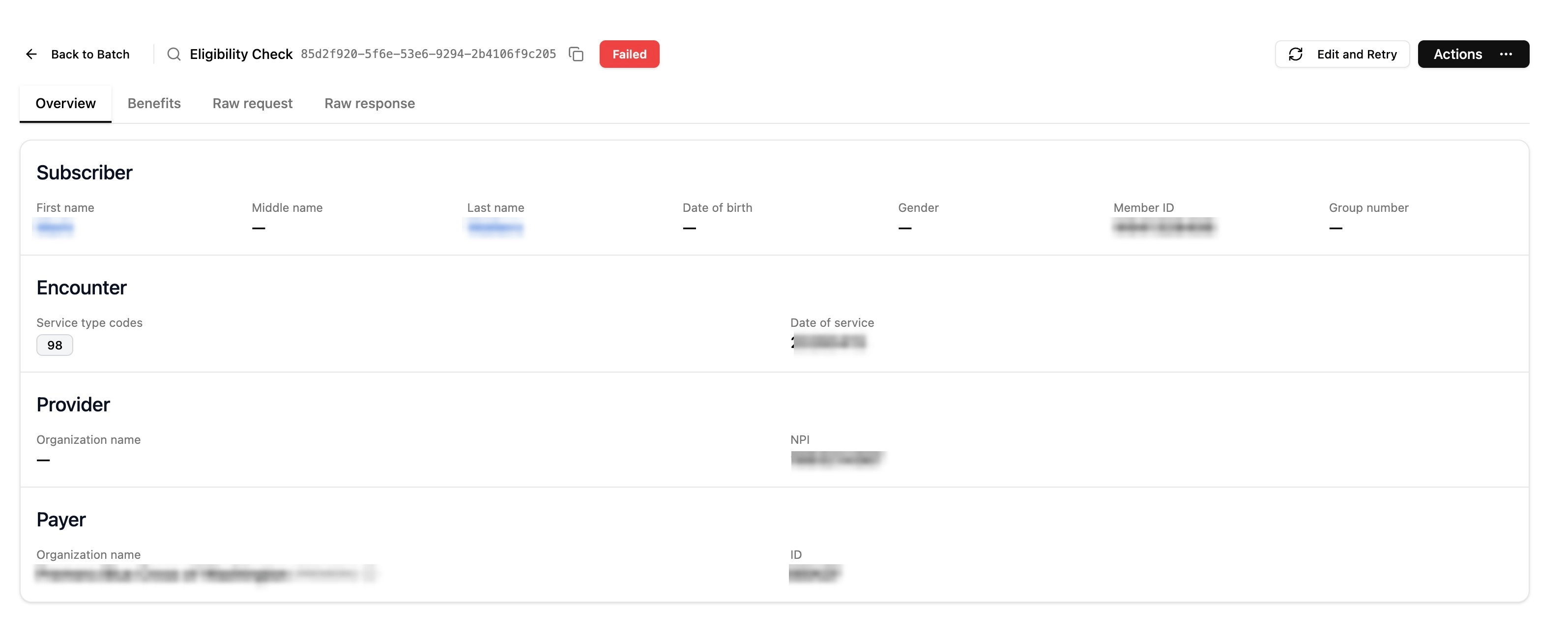
 ## Step 5 — Edit and Retry
On the Eligibility Check detail page, click **Edit and Retry**. Make the necessary corrections (e.g., Member ID, payer, date of service, name/DOB), then re-submit the check.
## Step 5 — Edit and Retry
On the Eligibility Check detail page, click **Edit and Retry**. Make the necessary corrections (e.g., Member ID, payer, date of service, name/DOB), then re-submit the check.
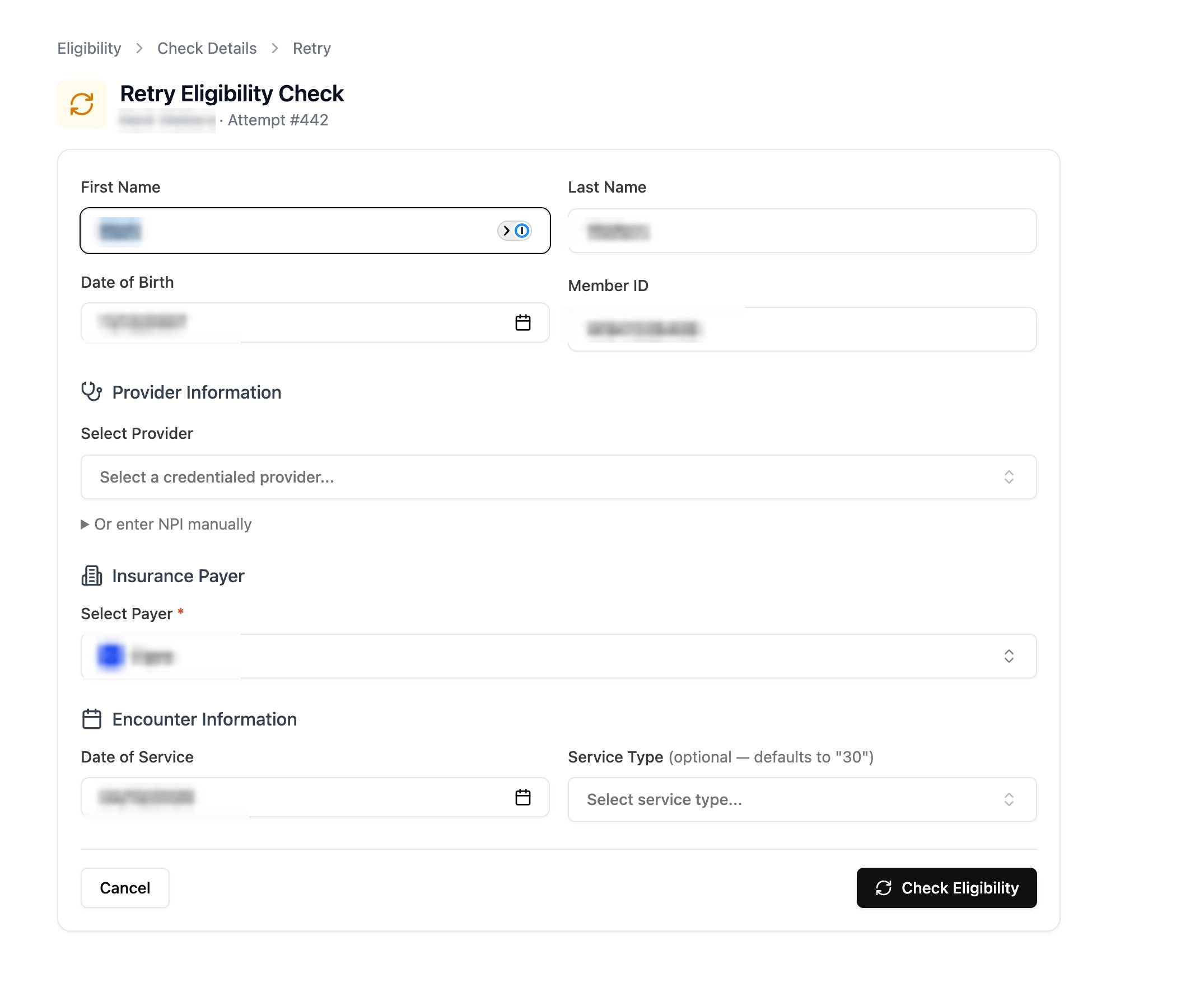
 ## Step 6 — Correct the fields and re-run the check
On the **Retry Eligibility Check** form, correct the field(s) that caused the error — most commonly **Member ID**, **Date of Birth**, **Insurance Payer**, or **Date of Service**. When the information is fixed, click **Check Eligibility** to re-run the check.
## Step 6 — Correct the fields and re-run the check
On the **Retry Eligibility Check** form, correct the field(s) that caused the error — most commonly **Member ID**, **Date of Birth**, **Insurance Payer**, or **Date of Service**. When the information is fixed, click **Check Eligibility** to re-run the check.
 ## Quick reference
1. Menu → **Insurance Monitoring**
2. **Batches**
3. Select the batch
4. Open the **Failed** checks
5. `...` → **View Eligibility**
6. **Edit and Retry** → apply corrections → re-submit
## Quick reference
1. Menu → **Insurance Monitoring**
2. **Batches**
3. Select the batch
4. Open the **Failed** checks
5. `...` → **View Eligibility**
6. **Edit and Retry** → apply corrections → re-submit