> ## Documentation Index
> Fetch the complete documentation index at: https://docs.getsolum.com/llms.txt
> Use this file to discover all available pages before exploring further.
# Requesting a Prior Authorization
> Step-by-step guide to submitting a prior authorization request through Solum
The **Prior Authorizations** section lets you submit authorization requests directly from Solum. You can link the request to an existing patient — which is the recommended approach — or enter the patient's information manually.
***
## Before You Start
Make sure the rendering provider you need is already registered in [Settings → Credentialing](https://app.getsolum.com/settings/credentialing) before submitting any prior authorization. If the provider is not listed, the request cannot be completed.
Need help adding a provider? See the [Credentialing guide](https://docs.getsolum.com/guides/credentialling) or click **Manage** in the top-right corner of the Requesting Provider section.
***
## Quick Start
1. Go to **Prior Authorizations** in the left menu.
2. Click **New Request**.
3. Select an existing patient or enter patient details manually.
4. Add or confirm the insurance information.
5. Choose the specialty type, CPT codes, units, and authorization type.
6. Set the start and end dates for the authorization period.
7. Select the requesting provider, servicing facility, and location(s).
8. Upload supporting documents.
9. Click **Create Prior Authorization**.
***
## Step-by-Step
### 1. Open Prior Authorizations
Select **Prior Authorizations** from the left navigation menu.
### 2. Click New Request
Click the **New Request** button to open the submission form.
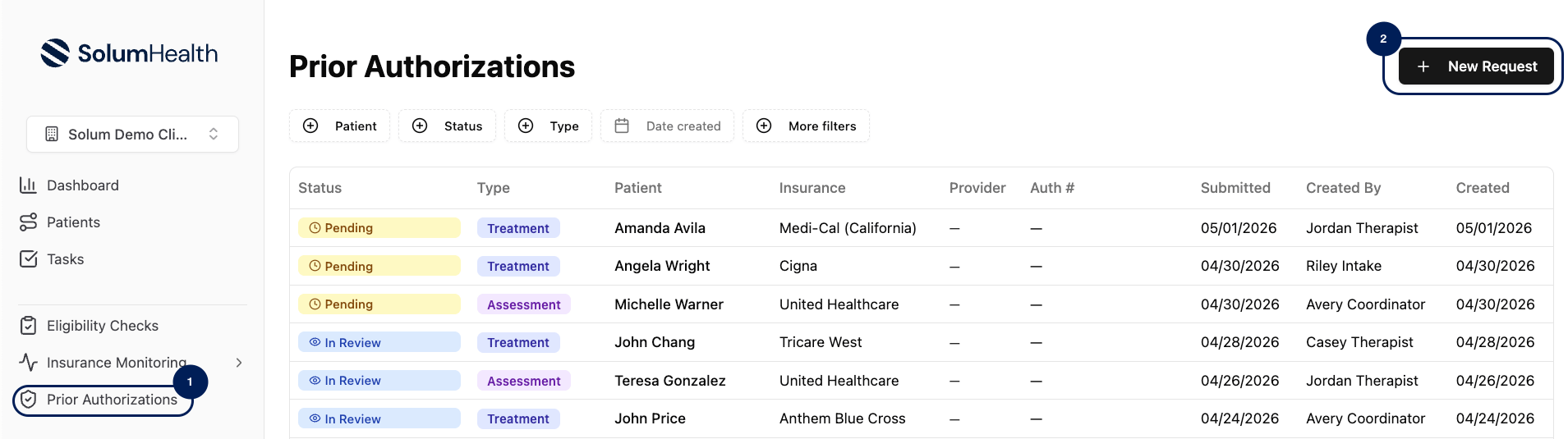 *Caption: The left navigation menu with Prior Authorizations selected*
***
### 3. Add Patient Information
You have two options:
#### Option A — Select an Existing Patient (Recommended)
Search for and select the patient from the dropdown.
*Caption: The left navigation menu with Prior Authorizations selected*
***
### 3. Add Patient Information
You have two options:
#### Option A — Select an Existing Patient (Recommended)
Search for and select the patient from the dropdown.
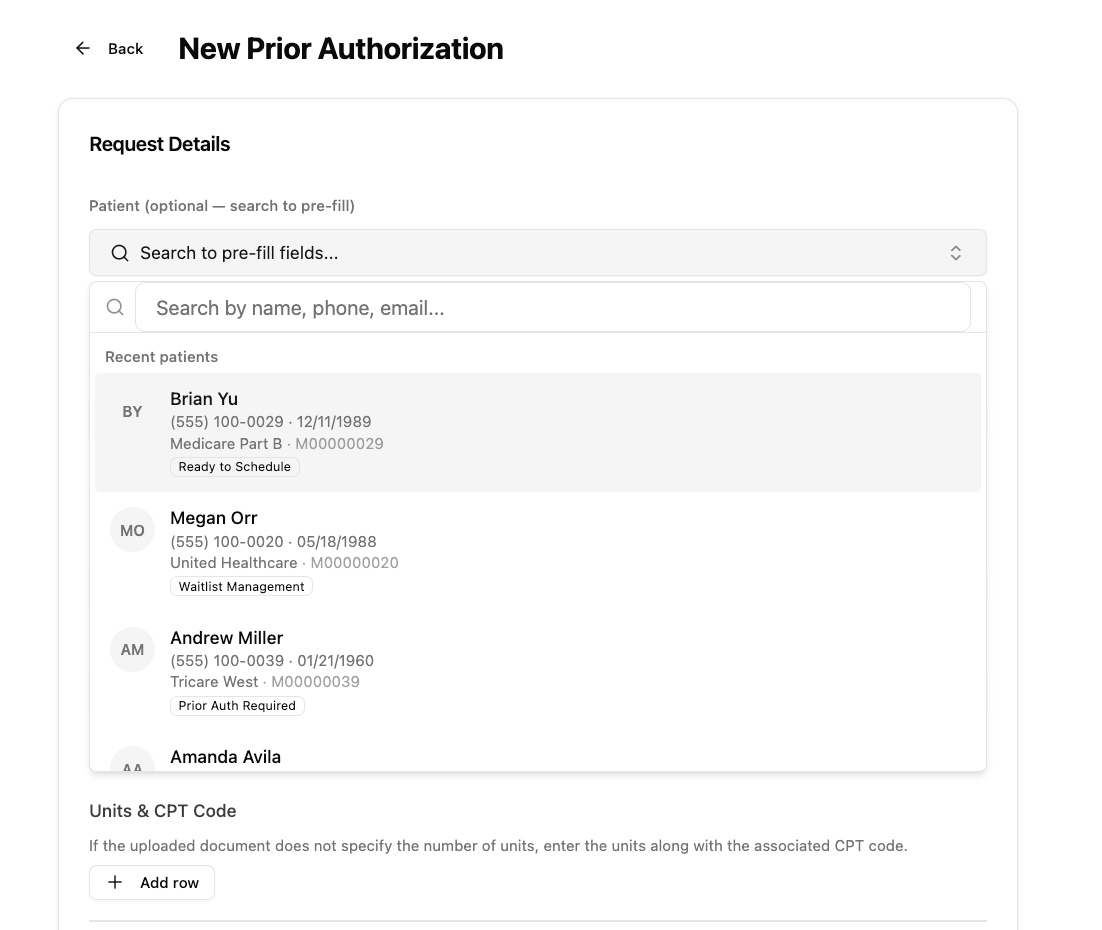 Choosing an existing patient is the recommended approach. These patients already have an eligibility check and a Verification of Benefits on file, so you know their insurance is ready to go before submitting.
#### Option B — Enter Patient Information Manually
If the patient is not yet in Solum, fill in the following fields:
| Field | Description |
| ----------------- | -------------------------- |
| **First Name** | Patient's legal first name |
| **Last Name** | Patient's legal last name |
| **Date of Birth** | Patient's date of birth |
***
### 4. Add Insurance Information
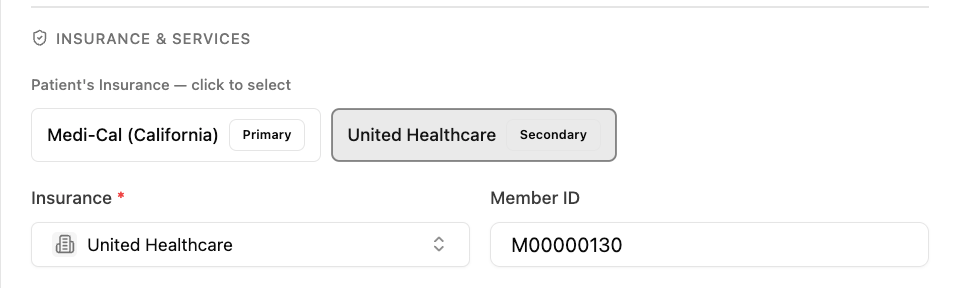
* **If you selected an existing patient:** Click on the insurance listed on the patient's profile. Solum will pull their insurance details automatically.
* **If you entered the patient manually:** Select the insurance plan from the dropdown and enter the **Member ID**.
Choosing an existing patient is the recommended approach. These patients already have an eligibility check and a Verification of Benefits on file, so you know their insurance is ready to go before submitting.
#### Option B — Enter Patient Information Manually
If the patient is not yet in Solum, fill in the following fields:
| Field | Description |
| ----------------- | -------------------------- |
| **First Name** | Patient's legal first name |
| **Last Name** | Patient's legal last name |
| **Date of Birth** | Patient's date of birth |
***
### 4. Add Insurance Information
* **If you selected an existing patient:** Click on the insurance listed on the patient's profile. Solum will pull their insurance details automatically.
* **If you entered the patient manually:** Select the insurance plan from the dropdown and enter the **Member ID**.
 ***
### 5. Choose Specialty Type
Select the type of service you are providing from the **Specialty Type** dropdown.
### 6. Add CPT Codes and Units
Enter the CPT codes and number of units being requested.
If the supporting documents do not specify CPT codes or units — which is common for initial assessments — you will need to add this information manually based on your clinical documentation.
***
### 7. Select Authorization Type
Choose the appropriate authorization type from the **Authorization Type** dropdown.
***
### 5. Choose Specialty Type
Select the type of service you are providing from the **Specialty Type** dropdown.
### 6. Add CPT Codes and Units
Enter the CPT codes and number of units being requested.
If the supporting documents do not specify CPT codes or units — which is common for initial assessments — you will need to add this information manually based on your clinical documentation.
***
### 7. Select Authorization Type
Choose the appropriate authorization type from the **Authorization Type** dropdown.
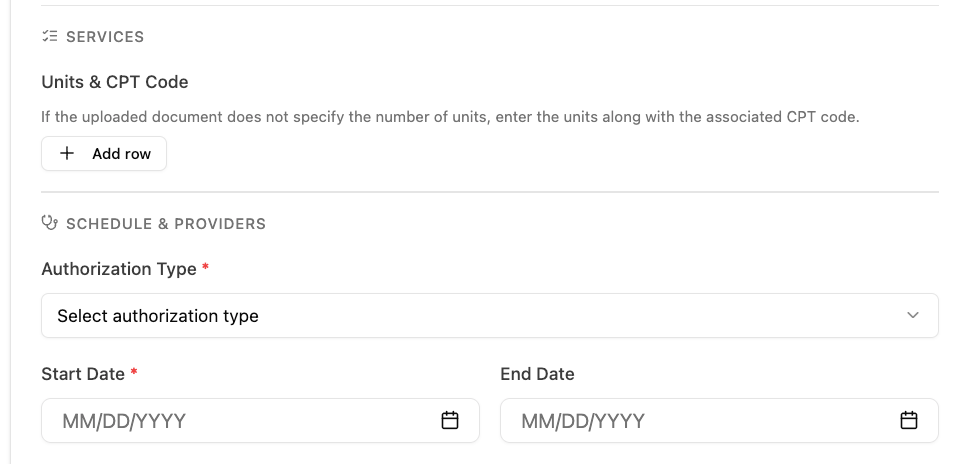 *Caption: The Authorization Type dropdown — select carefully, as this will be submitted exactly as chosen*
The available options are:
| Authorization Type | When to use it |
| ----------------------------- | ------------------------------------------------------------------------ |
| **Assessment** | For initial diagnostic evaluations |
| **Treatment** | For ongoing therapy or intervention services |
| **Reassessment** | For follow-up evaluations of a previously assessed patient |
| **Re-assessment & Treatment** | When both a reassessment and treatment authorization are needed together |
Select the authorization type carefully. This will be submitted to the payer exactly as you choose it.
***
### 8. Set Start and End Dates
Enter the **Start Date** and **End Date** for the authorization period you are requesting.
Use the dates you are requesting — not the dates listed on the clinical documents. Solum will guide you on the appropriate date range based on what you are submitting.
***
### 9. Add Requesting Provider and Facility
1. Select the **Requesting Provider** from the dropdown.
2. Select the **Servicing Facility**, or check **Same as Requesting** if the servicing facility is the same as the requesting provider.
3. Enter the **Servicing Address**.
4. Add the **Location(s)** where services will be provided. You can select more than one location.
If the provider you need does not appear in the dropdown, they have not been added to Solum yet. Click **Manage** in the top-right corner of this section to add them, or visit the [Credentialing guide](https://docs.getsolum.com/guides/credentialling).
*Caption: The Authorization Type dropdown — select carefully, as this will be submitted exactly as chosen*
The available options are:
| Authorization Type | When to use it |
| ----------------------------- | ------------------------------------------------------------------------ |
| **Assessment** | For initial diagnostic evaluations |
| **Treatment** | For ongoing therapy or intervention services |
| **Reassessment** | For follow-up evaluations of a previously assessed patient |
| **Re-assessment & Treatment** | When both a reassessment and treatment authorization are needed together |
Select the authorization type carefully. This will be submitted to the payer exactly as you choose it.
***
### 8. Set Start and End Dates
Enter the **Start Date** and **End Date** for the authorization period you are requesting.
Use the dates you are requesting — not the dates listed on the clinical documents. Solum will guide you on the appropriate date range based on what you are submitting.
***
### 9. Add Requesting Provider and Facility
1. Select the **Requesting Provider** from the dropdown.
2. Select the **Servicing Facility**, or check **Same as Requesting** if the servicing facility is the same as the requesting provider.
3. Enter the **Servicing Address**.
4. Add the **Location(s)** where services will be provided. You can select more than one location.
If the provider you need does not appear in the dropdown, they have not been added to Solum yet. Click **Manage** in the top-right corner of this section to add them, or visit the [Credentialing guide](https://docs.getsolum.com/guides/credentialling).
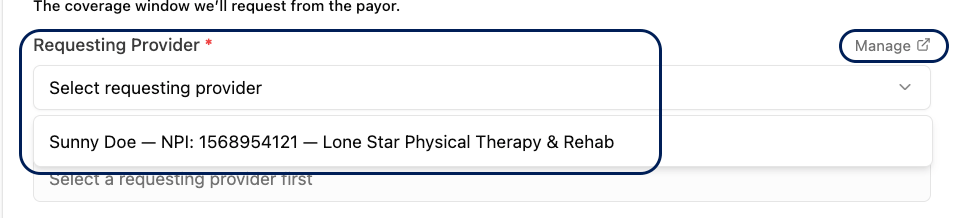 *Caption: The Requesting Provider section — use Manage to add a provider if they are not listed*
***
### 10. Add Notes (Optional)
Use the **Notes** field to include any special instructions for the Solum team — for example, if you need something specific added directly to the portal submission or if there are any exceptions to flag.
***
### 11. Upload Supporting Documents
You have two options:
* **Upload directly:** Attach any supporting documents from your computer.
* **From Patient:** If the patient already has documents on file in Solum, click **From Patient** and select the relevant files.
You can upload as many documents as needed.
***
### 12. Submit the Request
Click **Create Prior Authorization**.
Your authorization request has been submitted. The Solum team will process and submit it to the payer on your behalf.
***
## Troubleshooting
| Problem | Fix |
| ------------------------------------------- | ------------------------------------------------------------------------------------------------------------------------------------------------------------------------------------- |
| Provider not showing in the dropdown | The provider has not been added to Credentialing yet. Click **Manage** or visit [Settings → Credentialing](https://app.getsolum.com/settings/credentialing). |
| Patient insurance is missing | If the patient was selected from the dropdown, check their profile to confirm a payor has been added. If entered manually, select the plan from the dropdown and enter the Member ID. |
| Not sure which authorization type to select | Refer to the table in Step 7, or add a note to the request asking the Solum team to confirm before submitting. |
| Documents not available in "From Patient" | The documents may not have been uploaded to the patient's profile yet. Upload them directly from your computer instead. |
*Caption: The Requesting Provider section — use Manage to add a provider if they are not listed*
***
### 10. Add Notes (Optional)
Use the **Notes** field to include any special instructions for the Solum team — for example, if you need something specific added directly to the portal submission or if there are any exceptions to flag.
***
### 11. Upload Supporting Documents
You have two options:
* **Upload directly:** Attach any supporting documents from your computer.
* **From Patient:** If the patient already has documents on file in Solum, click **From Patient** and select the relevant files.
You can upload as many documents as needed.
***
### 12. Submit the Request
Click **Create Prior Authorization**.
Your authorization request has been submitted. The Solum team will process and submit it to the payer on your behalf.
***
## Troubleshooting
| Problem | Fix |
| ------------------------------------------- | ------------------------------------------------------------------------------------------------------------------------------------------------------------------------------------- |
| Provider not showing in the dropdown | The provider has not been added to Credentialing yet. Click **Manage** or visit [Settings → Credentialing](https://app.getsolum.com/settings/credentialing). |
| Patient insurance is missing | If the patient was selected from the dropdown, check their profile to confirm a payor has been added. If entered manually, select the plan from the dropdown and enter the Member ID. |
| Not sure which authorization type to select | Refer to the table in Step 7, or add a note to the request asking the Solum team to confirm before submitting. |
| Documents not available in "From Patient" | The documents may not have been uploaded to the patient's profile yet. Upload them directly from your computer instead. |