> ## Documentation Index
> Fetch the complete documentation index at: https://docs.getsolum.com/llms.txt
> Use this file to discover all available pages before exploring further.
# Reviewing a Prior Authorization
Once a prior authorization has been submitted, you can track its progress, review results, and take action directly from the **Prior Authorizations** section. This is where you will see every request your team has submitted, along with its current status and all related details.
***
## Quick Start
1. Go to **Prior Authorizations** in the left menu.
2. Find the request you want to review in the table.
3. Click on the prior auth to open the details panel.
4. Check the **Status** to understand where the request stands.
5. Review the **Activity** **Timeline** on the right side for updates and any action required.
6. If partially approved, scroll down to submit an appeal or choose not to appeal.
***
## The Prior Authorizations Table\\
 When you open **Prior Authorizations**, you will see a table with all submitted requests. Each row includes:
| Column | What it shows |
| ------------------------ | ---------------------------------------------------- |
| **Status** | The current stage of the request |
| **Type** | The authorization type (Assessment, Treatment, etc.) |
| **Patient Name** | The patient the request was submitted for |
| **Insurance** | The payer the request was submitted to |
| **Provider** | The requesting provider |
| **Authorization Number** | The number assigned by the payer once approved |
| **Submitted** | The date the request was sent |
| **Created By** | The team member who created the request |
| **Created Date** | The date the request was created in Solum |
Click on any row to open the full details for that prior authorization.
***
## Understanding Statuses
### 🕐 Pending
This is the first status assigned after you submit a prior authorization. It means Solum has received your request and is processing it. Once all the information has been reviewed and submitted to the payer, the status will update.
You will receive an email notification whenever the status on your prior authorization is updated.
***
### ℹ️ Extra Information Needed
The payer has requested additional information before they can process the request, or there is a document still pending before submission.
Open the prior authorization and check the **Timeline** on the right side. All details about what is needed will be listed there.
Any additional documents or notes should be added through the **Activity** section on the prior authorization — not by creating a new request. This keeps all information tied to the original submission.
*Caption: The Timeline panel shows all updates and any information requested by the payer or Solum*
***
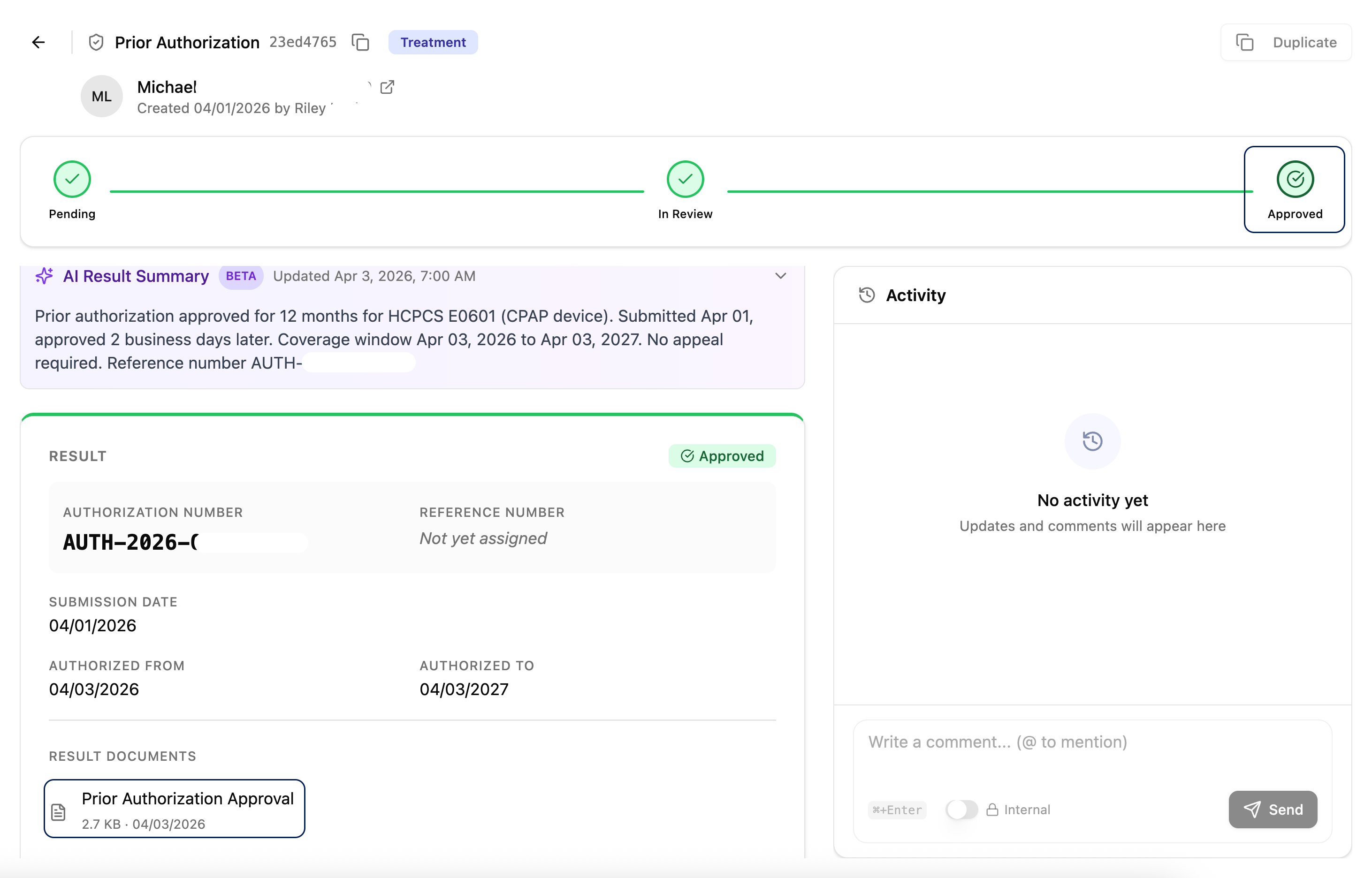
### ✅ Approved
The prior authorization has been approved with all requested units.
When you click on the prior authorization, you will see:
* **Status** — Confirmed as Approved
* **Result Document** — A downloadable copy of the approval from the payer
* **AI Result Summary** — A plain-language summary generated by Solum AI explaining the approval details
*Caption: An approved prior authorization showing the Result Document download and AI Result Summary*
***
### ⚠️ Partially Approved
Not all CPT codes or units were accepted by the payer. The **AI Result Summary** will explain exactly what was and was not approved.
From this view, you have two options:
#### Option A — Submit an Appeal
Scroll down to the appeal section and fill in:\\
When you open **Prior Authorizations**, you will see a table with all submitted requests. Each row includes:
| Column | What it shows |
| ------------------------ | ---------------------------------------------------- |
| **Status** | The current stage of the request |
| **Type** | The authorization type (Assessment, Treatment, etc.) |
| **Patient Name** | The patient the request was submitted for |
| **Insurance** | The payer the request was submitted to |
| **Provider** | The requesting provider |
| **Authorization Number** | The number assigned by the payer once approved |
| **Submitted** | The date the request was sent |
| **Created By** | The team member who created the request |
| **Created Date** | The date the request was created in Solum |
Click on any row to open the full details for that prior authorization.
***
## Understanding Statuses
### 🕐 Pending
This is the first status assigned after you submit a prior authorization. It means Solum has received your request and is processing it. Once all the information has been reviewed and submitted to the payer, the status will update.
You will receive an email notification whenever the status on your prior authorization is updated.
***
### ℹ️ Extra Information Needed
The payer has requested additional information before they can process the request, or there is a document still pending before submission.
Open the prior authorization and check the **Timeline** on the right side. All details about what is needed will be listed there.
Any additional documents or notes should be added through the **Activity** section on the prior authorization — not by creating a new request. This keeps all information tied to the original submission.
*Caption: The Timeline panel shows all updates and any information requested by the payer or Solum*
***
### ✅ Approved
The prior authorization has been approved with all requested units.
When you click on the prior authorization, you will see:
* **Status** — Confirmed as Approved
* **Result Document** — A downloadable copy of the approval from the payer
* **AI Result Summary** — A plain-language summary generated by Solum AI explaining the approval details
*Caption: An approved prior authorization showing the Result Document download and AI Result Summary*
***
### ⚠️ Partially Approved
Not all CPT codes or units were accepted by the payer. The **AI Result Summary** will explain exactly what was and was not approved.
From this view, you have two options:
#### Option A — Submit an Appeal
Scroll down to the appeal section and fill in:\\
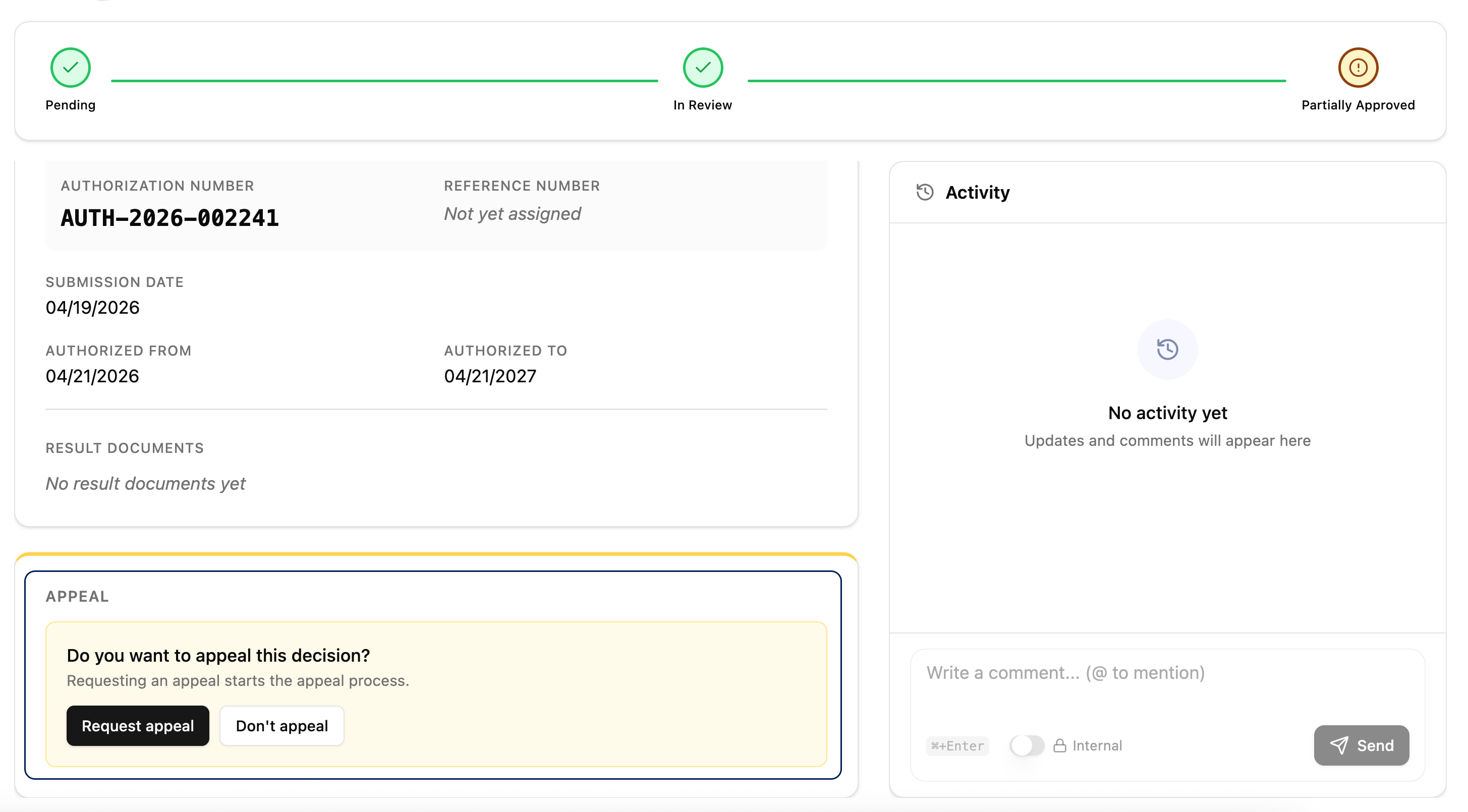 1. **Reason for Appeal** — Explain why the original request should be reconsidered.
2. **Peer-to-Peer Call Availability** — Add your availability in case the payer requires a peer-to-peer call with a clinician.
3. **Supporting Documents** — Attach any additional files that support the appeal.
Then submit the appeal request.
#### Option B — Do Not Appeal
If you decide not to pursue an appeal, click the **Don't Appeal** button.
***
### 📋 Appealing
This status appears after a partially approved request has been appealed. Solum is processing the appeal and submitting it to the payer.
***
### ❌ Denied
The prior authorization has been denied by the payer. This can happen due to incorrect dates, insufficient documentation, or a clinical reason the payer did not accept.
Open the prior authorization and review the **Timeline** and **AI Result Summary** for the specific denial reason provided by the payer.
If you believe the denial was in error or want to challenge the decision, contact the Solum team through the **Activity** section and provide any supporting context.
***
### 🚫 No Authorization Needed
The payer determined that the CPT codes submitted do not require a prior authorization, or there was another reason the request was returned without an authorization number.
This is not a denial — it means you can proceed with services without an auth on file.
***
## Status Overview
| Status | What it means | Action needed? |
| ---------------------------- | ------------------------------------------------ | --------------------------------------- |
| **Pending** | Submitted and being processed by Solum | None — wait for update |
| **Extra Information Needed** | Payer or Solum needs something before submission | Check Timeline and respond via Activity |
| **Approved** | Fully approved with all requested units | Download Result Document if needed |
| **Partially Approved** | Some CPT codes or units not accepted | Appeal or choose not to appeal |
| **Appealing** | Appeal in progress | None — wait for update |
| **Denied** | Request rejected by the payer | Review denial reason in Timeline |
| **No Authorization Needed** | No auth required for these codes | None — proceed with services |
***
## Important: Where to Add Information\\
1. **Reason for Appeal** — Explain why the original request should be reconsidered.
2. **Peer-to-Peer Call Availability** — Add your availability in case the payer requires a peer-to-peer call with a clinician.
3. **Supporting Documents** — Attach any additional files that support the appeal.
Then submit the appeal request.
#### Option B — Do Not Appeal
If you decide not to pursue an appeal, click the **Don't Appeal** button.
***
### 📋 Appealing
This status appears after a partially approved request has been appealed. Solum is processing the appeal and submitting it to the payer.
***
### ❌ Denied
The prior authorization has been denied by the payer. This can happen due to incorrect dates, insufficient documentation, or a clinical reason the payer did not accept.
Open the prior authorization and review the **Timeline** and **AI Result Summary** for the specific denial reason provided by the payer.
If you believe the denial was in error or want to challenge the decision, contact the Solum team through the **Activity** section and provide any supporting context.
***
### 🚫 No Authorization Needed
The payer determined that the CPT codes submitted do not require a prior authorization, or there was another reason the request was returned without an authorization number.
This is not a denial — it means you can proceed with services without an auth on file.
***
## Status Overview
| Status | What it means | Action needed? |
| ---------------------------- | ------------------------------------------------ | --------------------------------------- |
| **Pending** | Submitted and being processed by Solum | None — wait for update |
| **Extra Information Needed** | Payer or Solum needs something before submission | Check Timeline and respond via Activity |
| **Approved** | Fully approved with all requested units | Download Result Document if needed |
| **Partially Approved** | Some CPT codes or units not accepted | Appeal or choose not to appeal |
| **Appealing** | Appeal in progress | None — wait for update |
| **Denied** | Request rejected by the payer | Review denial reason in Timeline |
| **No Authorization Needed** | No auth required for these codes | None — proceed with services |
***
## Important: Where to Add Information\\
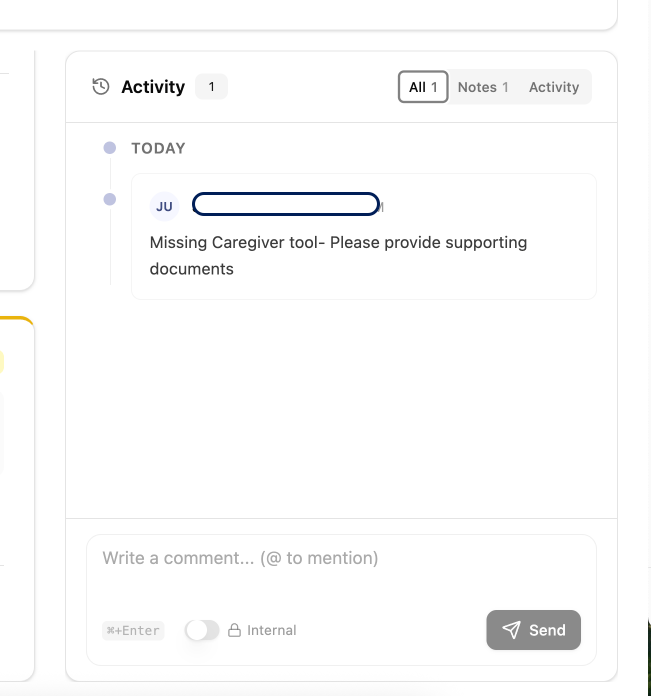 All information related to a prior authorization request — additional documents, notes, or follow-up details — must be added through the **Activity** section on that specific prior auth. Do not create a new request to send supplemental information.
This keeps the full history of every request in one place and ensures the Solum team has everything they need without having to search across multiple records.
***
## Email Notifications
You will automatically receive an email notification in the following situations:
* The **status of your prior authorization is updated** (any stage change)
* **Solum AI leaves a comment** on your prior authorization requesting extra information or specific data
Email notifications are sent to the person who originally submitted the prior authorization request.
***
## Troubleshooting
| Problem | Fix |
| ----------------------------------------- | -------------------------------------------------------------------------------------------------------------------------------------------------------- |
| Status has not changed after several days | Check the Timeline for any pending information requests. If nothing is flagged, add a note in the **Activity** section to follow up with the Solum team. |
| Cannot find the authorization number | The authorization number only appears once the payer has approved the request. It will not be available for Pending, Denied, or No Auth Needed statuses. |
| Result Document is not available | The document is only available for Approved and Partially Approved statuses. If it is missing, add a note in the **Activity** section. |
| Did not receive an email notification | Check your spam folder. If the issue persists, confirm your email address is correct under your account settings. |
All information related to a prior authorization request — additional documents, notes, or follow-up details — must be added through the **Activity** section on that specific prior auth. Do not create a new request to send supplemental information.
This keeps the full history of every request in one place and ensures the Solum team has everything they need without having to search across multiple records.
***
## Email Notifications
You will automatically receive an email notification in the following situations:
* The **status of your prior authorization is updated** (any stage change)
* **Solum AI leaves a comment** on your prior authorization requesting extra information or specific data
Email notifications are sent to the person who originally submitted the prior authorization request.
***
## Troubleshooting
| Problem | Fix |
| ----------------------------------------- | -------------------------------------------------------------------------------------------------------------------------------------------------------- |
| Status has not changed after several days | Check the Timeline for any pending information requests. If nothing is flagged, add a note in the **Activity** section to follow up with the Solum team. |
| Cannot find the authorization number | The authorization number only appears once the payer has approved the request. It will not be available for Pending, Denied, or No Auth Needed statuses. |
| Result Document is not available | The document is only available for Approved and Partially Approved statuses. If it is missing, add a note in the **Activity** section. |
| Did not receive an email notification | Check your spam folder. If the issue persists, confirm your email address is correct under your account settings. |