

Verification of Benefits (VOB) requests have their own list and detail view. Open VOBs to review a request, its status, priority, and comments. The Tasks list contains your clinic’s internal follow-up tasks.To ask a question, add a comment to the VOB. To request priority, turn on Priority on the VOB. To verify benefits again once the VOB is completed, select Request reverification from the VOB or from Actions in the patient’s insurance information.
Quick Start- How to create a task
- Open a patient from the Patients section.
- Go to the Details tab inside the patient record.
- Right-click on Actions and select Create a Task.
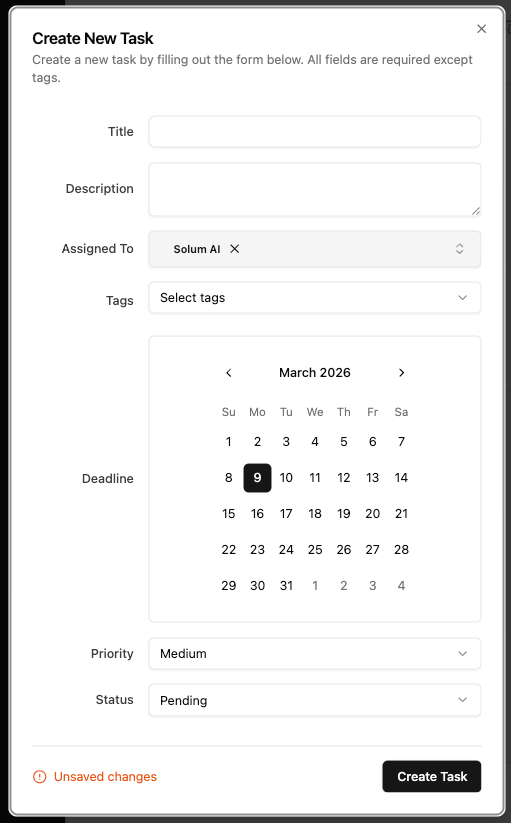
- Fill in the Title and Description.
- Assign the task to a member of your clinic.
- Click Create Task.
- When work is done, open the task, leave a comment with your update, and mark it as complete.
What Are Tasks?
Every task in Solum has the following information attached to it:How Tasks Get Created
Tasks in Solum come from three places: 1. Solum AI creates them automatically. When Solum’s AI identifies something that requires human follow-up — such as a callback request (only applies to clinics that have the Voice Agent feature enabled), or missing patient information — it creates a task and flags it for your team. 2. Your team creates them manually. Anyone on your team can create a task at any time, directly from a patient’s record. This is the most common way to create tasks. 3. The Solum team creates them on your behalf. If the Solum support team identifies something that needs your attention — or if you reach out and they need to flag an action item — they will create a task and assign it to you. You will receive an email notification when this happens.Creating a Task
From a Patient Record (Most Common)
This is the recommended way to create tasks. Tasks created this way are automatically linked to the patient, so nothing gets lost.- Open the patient record from Patients.
- Click on the Details tab inside the patient profile.
- Right-click on the Actions button.
-
Select Create a Task from the menu.
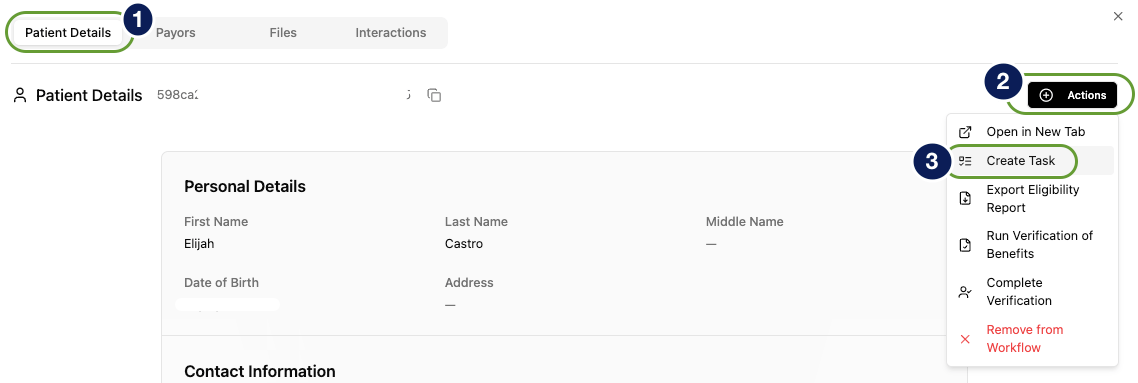
The Actions menu inside the patient Details tab
-
Fill in the Title — keep it short and action-oriented (e.g.,
Call the patient to confirm their appointment,Collect the updated insurance card). - Fill in the Description with any context your team needs to act on this task.
Title and Description are both required. Tags are optional and can be left blank.
- Set Assigned To to the appropriate member of your clinic. Solum AI and Solum staff cannot receive new task assignments. Existing Solum-assigned tasks can still be discussed and completed.
- Click Create Task.
From the Tasks Section (Less Common)
You can also create a task directly from the Tasks section in the left menu. However, tasks created this way are not linked to any patient, which makes them harder to track over time. Use this method only for internal tasks that are not related to a specific patient.- Click Tasks in the left menu.
- Click the New Task button in the top right corner.
- Fill in the Title, Description, and Assigned To fields.
- Click Save.
Responding to Tasks
What You See in the Tasks Section
Click Tasks in the left menu to open your clinic’s task list. Every task appears as a row with the following columns: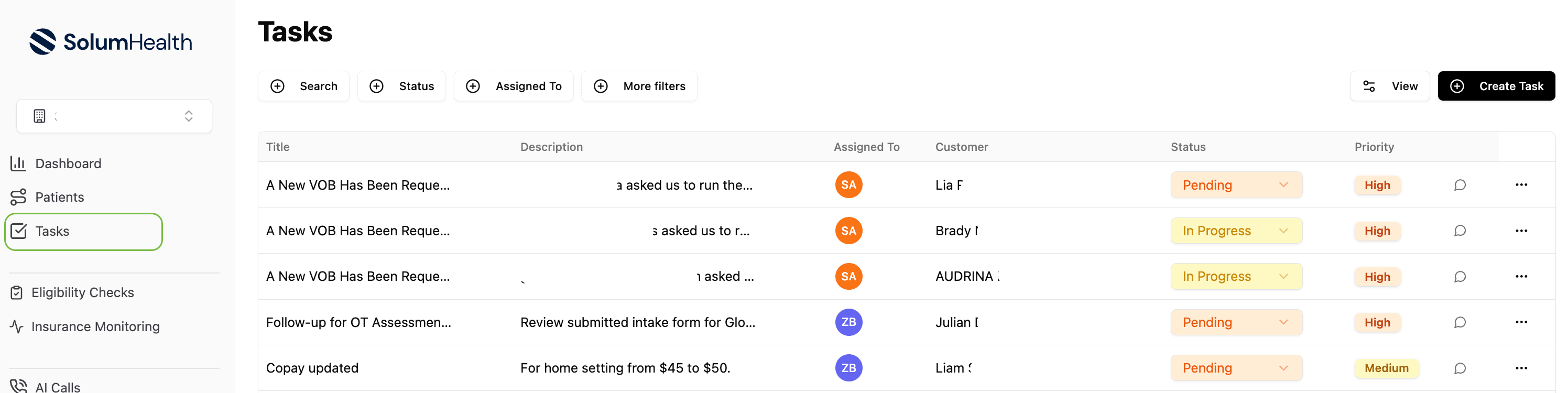
The Tasks section showing all open tasks for your clinic, with status and priority visible at a glance
- Search — find a task by title or keyword
- Status — filter by Pending, In Progress, or Completed
- Assigned To — view only your own tasks or a specific team member’s workload
- More Filters — additional options including priority and patient
- Create Task — button in the top right corner to create a new task (see the less common method above)
Finding Tasks That Need Attention
When you open Tasks, you will see a list of all tasks for your clinic. Use the filters at the top to narrow down what you are looking at:- Status — filter by Pending, In Progress, or Completed
- Priority — see Urgent or High priority items first
- Assigned To — view only your own tasks or a specific team member’s
Leaving a Comment on a Task
The best way to respond to a task is by leaving a comment. This keeps all communication in one place and creates a clear record of what happened and who did what. For example: if a task is asking for missing patient information and you have found it, do not just mark the task complete. Leave a comment explaining what you found so the rest of the team has the full picture.- Open the task by clicking on it.
- On the right side of the task detail view, find the Comments section.
- Type your update or response in the comment box.
-
Click Add Comment.
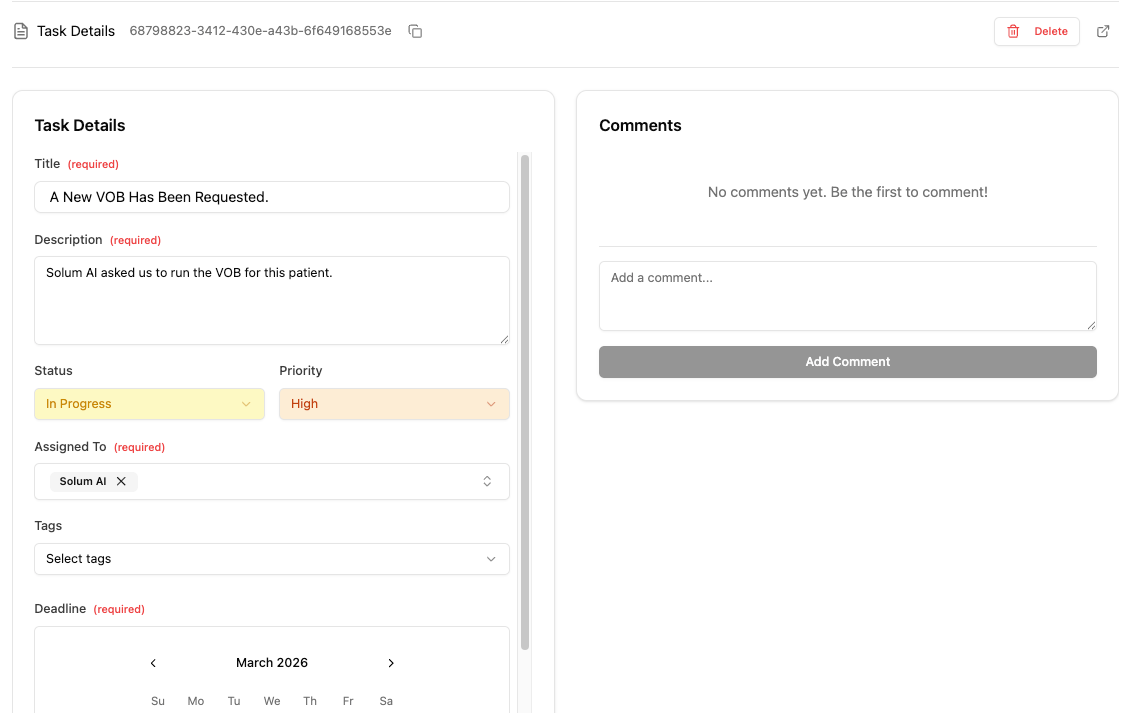
The Comments section on the right side of a task — type your update and click Add Comment
Updating a Task’s Status
As you work on a task, keep its status current so your team always knows where things stand.- Open the task.
- Use the Status dropdown to update it:
- Click Save to record the update.
Completing a Task
- Open the task.
- Leave a final comment summarizing what was done.
- Change the Status to Completed.
- Click Save.
Reassigning a Task
If a task needs to move to a different person:- Open the task.
- Click the Assigned To field and select the correct team member.
- Leave a comment explaining the reassignment.
- Click Save.