

Creating Workflow Stages
Workflow Stages let you define the steps a patient moves through — from first contact all the way to discharge. You can create as many stages as your clinic needs, and a stage can sync the patient to an external system when a patient is moved in. You can find Workflow Stages under Settings → Workflow Stages.Step by Step
- Go to Settings → Workflow Stages.
-
Click Add Stage

-
Enter a Stage Title, an optional Description, and select a Stage Type.
Stage Title: The name that appears on the workflow board, visible to your whole team Despcription: A short note explaining what this stage is for and what type of patients belong here — helpful for new team members Stage Type: Controls whether any automatic tasks are triggered when a patient enters this stage - Click Save.
- To reorder stages, click and hold the grid handle icon (⠿) next to a stage, then drag it to the new position.
You can create as many stages as your clinic needs. There is no limit.
Reordering Stages
Your stages appear on the workflow board in the order they’re listed here. You can change that order at any time.- Find the stage you want to move.
- Click and hold the grid handle icon (⠿) on the left side of the stage card.
- Drag the stage up or down to the position you want.
- Release to drop it in place.
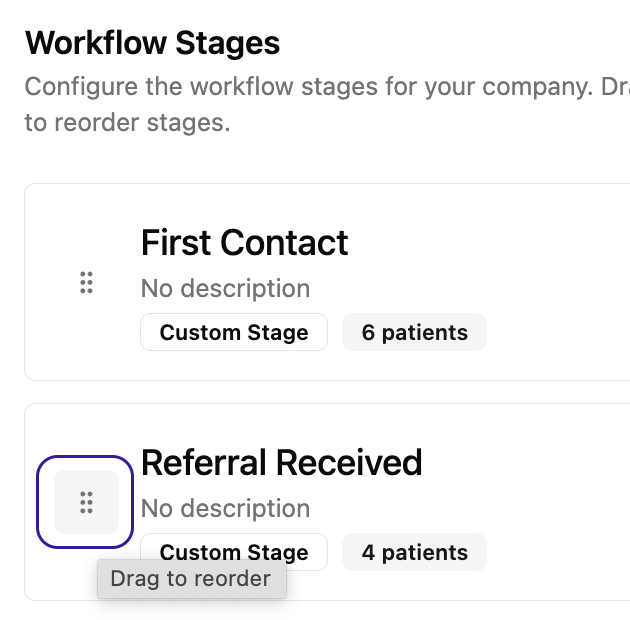
The grid handle icon (⠿) on the left side of a stage card — click and hold it to drag the stage to a new position
The order you set here is the order your team will see stages on the workflow board. Arrange them to match how patients actually move through your clinic.