

Custom Fields
Custom fields let you add your own data points to every patient record. Define the fields your team needs — text, numbers, dates, dropdowns, or toggles — and they appear on every patient profile for your company. Manage custom fields from Settings → Custom Fields.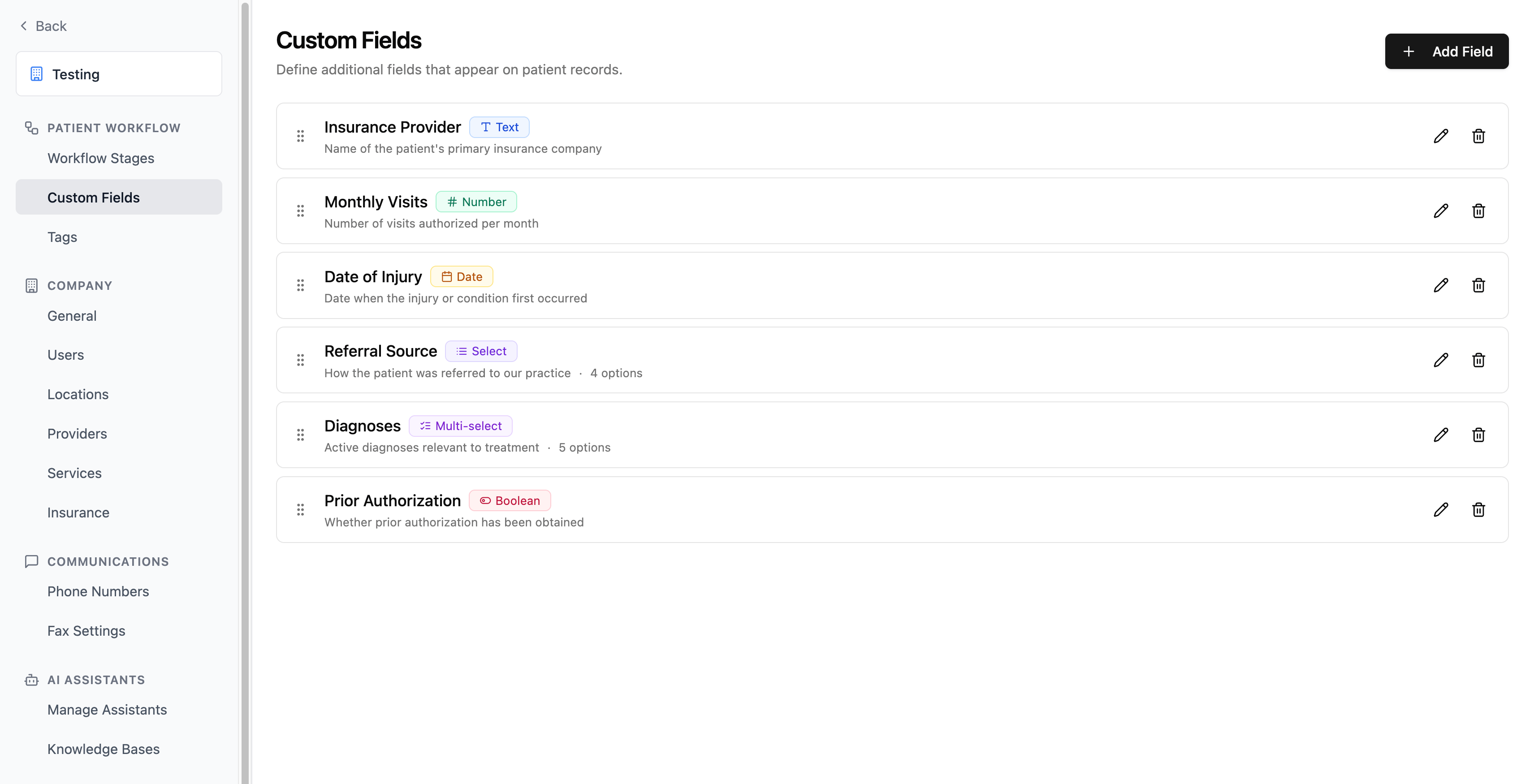
The Custom Fields settings page with drag handles for reordering and edit/delete actions
Quick Start
- Go to Settings → Custom Fields in your Solum dashboard.
- Click “Add Field” to open the field creation form.
- Enter a label (e.g., “Preferred Therapist”) — a field key is generated automatically.
- Choose a type (text, number, date, select, multiselect, or boolean).
- Save — the field now appears on every patient profile in your company.
- Fill in values on individual patient records or via the API.
Field Types
Creating a Field
Click Add Field to open the creation form. Fill in the following:- Label (required) — The display name shown on patient profiles. A snake_case field key (e.g.,
preferred_therapist) is generated automatically from the label. - Type (required) — Choose one of the six field types listed above.
- Description (optional) — Help text explaining what the field captures.
- Options (select and multiselect only) — Add the choices that will appear in the dropdown.
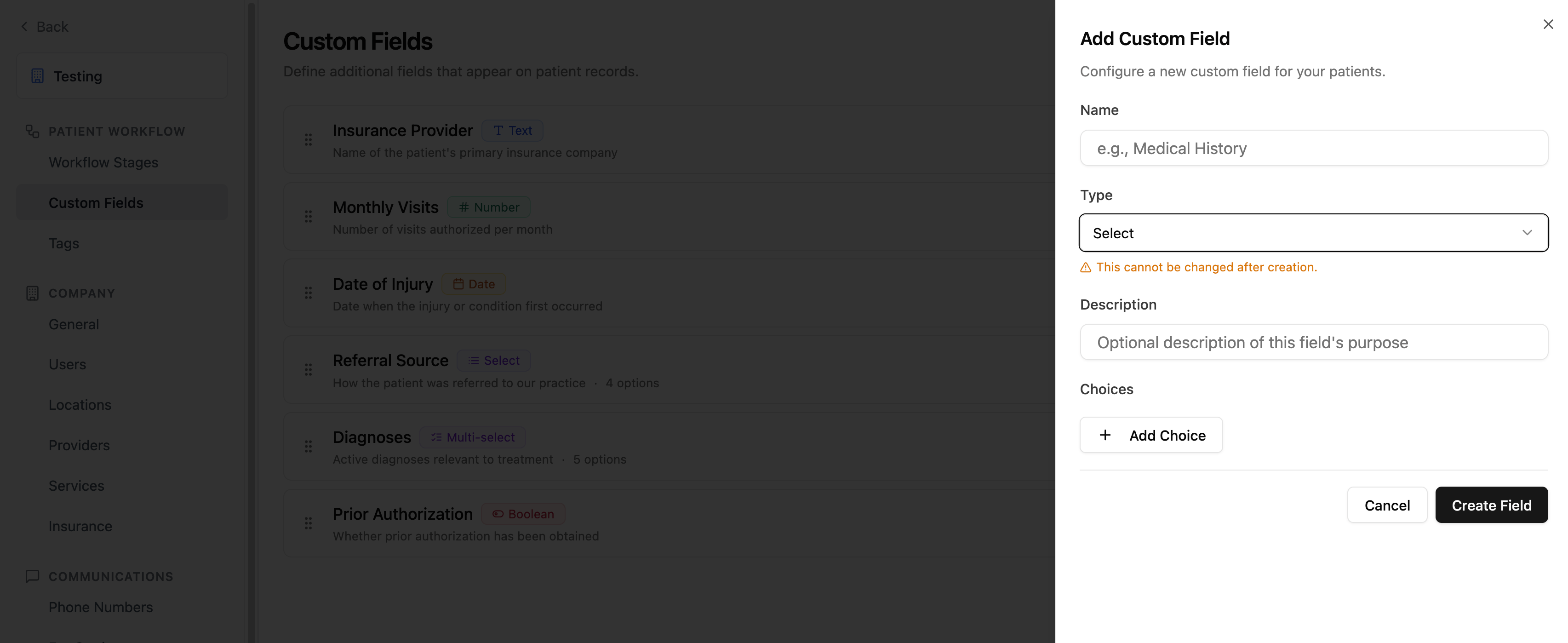
The Add Custom Field form — choose a name, type, and optional description
Editing a Field
Click on any existing field to edit it. You can change:Reordering Fields
Drag fields using the grip handle on the left side of each row to reorder them. The new order is saved automatically and determines the display order on patient profiles.Deleting a Field
Click the delete action on a field to remove it. A confirmation dialog will appear.Setting Values on Patients
Once created, custom fields appear in the Additional Information section of each patient profile. Values can be set:- In the dashboard — Edit a patient and fill in the custom fields section
- Via the API — Include a
custom_fieldsobject when creating or updating patients through the/v1/patientsendpoint, using field IDs as keys
Fax Extraction
Custom fields can be automatically extracted from incoming faxes using AI. To enable this:- Go to Settings → Custom Fields.
- Toggle on extraction for each custom field you want extracted from fax documents (each field row has an extraction switch).
- When a fax arrives, Solum’s AI reads the document and fills in the enabled fields on the patient record.
Locked Organizations
Some organizations have custom field management locked (typically when fields are managed by an external integration or EHR sync). When locked:- You cannot add, edit, delete, or reorder fields
- An alert banner is shown on the settings page explaining the restriction