

Phone Numbers

Phone numbers are the backbone of patient communication in Solum. Each number can power SMS conversations and AI voice calls. You manage phone numbers from Settings → Phone Numbers.

Prerequisites

  • Admin role is required to search and purchase phone numbers.
  • All users can view the phone number list and edit friendly names.

Quick Start

  1. Navigate to Settings → Phone Numbers.
  2. Click “Buy Phone Number” to open the search dialog.
  3. Search by area code or digits the number should contain.
  4. Review results — check location and capabilities (Voice, SMS, MMS).
  5. Click Buy — the number is provisioned and ready to use.

Searching for Numbers

Click Buy Phone Number to open the search dialog. You can filter available numbers using two criteria:
FilterDescriptionExample
Area Code3-digit US area code415 (San Francisco)
ContainsDigits the number should include1234
You can use one or both filters. Results show up to 10 numbers at a time, each displaying:
  • Phone number in formatted US format
  • Location (city and state)
  • Capabilities — Voice, SMS, and/or MMS support
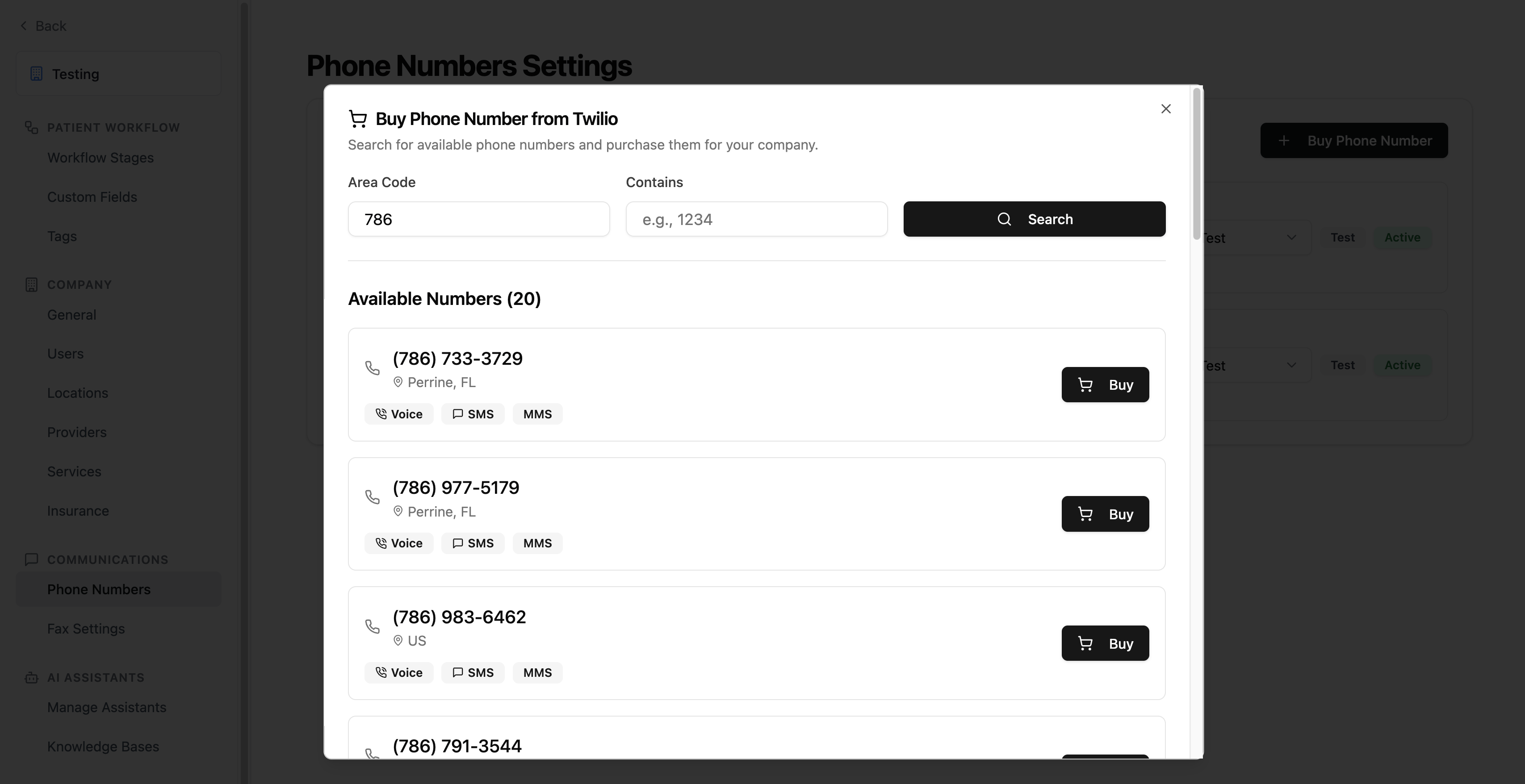
Phone number search dialog showing area code and contains filters with available numbers

Purchasing a Number

Once you find a number you want:
  1. Click Buy next to the number.
  2. Solum provisions the number automatically — this includes purchasing from the carrier, configuring SMS webhooks, and enabling voice call support.
  3. The number appears in your phone number list with type Test by default.
The number is immediately available for use after purchase.
If a number is no longer available (someone else purchased it), you’ll see an error. Search again for a different number.

Phone Number Types

Every phone number has a type that controls how it can be used:
TypeDescription
TestFor development and testing. Assigned by default on purchase.
ProductionFor live patient communication. Only Production numbers can be used in conversations and automations.
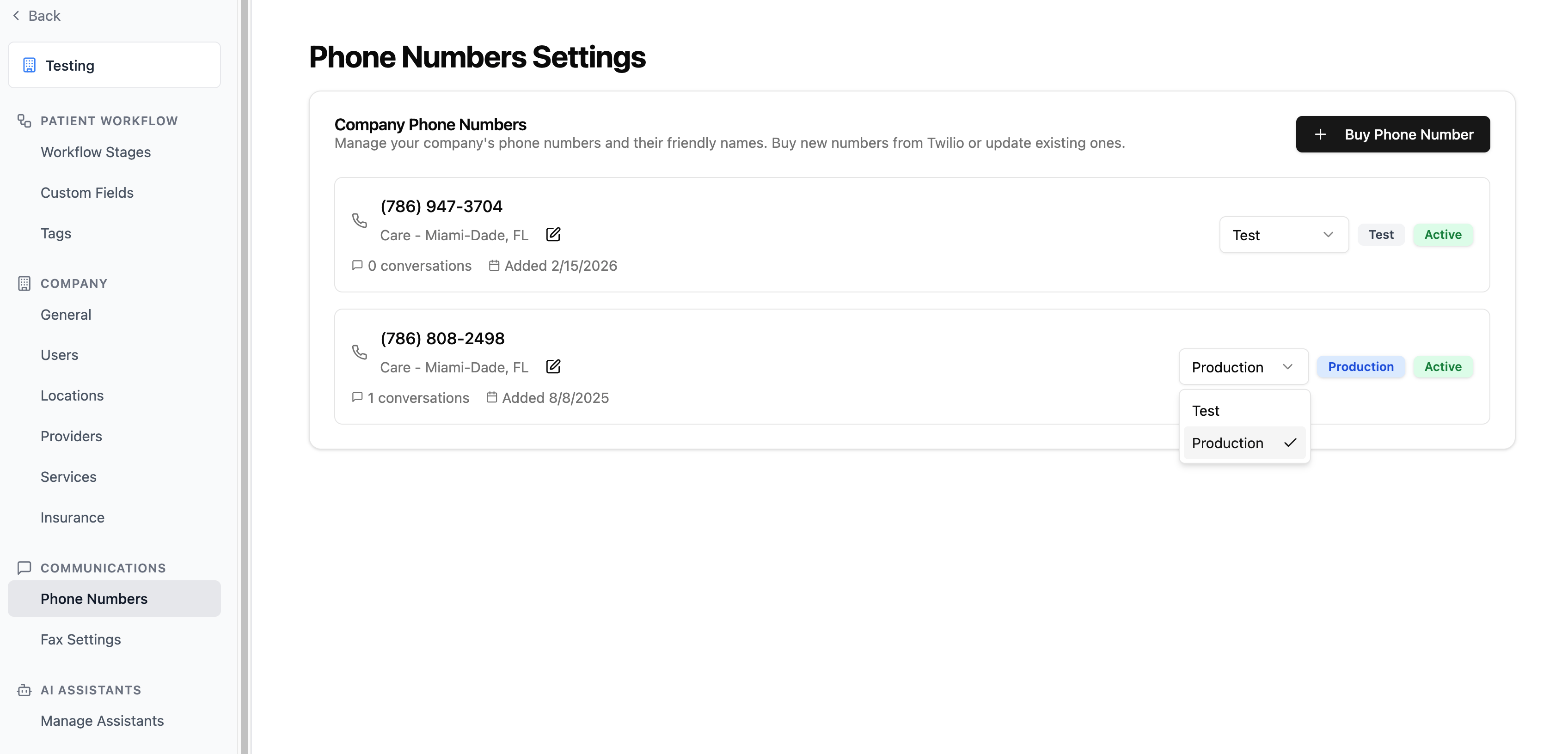
To change a number’s type, use the type dropdown in the phone number list and select the desired type.

Testing Voice AI Agents

Calls made to a Test number are safe for testing your voice AI agent’s behavior — they won’t create records in the Solum dashboard (e.g., no intake forms are sent, no tasks are created).
Tools that the AI agent has access to during the call will still take effect. For example, if your agent can book appointments or create patients in your EHR/CRM, those actions will happen even on Test numbers. Make sure to delete any test data created by those tools after testing.
Phone number list showing type dropdown and status badges

Editing Friendly Names

Each phone number can have a friendly name to help your team identify it (e.g., “Main Office” or “After Hours Line”).
  1. Click the pencil icon next to the phone number.
  2. Type the new friendly name.
  3. Click the checkmark to save, or the X to cancel.
Friendly names appear throughout Solum wherever phone numbers are referenced, including automation configuration and conversation views.

How Phone Numbers Are Used

SMS Conversations — Each phone number can have one active conversation per patient. Staff members send and receive text messages through the Solum inbox, and patients reply directly to the phone number. AI Voice Calls — Phone numbers are integrated with the voice call platform. When configured in automations (e.g., intake calls), Solum uses the assigned phone number as the caller ID. Fax Automations — Production phone numbers can be selected in automation rules for actions like sending intake forms or initiating intake calls.

Troubleshooting

ProblemFix
No results when searchingTry a different area code or remove the “contains” filter. Not all area codes have available numbers.
”Phone number is no longer available”Another buyer claimed the number. Search again for a different one.
Purchase fails unexpectedlyTry again in a few minutes. If the issue persists, contact support@getsolum.com.
Number purchased but can’t use in conversationsThe number is set to Test type. Change it to Production using the type dropdown.
”Only admin users can purchase new phone numbers”Purchasing requires an Admin role. Ask an existing Admin to grant you Admin access, or contact support@getsolum.com for help.