

Quick Start
- Go to Prior Authorizations in the left menu.
- Find the request you want to review in the table.
- Click on the prior auth to open the details panel.
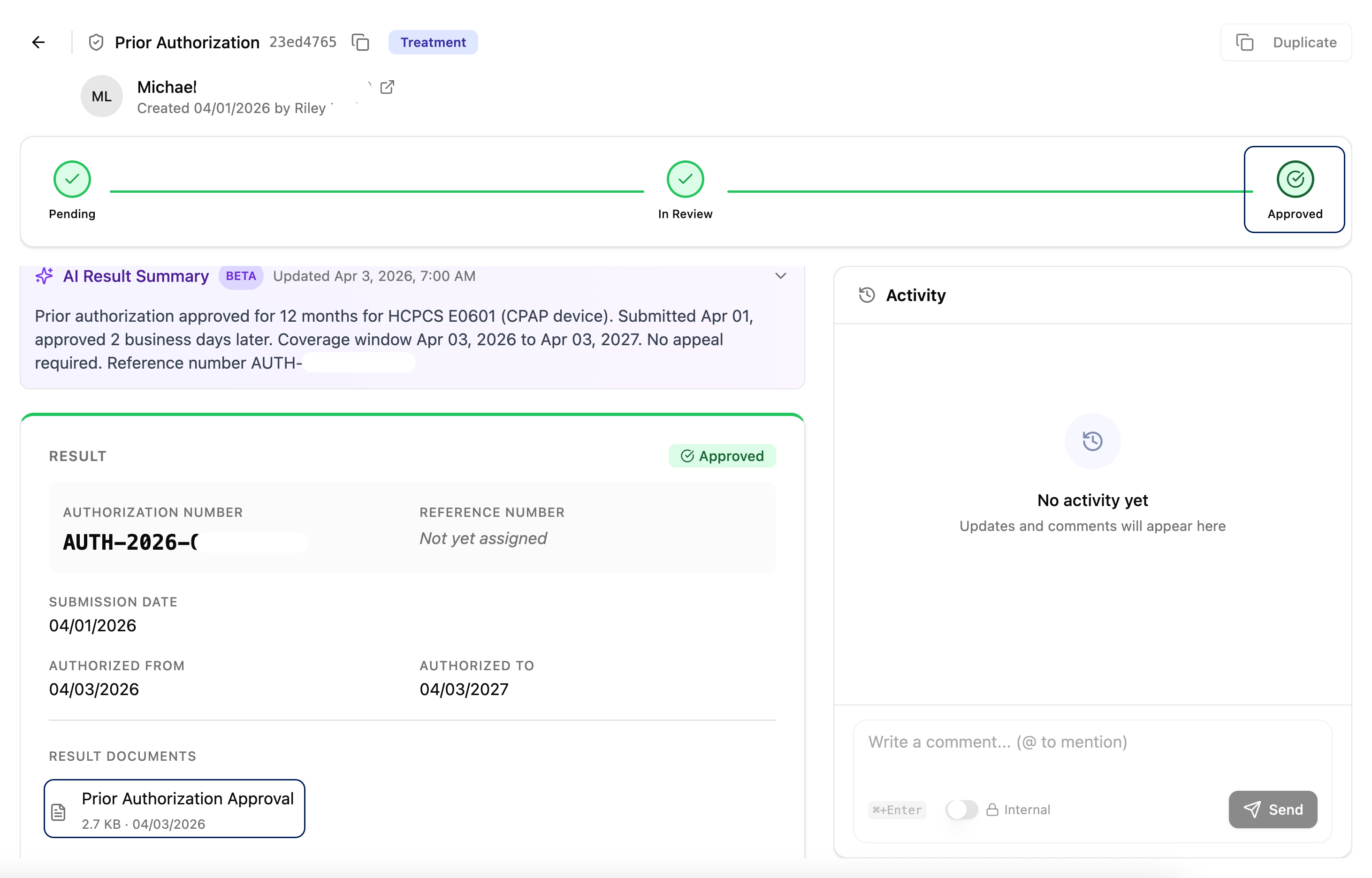
- Check the Status to understand where the request stands.
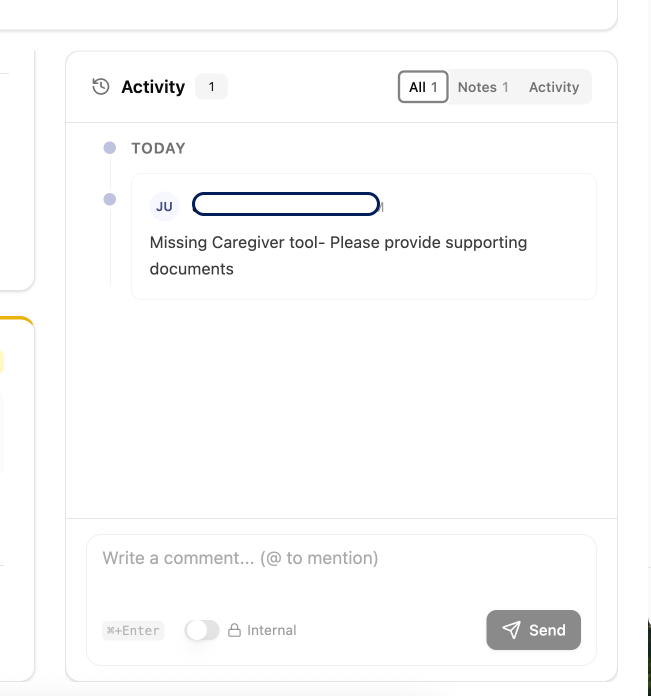
- Review the Activity Timeline on the right side for updates and any action required.
- If partially approved, scroll down to submit an appeal or choose not to appeal.
The Prior Authorizations Table\
Click on any row to open the full details for that prior authorization.
Understanding Statuses
🕐 Pending
This is the first status assigned after you submit a prior authorization. It means Solum has received your request and is processing it. Once all the information has been reviewed and submitted to the payer, the status will update.You will receive an email notification whenever the status on your prior authorization is updated.
ℹ️ Extra Information Needed
The payer has requested additional information before they can process the request, or there is a document still pending before submission. Open the prior authorization and check the Timeline on the right side. All details about what is needed will be listed there. Caption: The Timeline panel shows all updates and any information requested by the payer or Solum✅ Approved
The prior authorization has been approved with all requested units. When you click on the prior authorization, you will see:- Status — Confirmed as Approved
- Result Document — A downloadable copy of the approval from the payer
- AI Result Summary — A plain-language summary generated by Solum AI explaining the approval details
⚠️ Partially Approved
Not all CPT codes or units were accepted by the payer. The AI Result Summary will explain exactly what was and was not approved. From this view, you have two options:Option A — Submit an Appeal
Scroll down to the appeal section and fill in:\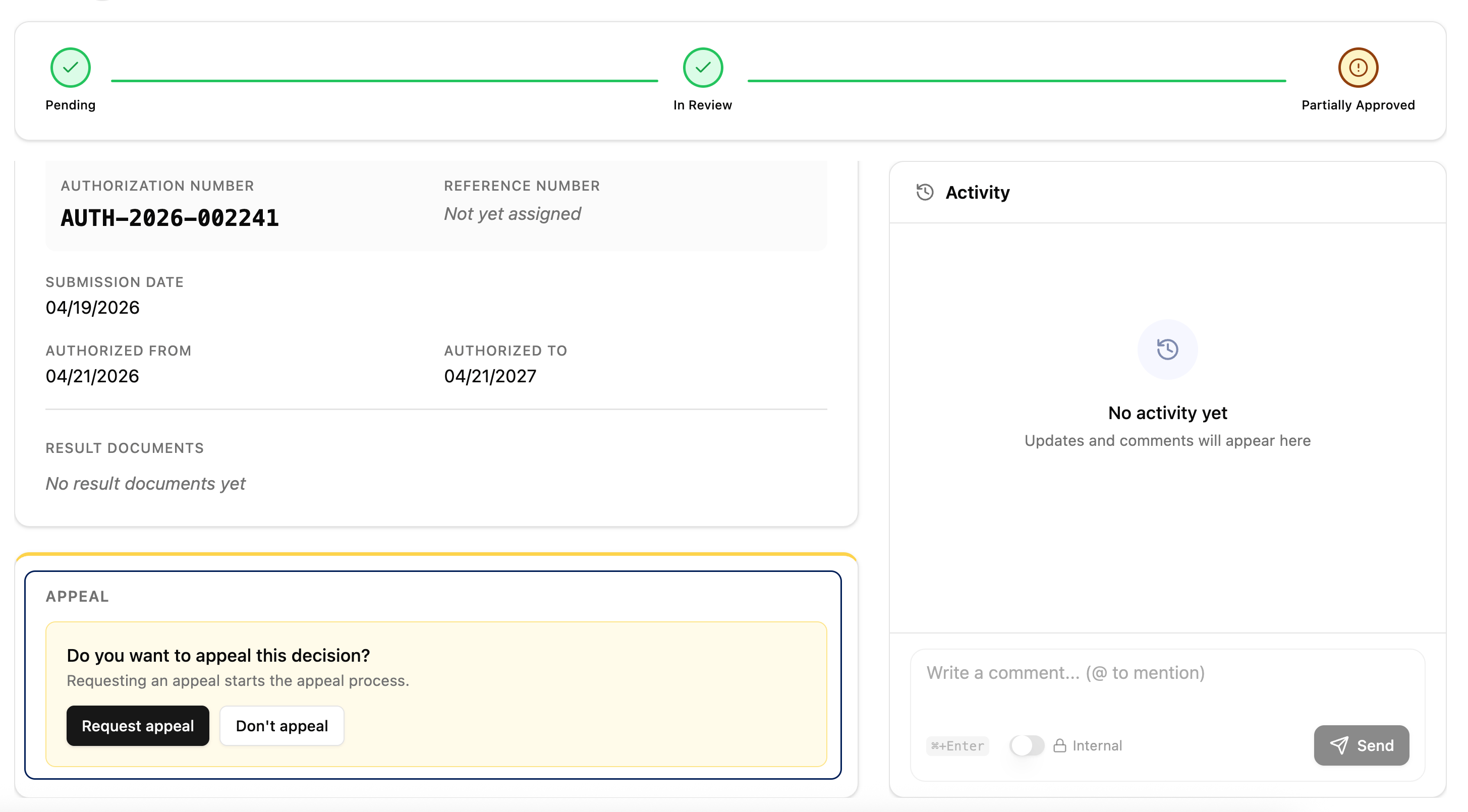
- Reason for Appeal — Explain why the original request should be reconsidered.
- Peer-to-Peer Call Availability — Add your availability in case the payer requires a peer-to-peer call with a clinician.
- Supporting Documents — Attach any additional files that support the appeal.
Option B — Do Not Appeal
If you decide not to pursue an appeal, click the Don’t Appeal button.📋 Appealing
This status appears after a partially approved request has been appealed. Solum is processing the appeal and submitting it to the payer.❌ Denied
The prior authorization has been denied by the payer. This can happen due to incorrect dates, insufficient documentation, or a clinical reason the payer did not accept. Open the prior authorization and review the Timeline and AI Result Summary for the specific denial reason provided by the payer.If you believe the denial was in error or want to challenge the decision, contact the Solum team through the Activity section and provide any supporting context.
🚫 No Authorization Needed
The payer determined that the CPT codes submitted do not require a prior authorization, or there was another reason the request was returned without an authorization number. This is not a denial — it means you can proceed with services without an auth on file.Status Overview
Important: Where to Add Information\
Email Notifications
You will automatically receive an email notification in the following situations:- The status of your prior authorization is updated (any stage change)
- Solum AI leaves a comment on your prior authorization requesting extra information or specific data
Email notifications are sent to the person who originally submitted the prior authorization request.