

Insurance
The Insurance page is where you manage the list of insurance payers your company works with. Each entry connects to a payer in the national eligibility network, enabling you to run eligibility checks (270/271 transactions) and track patient coverage. Manage insurance from Settings → Insurance.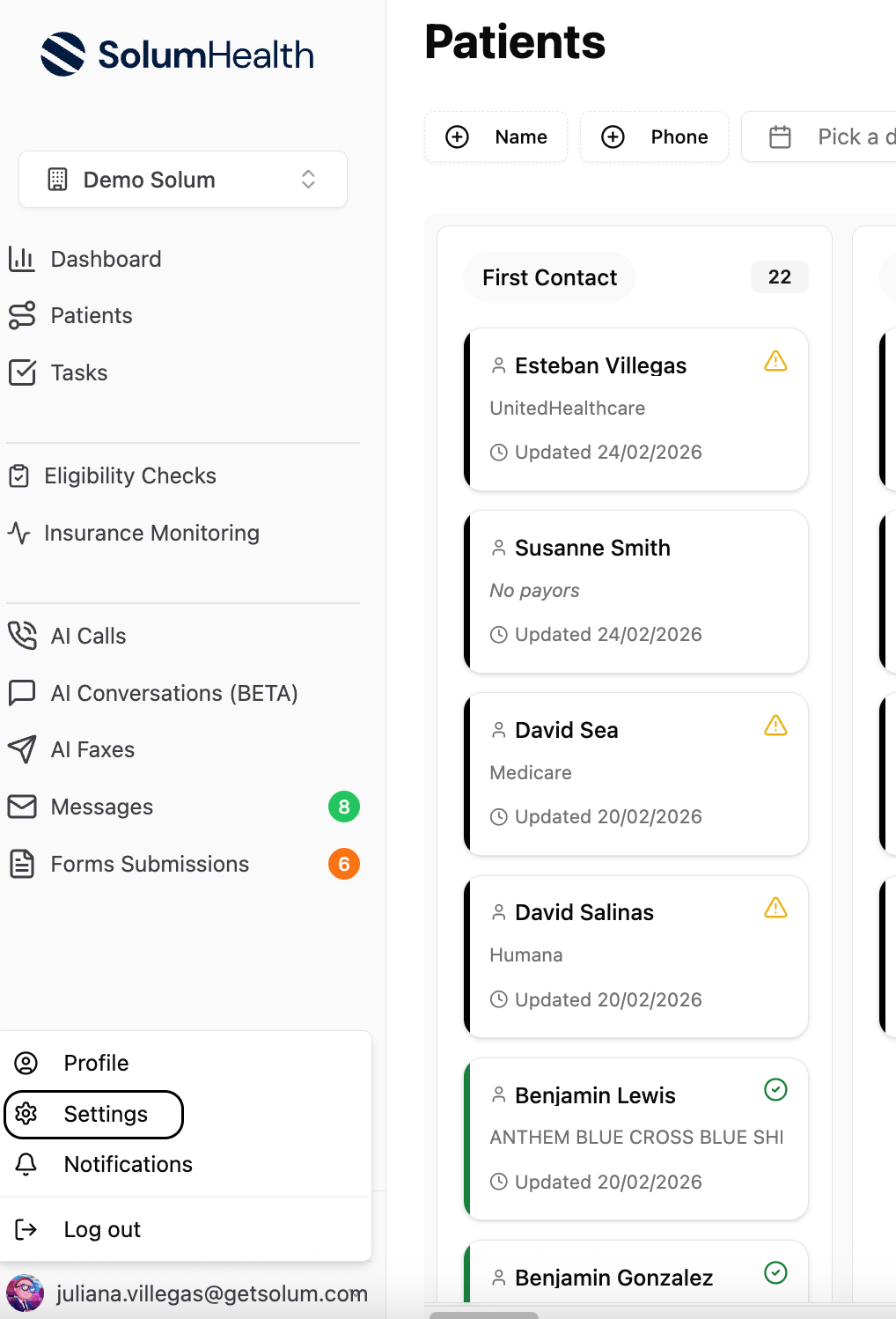
Quick Start
- Go to Settings → Insurance in your Solum dashboard.
- Click “Add Insurance” to open the creation form.
- Search for the payer in the Eligibility Payer dropdown (e.g., “Blue Cross”).
- Select the payer — the insurance takes the payer’s directory name.
- Add other names the insurance goes by under Also known as (optional).
- Save — the payer is now available for patient records and eligibility checks.
Insurance Fields
Advanced Settings
Adding an Insurance
Click Add Insurance to open the form. Start typing in the Eligibility Payer dropdown to search the payer directory — it includes thousands of payers across the US. When you select a payer:- The insurance is named after the payer’s official display name
- The payer is linked to the eligibility network, enabling 270/271 transactions
Editing an Insurance
Click the edit button on any insurance card to update its details. You can change the eligibility payer, the other names, the active status, payer ID, and additional fields. The name itself follows the selected payer.Changing the Eligibility Payer renames the insurance to the new payer’s directory name. The previous name is kept automatically under Also known as, so records and documents that use it keep matching.
Deactivating an Insurance
Instead of deleting, insurance entries are deactivated by toggling the Active switch off. Inactive entries:- Move to the Inactive Insurances section on the settings page
- Are hidden from dropdowns when adding payors to patients
- Can be reactivated at any time by toggling Active back on
Network Status
Each insurance is marked as either:- In Network — Your company has a contract with this payer
- Out of Network — No direct contract; different coverage rules may apply
Where Insurance Is Used
- Patient records — When adding a payor to a patient, you select from your company’s insurance list. Each patient can have up to four payors (Primary, Secondary, Tertiary, Quaternary).
- Eligibility checks — The payer link determines which insurance network receives the 270/271 transaction.
- Patient filters — Filter the patient list by insurance on the patients overview page.
Insurance card
A patient’s policy can hold the front and the back of the insurance card as files. Each policy carries two fields,insurance_card_front_file_id and insurance_card_back_file_id, both null until a card is attached. They come back wherever a policy does: GET /v1/patient-policies, GET /v1/patient-policies/{id}, and expand[]=policies on the patient endpoints.
To attach a card:
- Upload the file with
POST /v1/files(a multipart form). Sendpatient_idwhen you know the patient. If you know which side the file shows, also senddocument_typeset toinsurance_card_frontorinsurance_card_back; a file you label this way is not classified again. - Set the file’s ID on the policy, with
POST /v1/patient-policieswhen you create it orPATCH /v1/patient-policies/{id}afterwards. Sendnullto empty a slot.
- The same file may be both the front and the back, for one scan of both sides.
- A file must be the patient’s (or have no patient yet, in which case it is linked to the patient), active, and a PDF or an image. Otherwise the request fails with
422, andparamnames the field. - Deleting the file, or moving it to another patient, empties the slot.
- Solum labels the file after the slots it fills:
insurance_card_front,insurance_card_back, orinsurance_cardwhen it fills both.insurance_cardalso stays the label of a card whose side is not known. A file that already carries another label, an intake packet for example, keeps it. GET /v1/files?document_type=insurance_cardis an exact match: it does not return files labelledinsurance_card_frontorinsurance_card_back.- Changing a card is a change to the policy: it adds a version and is recorded in the policy’s activity.
Locked Organizations
Some organizations have insurance management locked (typically when insurance entries are managed by Solum on your behalf). When locked:- You cannot add or edit insurance entries
- An alert banner is shown on the settings page explaining the restriction