

Before You Start
Quick Start
- Go to Prior Authorizations in the left menu.
- Click New Request.
- Select an existing patient or enter patient details manually.
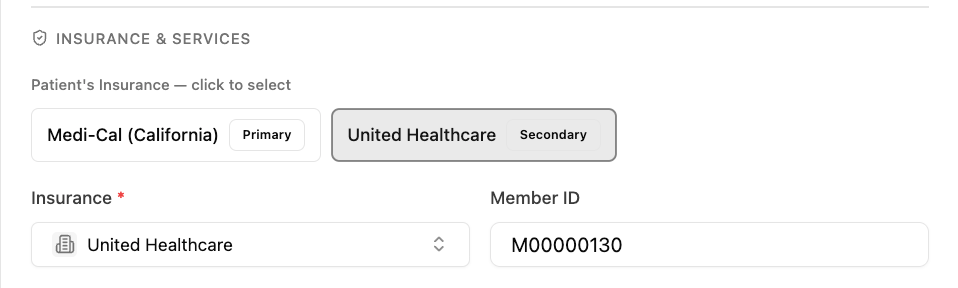
- Add or confirm the insurance information.
- Choose the specialty type, CPT codes, units, and authorization type.
- Set the start and end dates for the authorization period.
- Select the requesting provider, servicing facility, and location(s).
- Upload supporting documents.
- Click Create Prior Authorization.
Step-by-Step
1. Open Prior Authorizations
Select Prior Authorizations from the left navigation menu.2. Click New Request
Click the New Request button to open the submission form.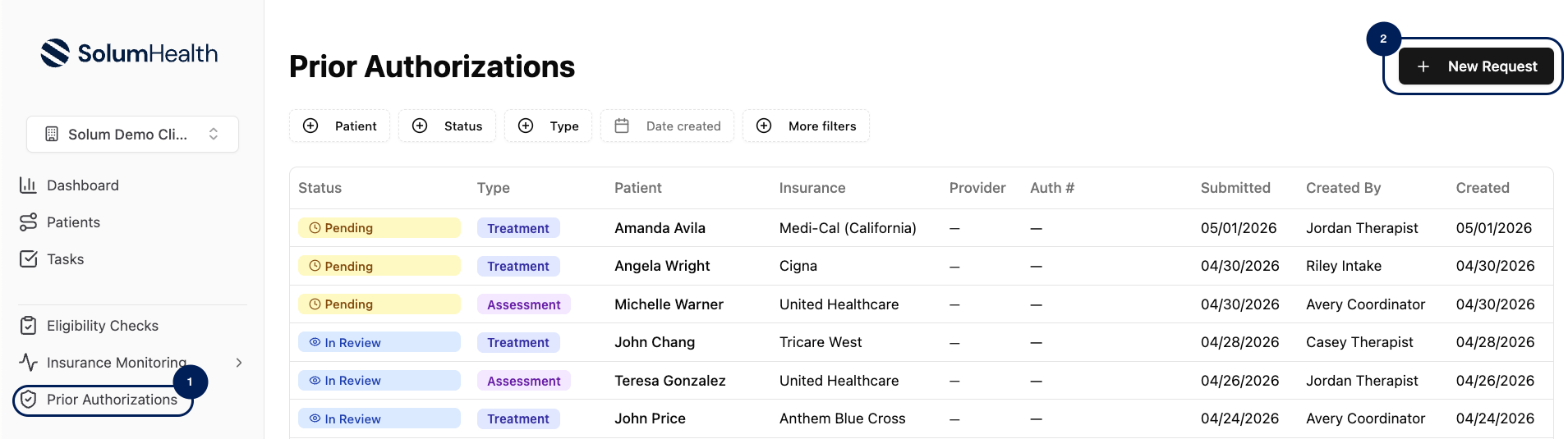
3. Add Patient Information
You have two options:Option A — Select an Existing Patient (Recommended)
Search for and select the patient from the dropdown.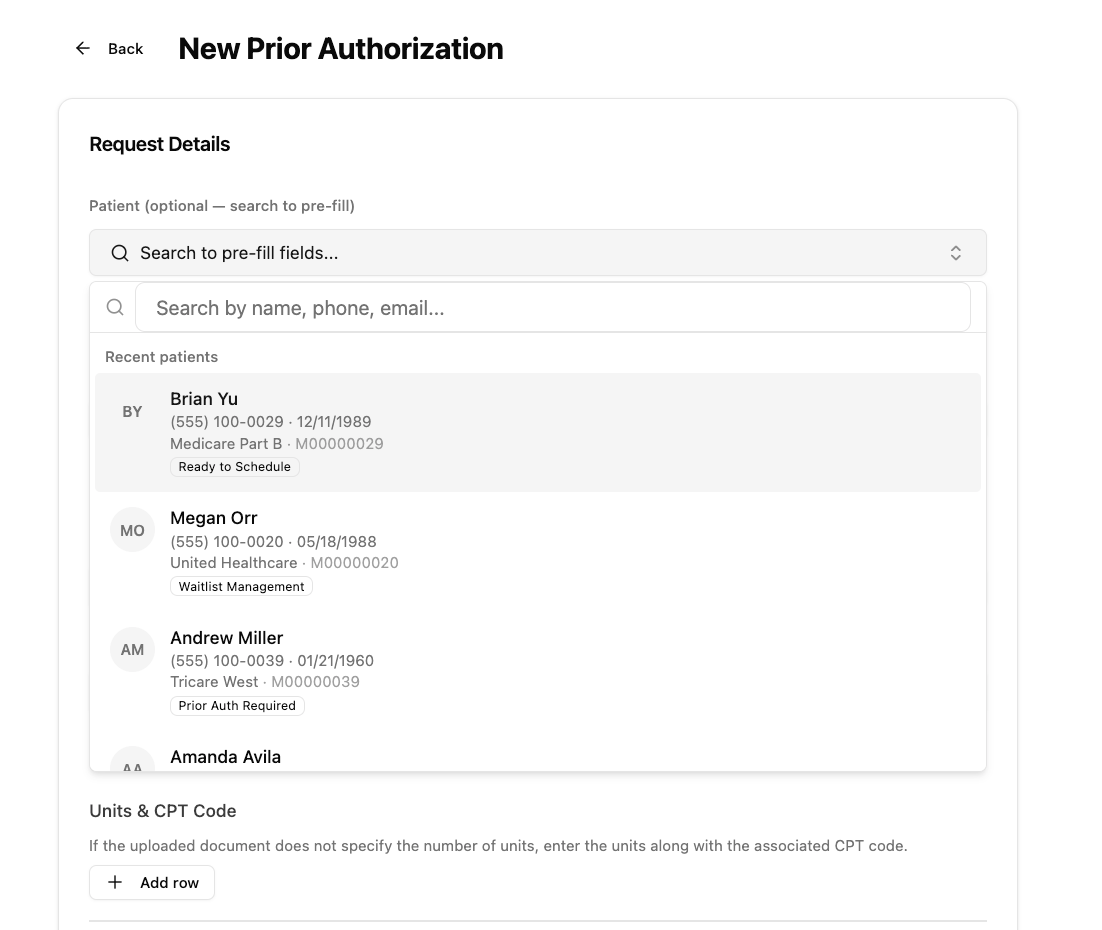
Option B — Enter Patient Information Manually
If the patient is not yet in Solum, fill in the following fields:4. Add Insurance Information
- If you selected an existing patient: Click on the insurance listed on the patient’s profile. Solum will pull their insurance details automatically.
-
If you entered the patient manually: Select the insurance plan from the dropdown and enter the Member ID.
5. Choose Specialty Type
Select the type of service you are providing from the Specialty Type dropdown.6. Add CPT Codes and Units
Enter the CPT codes and number of units being requested.If the supporting documents do not specify CPT codes or units — which is common for initial assessments — you will need to add this information manually based on your clinical documentation.
7. Select Authorization Type
Choose the appropriate authorization type from the Authorization Type dropdown.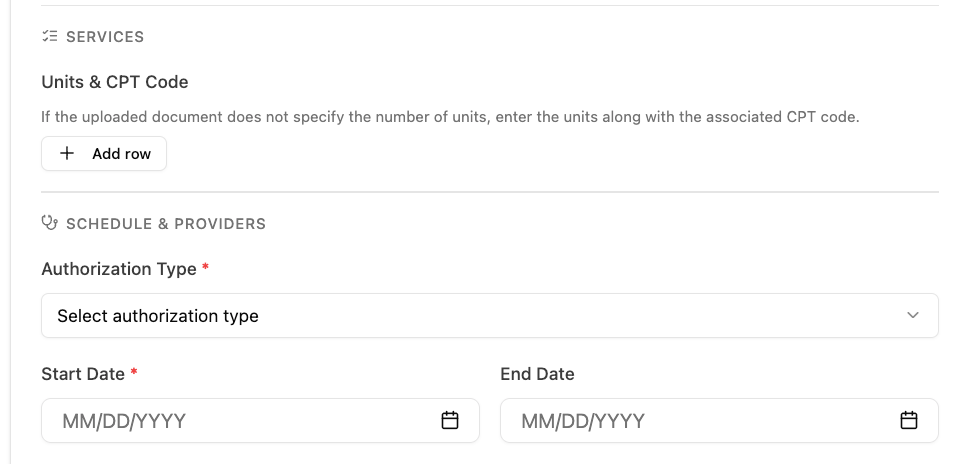
Coming with the next release: if the type doesn’t fit the ABA codes you entered, for example Treatment with only 97151, a warning under it names the type the codes fit and lets you switch with one click. The same warning appears when you create a request from documents and on the prior authorization’s page while it can still be edited. Duplicate warns when the copy’s codes won’t fit the type you pick, so you can fix them on the new authorization.
8. Set Start and End Dates
Enter the Start Date and End Date for the authorization period you are requesting.9. Add Requesting Provider and Facility
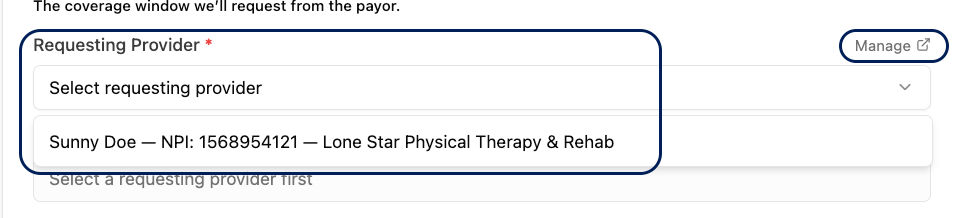
- Select the Requesting Provider from the dropdown.
- Select the Servicing Facility, or check Same as Requesting if the servicing facility is the same as the requesting provider.
- Enter the Servicing Address.
- Add the Location(s) where services will be provided. You can select more than one location.
If the provider you need does not appear in the dropdown, they have not been added to Solum yet. Click Manage in the top-right corner of this section to add them, or visit the Credentialing guide.
10. Add Notes (Optional)
Use the Notes field to include any special instructions for the Solum team — for example, if you need something specific added directly to the portal submission or if there are any exceptions to flag.11. Upload Supporting Documents
You have two options:- Upload directly: Attach any supporting documents from your computer.
- From Patient: If the patient already has documents on file in Solum, click From Patient and select the relevant files.
Request a VOB with it (optional)
Upcoming: this applies once the release containing PR #1602 is promoted.