

Quick Start
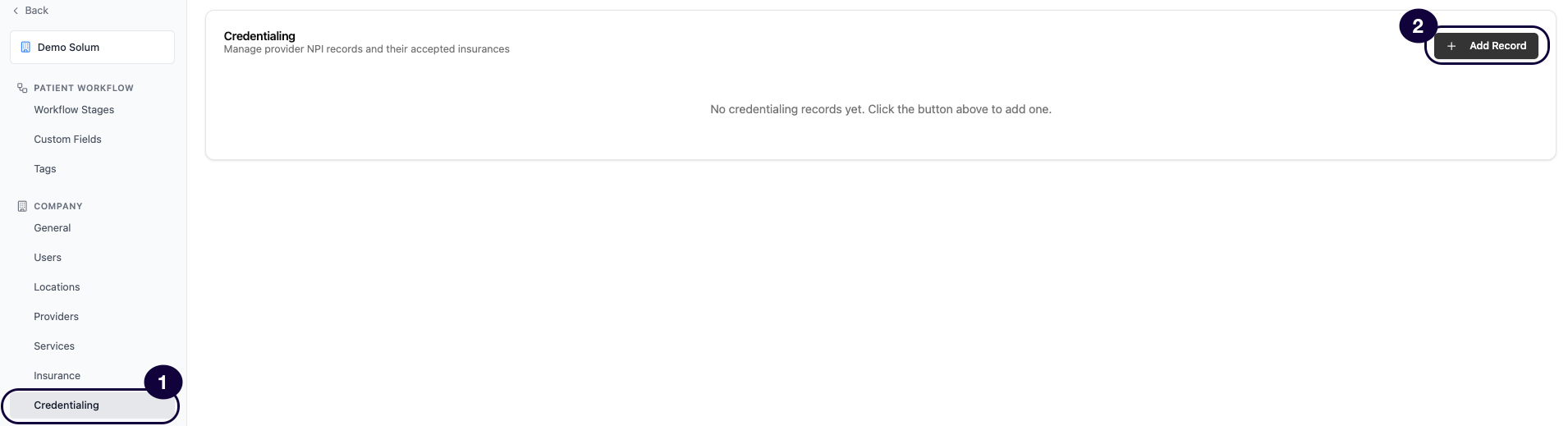
- Go to Settings → Credentialing in your Solum dashboard.
- Click “Add Record” to open the creation form.
- Fill in the basic info — name, type, and NPI are required.
- Link the address — for an organization (entity) NPI, select a location; for an individual NPI, select the provider (their locations come from the provider record).
- Add insurances — link the payers this NPI is credentialed with.
-
Click Create — the NPI is now available in eligibility check dropdowns.
Credentialing Fields
If you don’t see a location in the dropdown, you need to create it first. See the Locations guide for instructions.
Creating a Credentialing Record
- Go to Settings → Credentialing.
- Click Add Record.
- Enter a Name for this record.
- Select the Type:
- Entity — Use this for your facility or organization NPI (Type 2 NPI).
- Rendering Provider — Use this for an individual provider NPI (Type 1 NPI).
- Enter the NPI (10 digits).
- Enter the Tax ID if available. This is optional.
- Link the address: for an Entity NPI, select a Location from the dropdown — this pulls the address from the location you have already configured in Settings → Locations. For a Rendering Provider NPI, select the Provider instead — the record shows the locations set on that provider (Settings → Providers).
- Add Insurances by selecting the payers this NPI is credentialed with from the list.
If you don’t see an insurance payer in the list, review the Insurance guide for how to add payers to your account.
- Click Create.
Adding Multiple NPIs
You can create as many credentialing records as you need. This is common when your practice has:- Multiple physical locations, each with their own entity NPI
- Several individual rendering providers
- Different NPIs credentialed with different insurance payers
Editing a Credentialing Record
Click on any credentialing record to open it for editing. You can update the name, type, NPI, Tax ID, location, and linked insurances at any time.How Credentialing Connects to Eligibility Checks
When you run an eligibility check, the Provider NPI field offers a dropdown of all NPIs from your credentialing records. Selecting one automatically fills in the NPI for the check. This means your team does not need to memorize or look up NPI numbers. They select the correct provider or location from the list, and the check runs with the right credentials.Network Status on VOBs
Upcoming: this applies once the backend release containing PR #1596 is promoted.
- In network when the insurance is linked to the NPI with the status Active. A link limited to Plan types or In-network plans counts only for a policy of one of those plan types or plans (the plan is the insurance name the policy shows); when the policy’s plan type isn’t known, a link limited to plan types doesn’t count.
- Out of network when the insurance is linked with the status Out Of Network and the link isn’t limited to plan types or plans.
- In network when the insurance isn’t linked to the NPI at all, but the policy’s plan type is one of the NPI’s In-network with all plans of these types. A link to the insurance is an exception to this rule, whatever its status.