

Insurance Monitoring — Troubleshooting Failed Eligibility Checks
A step-by-step guide for finding failed eligibility checks inside Insurance Monitoring and re-running them after corrections.Step 1 — Open Insurance Monitoring
From the left-hand navigation menu, click Insurance Monitoring. In the Insurance Monitoring submenu, click Batches.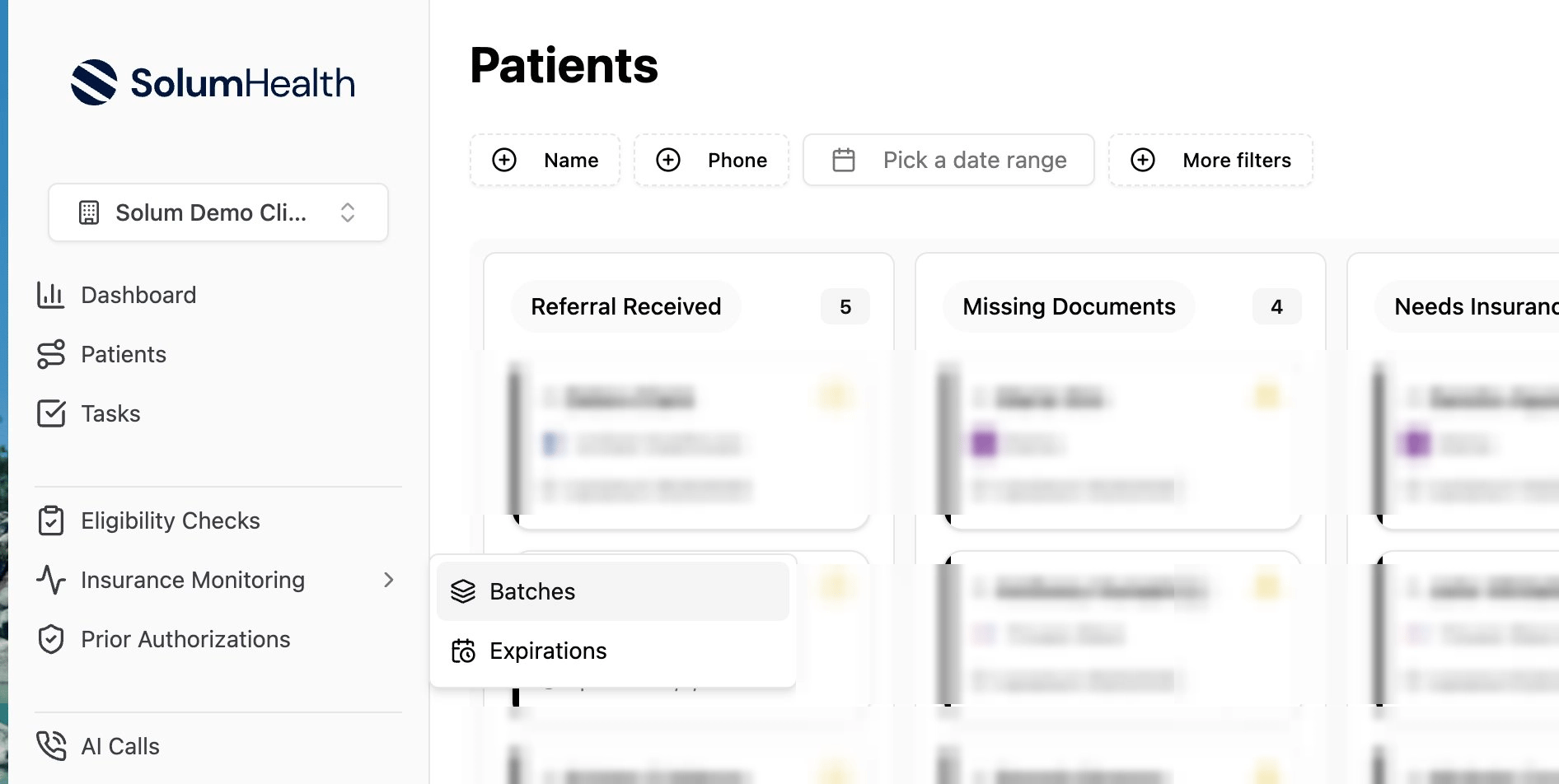
Step 2 — Select the batch
On the Eligibility Batches page, click the batch you want to review (for example, Current Intake Wave). Each row shows its status and a breakdown of Total, Active, Inactive, and Failed checks.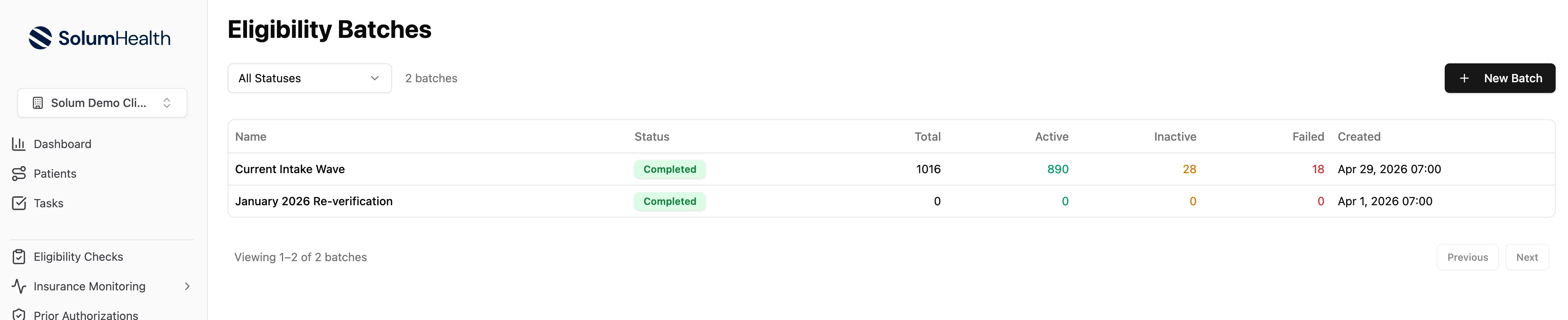
Step 3 — Review the batch summary
At the top of the batch you’ll see summary cards: Total Checks, Active, Inactive, Failed, and Pending. Focus on the Failed card, these are the checks that returned errors and need attention.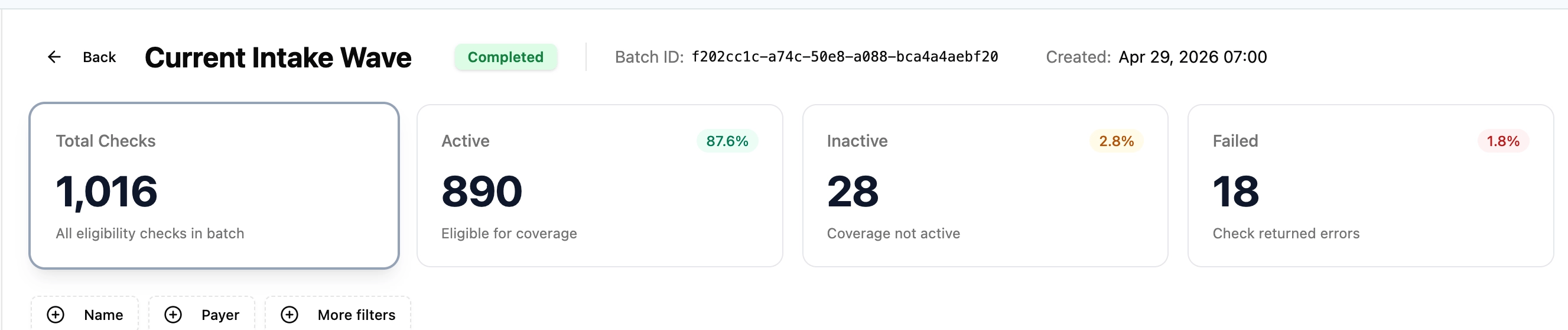
Step 4 — Filter to Failed and open the check
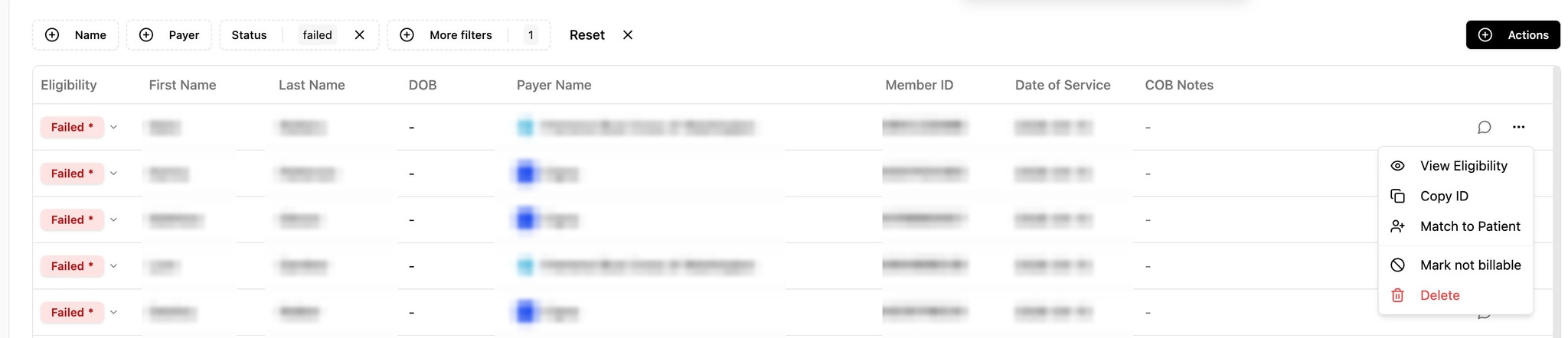
Click the Failed card to show only the failed checks. Find the patient, click the... menu on the right, and choose View Eligibility.
Step 5 — Edit and Retry
On the Eligibility Check detail page, click Edit and Retry. Make the necessary corrections (e.g., Member ID, payer, date of service, name/DOB), then re-submit the check.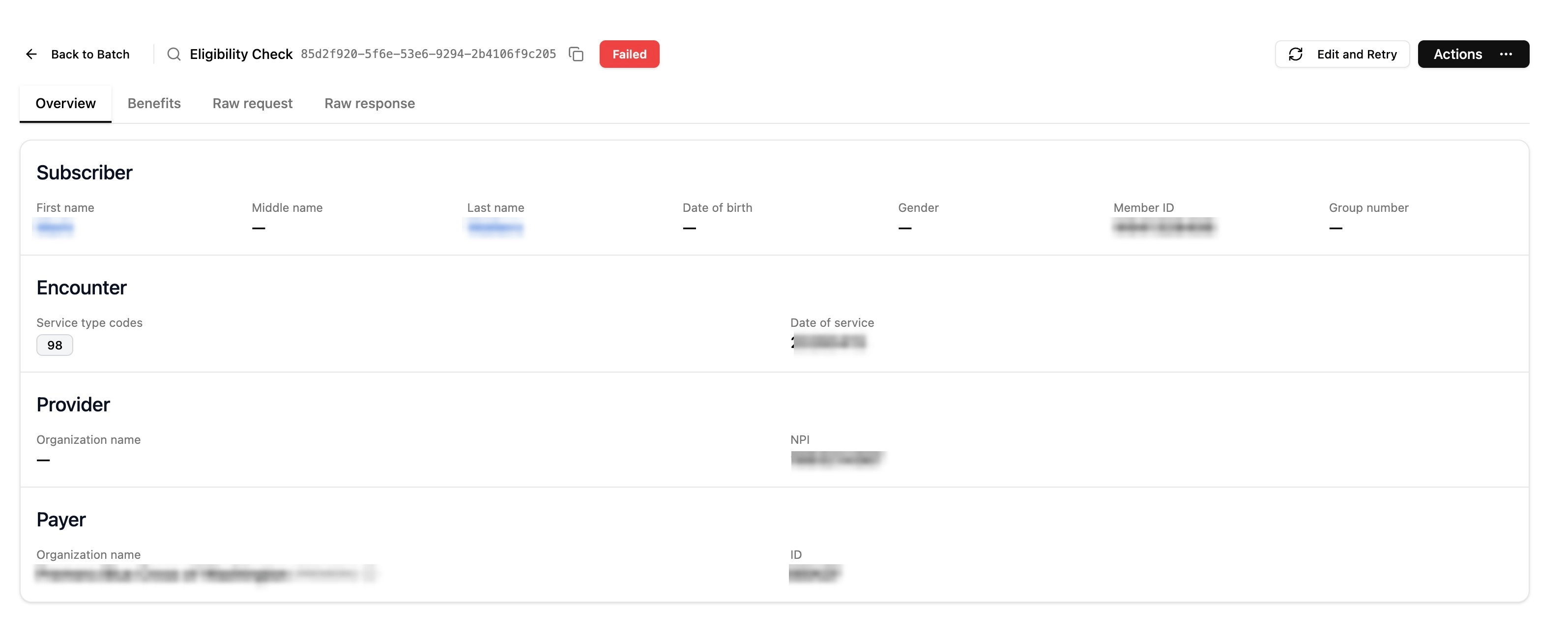
Step 6 — Correct the fields and re-run the check
On the Retry Eligibility Check form, correct the field(s) that caused the error — most commonly Member ID, Date of Birth, Insurance Payer, or Date of Service. When the information is fixed, click Check Eligibility to re-run the check.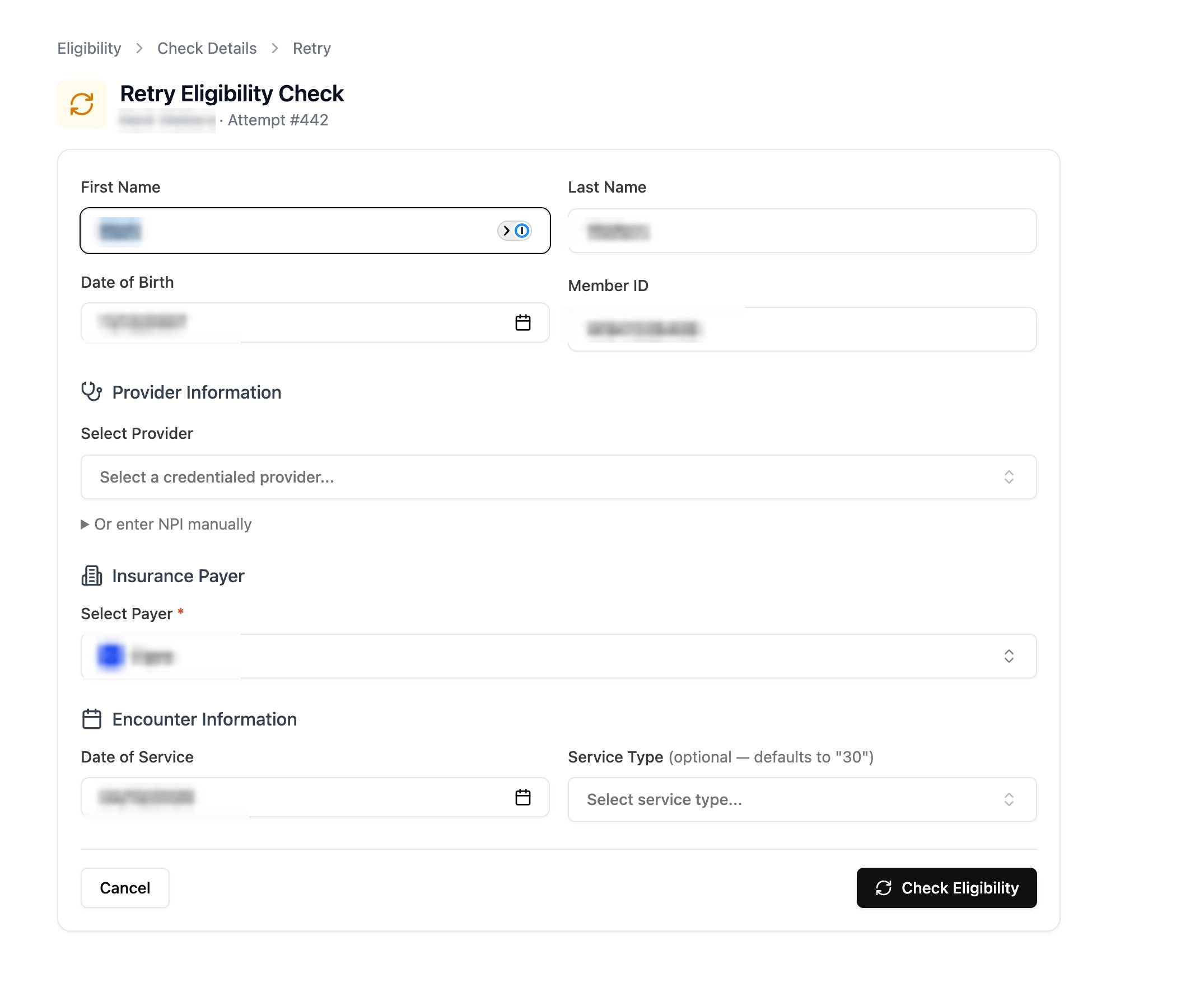
Quick reference
- Menu → Insurance Monitoring
- Batches
- Select the batch
- Open the Failed checks
...→ View Eligibility- Edit and Retry → apply corrections → re-submit